
Wi-Fi Slow? Check Who Is Using Your Internet
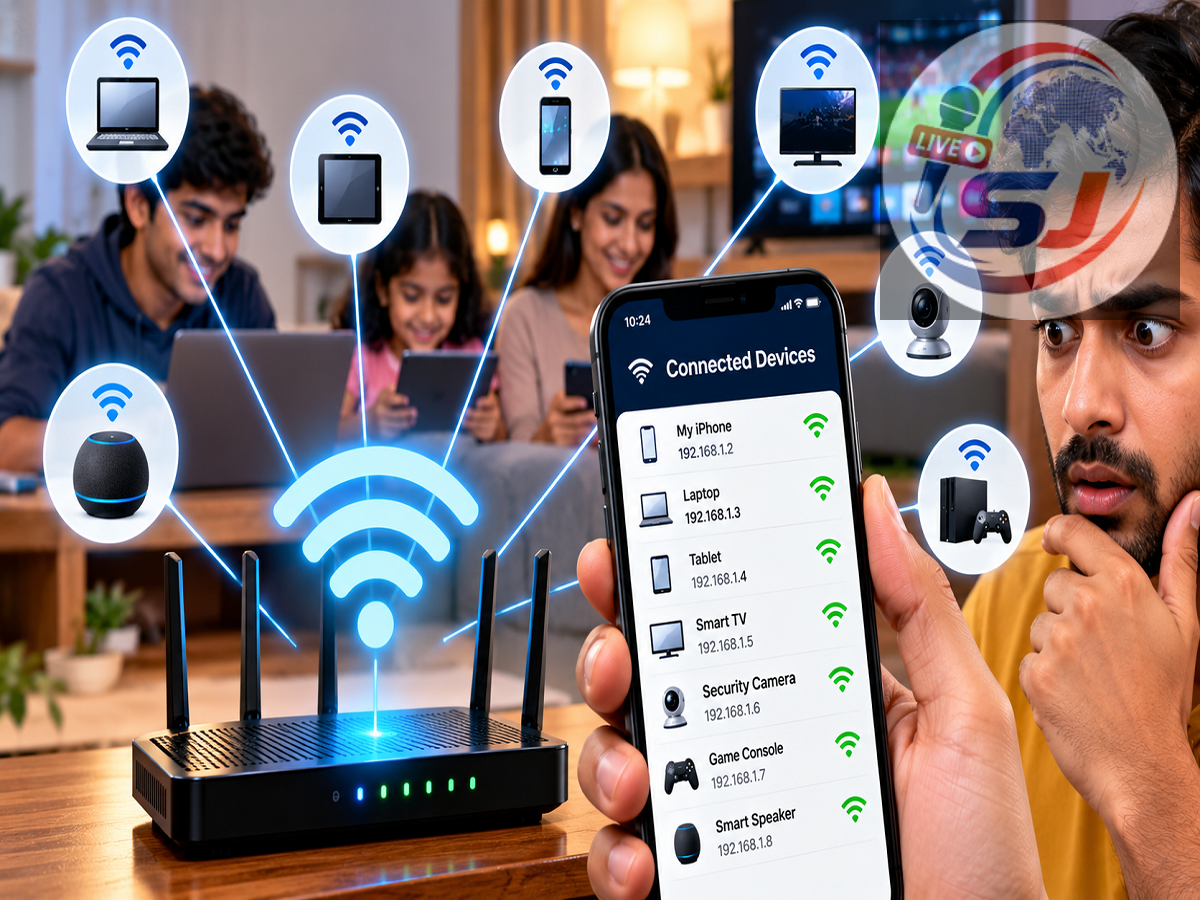
A slow Wi-Fi connection can quickly become frustrating, especially when you are working from home, streaming videos, attending online meetings or downloading important files. If your broadband connection suddenly feels slower than usual, you may immediately assume that your internet service provider or router is responsible.
But there can be another possibility: too many devices may be connected to your Wi-Fi network, including a device you do not recognise.
An unknown connection does not always mean someone has deliberately stolen your Wi-Fi password. It could be an old phone, smart TV, security camera, smart speaker or another device that you forgot was connected. Still, checking the devices using your network is a useful troubleshooting and security step.
Here are some easy ways to find out what is connected to your Wi-Fi and what to do if you notice an unfamiliar device.
Why Does Wi-Fi Suddenly Become Slow?
Several factors can affect Wi-Fi performance.
Your internet service provider may be experiencing an outage or congestion, the router may be positioned poorly, interference may be affecting the wireless signal, or too many devices may be using the available bandwidth simultaneously.
For example, if one person is downloading a large game while another is streaming a high-resolution video and several smart devices are connected in the background, your connection may feel considerably slower.
An unknown device using the network can also consume bandwidth.
Therefore, checking the list of connected devices can help determine whether excessive network usage is contributing to the problem.
Check Connected Devices Through Your Router
One of the most reliable ways to see which devices are using your Wi-Fi is through your router's own management interface or the official application provided by your router manufacturer or broadband provider.
Most modern routers include a section showing currently connected devices.
Depending on the manufacturer, it may be labelled:
Connected Devices, Device List, Clients, Network Map or Attached Devices.
The list may show information such as the device name, IP address, MAC address and whether it is connected through Wi-Fi or an Ethernet cable.
Some routers also allow you to pause or block a device directly from this section.
Use Your Broadband Provider's Official App
Many internet service providers offer mobile applications for managing broadband connections.
Depending on the provider and router model, these applications may allow customers to see devices currently connected to their home network.
Using the provider's official app is generally preferable to downloading an unknown third-party application because it is designed specifically to work with that broadband service.
Look for sections related to Wi-Fi management, router management or connected devices.
The exact menu will differ between providers.
Network Scanner Apps Can Also Help
Network-scanning applications can provide another way to identify devices connected to your local Wi-Fi network.
Such tools generally scan the local network and display devices they can detect.
The results may include smartphones, computers, televisions, printers, smart speakers, cameras and other internet-connected devices.
However, these applications have limitations.
A scanner may not always identify the exact product name or owner of every device. Some devices may appear only with technical information such as their IP or MAC address.
Therefore, an unfamiliar name does not automatically mean an intruder is using your network.
Before blocking anything, compare the results with devices in your home.
How to Identify an Unknown Device
Finding an unfamiliar device in your router's list can be confusing because device names are not always obvious.
A smart television might appear under the manufacturer's name rather than as “Living Room TV.” A smart plug or security camera may display only a model number.
One simple way to identify devices is to disconnect your known gadgets one by one and refresh the router's connected-device list.
For example, turn off Wi-Fi on one smartphone and see which entry disappears. Repeat the process for tablets, televisions and other devices.
This can help you identify which entries belong to your household.
Be especially careful before blocking devices used for security systems, smart-home equipment or work.
Change Your Wi-Fi Password If You Find an Unknown User
If you are confident that an unauthorised device is connected to your network, changing the Wi-Fi password is one of the most effective steps you can take.
Choose a strong password that is difficult to guess.
Avoid passwords based on your mobile number, name, house number, birthday or simple combinations such as “12345678.”
A longer password containing a combination of letters, numbers and symbols can provide better protection.
Once the password is changed, previously connected wireless devices will generally need to reconnect using the new credentials.
You will therefore need to update the password on your own phones, laptops, televisions and smart-home devices as well.
Use WPA2 or WPA3 Security
Check your router's wireless security settings while reviewing your network.
If supported, use WPA2 or WPA3 encryption rather than older and less secure standards.
WPA3 is the newer security standard, although availability depends on the router and the devices connected to it.
Some networks use a WPA2/WPA3 compatibility mode to support both newer and older devices.
Avoid leaving your Wi-Fi network open without a password.
Change the Router Admin Password Too
Your Wi-Fi password and router administrator password are not necessarily the same thing.
The Wi-Fi password controls access to the wireless network, while the administrator password protects access to the router's management settings.
If your router still uses a default or easily guessed administrator password, change it.
This can reduce the risk of someone accessing your router settings and modifying your network configuration.
Do not share the router administrator password unnecessarily.
Keep Router Firmware Updated
Router manufacturers may release firmware updates to fix security vulnerabilities, improve stability and resolve performance problems.
Some modern routers install updates automatically, while others require users to check manually through the router interface or official application.
If your router has not been updated for a long time, check whether a newer firmware version is available from the manufacturer or internet service provider.
Avoid downloading router firmware from unknown websites.
Slow Wi-Fi Does Not Always Mean Someone Is Stealing It
It is important not to assume that an unknown user is responsible every time your internet becomes slow.
Poor Wi-Fi performance can also result from signal interference, distance from the router, thick walls, an outdated router, ISP congestion, large downloads or too many connected devices.
Try running an internet speed test while standing near the router.
If the speed is good near the router but poor in another room, the problem is more likely related to Wi-Fi coverage than an unauthorised user.
If performance is poor even when connected close to the router, restarting the router and checking with your internet provider may help.
Secure Your Home Wi-Fi Network
Checking connected devices occasionally can help you understand how your home network is being used.
If you notice an unfamiliar device, first make sure it is not one of your own phones, smart TVs, cameras or other connected products. If you are confident that the device does not belong to your household, change the Wi-Fi password and review the router's security settings.
Using a strong password, WPA2 or WPA3 security, updated router firmware and an official router-management application can make your network more secure.
And remember, slow internet alone is not proof that someone else is using your Wi-Fi. Checking the connected-device list can help you determine whether the real problem is an unknown user, excessive bandwidth consumption, weak signal coverage or an issue with your broadband connection.