
WhatsApp Tips and Tricks 2026: 7 Hidden Features to Improve Privacy, Edit Messages and Make Chatting Easier
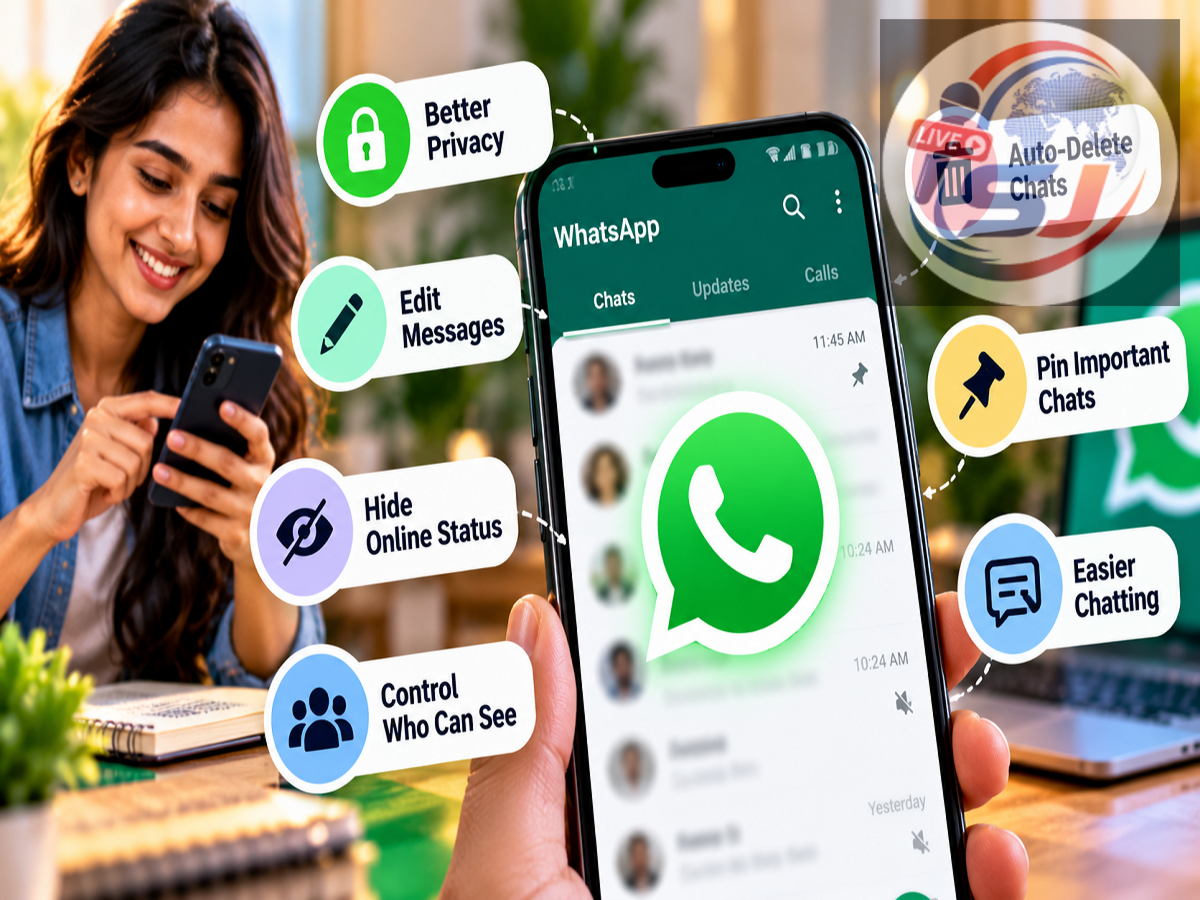
WhatsApp Features 2026: WhatsApp is one of the most widely used messaging applications, allowing people to exchange messages, share photos and videos, and make voice or video calls. However, many users are still unaware of several useful features that can make everyday conversations more convenient, organised and private.
From locking personal chats and editing sent messages to hiding your online status and saving important notes, WhatsApp offers a range of tools designed to improve the messaging experience.
These features are particularly helpful for users who manage multiple personal and professional conversations throughout the day.
Here are seven useful WhatsApp features you should know about in 2026, along with simple instructions for using them on Android and iPhone.
1. Disappearing Messages: Automatically Delete Chats After a Selected Time
If you do not want every message to remain in a conversation indefinitely, WhatsApp's Disappearing Messages feature can help.
The feature allows new messages in an eligible conversation to disappear automatically after a selected period.
WhatsApp offers three duration options:
-
24 hours
-
7 days
-
90 days
How to Enable Disappearing Messages
-
Open WhatsApp and select the conversation.
-
Tap the contact or group name at the top.
-
Find the Disappearing Messages option.
-
Select your preferred duration.
-
Return to the conversation to continue chatting.
The setting generally applies to new messages sent after it is enabled.
However, disappearing messages should not be considered a complete privacy guarantee. Recipients may still capture screenshots, copy information or save content through other methods before it disappears.
This feature is useful for temporary conversations or information that does not need to remain in chat history permanently.
2. Chat Lock: Protect Private Conversations With Additional Security
Some WhatsApp conversations contain personal or sensitive information that users may not want others to access when borrowing their phones.
The Chat Lock feature provides an additional layer of protection for selected conversations.
When a chat is locked, it is moved into a protected section that requires an available authentication method to access.
Depending on the device, authentication may include a fingerprint, facial recognition or device passcode.
How to Lock a WhatsApp Chat
-
Open the conversation you want to protect.
-
Tap the contact or group name.
-
Select Chat Lock.
-
Enable the available locking option.
-
Complete the authentication process.
After activation, the conversation can be accessed through the Locked Chats section or another supported protected access method.
WhatsApp also offers additional privacy controls for locked chats on supported versions.
Chat Lock is particularly useful for protecting sensitive conversations from casual access, although overall security still depends on keeping your phone and account protected.
3. Edit Sent WhatsApp Messages Without Deleting Them
Typing mistakes are common, especially when replying quickly.
Sometimes a message contains the wrong date, an incorrect address or a missing word.
Instead of deleting the entire message and sending a new one, WhatsApp allows users to edit a message after it has been sent.
How to Edit a WhatsApp Message
-
Open the conversation containing the message.
-
Press and hold the message you sent.
-
Choose Edit from the available menu.
-
Make the necessary changes.
-
Save the edited message.
On some Android devices, the Edit option may appear under the three-dot menu.
WhatsApp generally allows message editing for up to 15 minutes after sending.
Once edited, the message displays an Edited label.
The recipient can see that the message was changed, but WhatsApp does not provide a built-in history showing the previous text.
This feature can be especially useful when correcting important details in personal or work-related conversations.
4. Hide Your Online Status From Selected Contacts
Not everyone wants their WhatsApp contacts to know when they are online.
For example, you may want to check an important message without immediately responding to other conversations.
WhatsApp's privacy settings allow users to control who can view their last-seen information and online status.
How to Hide Your WhatsApp Online Status
-
Open WhatsApp.
-
Go to Settings.
-
Select Privacy.
-
Tap Last Seen and Online.
-
Under last-seen visibility, select an available option such as My Contacts Except...
-
Choose the contacts you want to exclude.
-
Under online visibility, select Same as Last Seen if you want the same restrictions to apply.
Users can also choose more restrictive settings, depending on their preferences.
An important point is that hiding your last-seen and online information can also limit your ability to view similar information about other users.
The feature gives users greater control over their availability and digital privacy.
5. Pin Important Messages So You Can Find Them Quickly
WhatsApp group conversations can contain hundreds of messages.
Finding an important address, meeting time or instruction in a busy group can become frustrating.
The Pin Message feature helps users keep selected messages easily accessible.
WhatsApp supports pinning up to three messages in a chat, with available durations of 24 hours, 7 days or 30 days.
How to Pin a WhatsApp Message
-
Open the relevant personal or group conversation.
-
Press and hold the important message.
-
Select Pin from the menu.
-
Choose the preferred duration.
-
Confirm the action.
On iPhones, the option may appear within an additional menu.
Pinned messages are particularly useful in family groups, office discussions, event planning chats and study groups.
Unlike pinning an entire conversation to the top of the chat list, this feature highlights a specific message inside the conversation.
6. Set Different Notification Sounds for Important Contacts
WhatsApp users often receive messages from friends, family members, colleagues and various groups throughout the day.
When every notification sounds the same, it can be difficult to identify which conversation needs attention without checking the phone.
Custom notification sounds can help users distinguish between important contacts and routine group messages.
How to Change Notification Sounds on WhatsApp
-
Open the conversation for the contact or group.
-
Tap the name at the top of the screen.
-
Open the available Notifications settings.
-
Select the notification sound or tone option, where supported.
-
Choose the preferred sound and save the setting.
The exact steps can differ between Android and iOS, and some notification settings may be controlled through the phone's operating system.
Users can also mute less important conversations to reduce interruptions.
This feature is helpful for people who want to recognise priority messages without constantly opening WhatsApp.
7. Message Yourself: Save Notes, Photos and Important Information
WhatsApp is not limited to communicating with other people.
The Message Yourself feature allows users to create a personal conversation for storing information they may need later.
You can use it to save shopping lists, addresses, website links, reminders, photos, documents and voice notes.
How to Send a WhatsApp Message to Yourself
-
Open WhatsApp.
-
Tap the button to start a new chat.
-
Look for your own contact, usually marked as You or Message Yourself.
-
Open the conversation.
-
Type a note or attach the information you want to save.
Your personal chat can function as a convenient place to collect everyday information.
However, it should not replace a dedicated password manager or secure storage service for highly sensitive data.
Users should also ensure that their WhatsApp account and device are properly secured.
WhatsApp's 7 Useful Features at a Glance
| WhatsApp Feature |
Main Benefit |
|---|---|
| Disappearing Messages |
Automatically removes new messages after a selected duration |
| Chat Lock |
Adds protection to selected conversations |
| Edit Messages |
Corrects sent messages within the allowed time |
| Hide Online Status |
Controls who can see when you are online |
| Pin Messages |
Keeps important messages easy to find |
| Custom Notifications |
Helps identify important chats by sound |
| Message Yourself |
Saves personal notes, links and reminders |
How to Get the Latest WhatsApp Features
Some WhatsApp features may not appear on every device at the same time.
Availability can depend on the operating system, app version and feature rollout.
Android users can check for updates through the Google Play Store, while iPhone users can use the Apple App Store.
It is important to download updates from official sources rather than unfamiliar websites or third-party application packages.
Keeping WhatsApp updated can also provide security improvements and bug fixes.
WhatsApp Tips 2026: Which Features Are Most Useful?
The most useful WhatsApp feature depends on how you use the application.
For privacy-conscious users, Chat Lock and online status controls may be particularly valuable.
People who regularly share important information in groups may benefit from pinned messages.
Those who frequently make typing mistakes can use message editing, while Message Yourself can serve as a convenient personal note-taking tool.
Custom notification sounds and disappearing messages provide additional ways to manage conversations.
The biggest advantage is that most of these features are already built into WhatsApp, so users generally do not need to install additional applications.
By exploring the app's privacy and chat settings, users can make their daily messaging experience more organised, convenient and secure.
Note: Menu names and feature availability may vary depending on the WhatsApp version, device and operating system.