
WhatsApp Privacy Check: See Who Can View Your Photo, Last Seen and Status With These Simple Settings
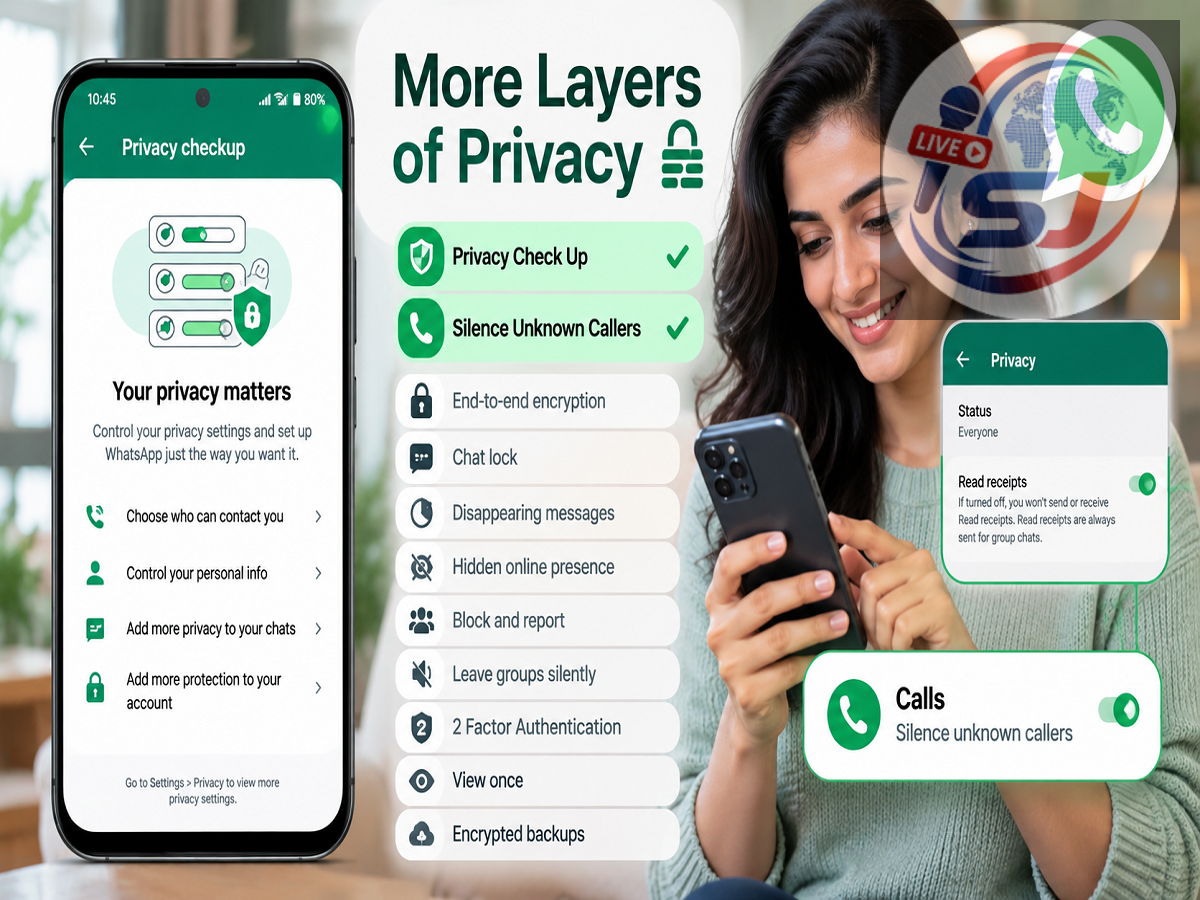
WhatsApp may feel like a private messaging app, but some information connected to your account can be visible to other users depending on the privacy choices you have made. Your profile photo, About information, Last Seen, online presence and Status updates are among the details whose visibility can be controlled through the app.
The good news is that WhatsApp provides several privacy controls that allow users to decide who can see different parts of their profile. You can also manage who is allowed to add you to groups and reduce interruptions from calls made by unknown numbers.
Reviewing these settings takes only a few minutes and can help you limit unnecessary exposure of personal information. Here's how to perform a quick WhatsApp privacy check on your phone.
Start With WhatsApp's Privacy Section
The easiest way to understand what other people may be able to see is to open WhatsApp's privacy controls.
Open WhatsApp > Settings > Privacy. Depending on your device and app version, the exact navigation or appearance may differ slightly.
Inside the Privacy section, you will find separate controls for different features. Instead of changing everything without checking, review each setting individually.
This allows you to decide which information should be visible broadly, which should be restricted to contacts and which should be hidden from selected people.
Check Who Can See Your Last Seen
The Last Seen feature can indicate when you last used WhatsApp, depending on your privacy settings.
If you do not want everyone to have access to this information, review the Last Seen and online visibility controls.
WhatsApp provides choices that can include options such as Everyone, My Contacts, My Contacts Except... and Nobody, depending on the particular setting and current app version.
Selecting a more restrictive option can reduce the number of people who can see when you last used the app.
Users should also remember that WhatsApp may apply reciprocal limitations to some Last Seen visibility settings.
Control Who Can See When You're Online
Online status is related to, but not exactly the same as, Last Seen.
A person may be able to see that you are currently online depending on your privacy configuration.
WhatsApp provides a control for deciding who can see when you are online, with the available choice linked to your Last Seen preferences.
If you are concerned about people monitoring when you use WhatsApp, this is one setting worth reviewing carefully.
Review Your Profile Photo Visibility
A profile picture can reveal more personal information than many users realise.
A family photograph, workplace picture or personal portrait could provide information you would rather not share with unknown numbers.
Go to the Profile Photo option inside Privacy and review who currently has permission to see it.
If you do not want unknown WhatsApp users to view your picture, restricting visibility to your contacts can provide greater privacy. You can also exclude particular contacts where the available settings allow it.
Don't Forget Your 'About' Information
WhatsApp's About section is easy to overlook.
Some people use it for a short message, profession, location-related information or another personal detail. Even an old About message that you have forgotten can reveal information about you.
Open the About privacy setting and check who can currently view it.
If the information is outdated or unnecessarily personal, you can either change the text or restrict its visibility.
Decide Exactly Who Can See Your Status
WhatsApp Status is designed for sharing photos, videos, text and other temporary updates, but not every saved contact necessarily needs to see everything you post.
Status privacy provides controls for choosing your audience.
For example, you can broadly share Status updates with your contacts, exclude selected contacts or restrict an update to a smaller group of chosen people, depending on the available options.
This can be useful when personal and professional contacts are saved on the same phone.
Reviewing Status privacy before sharing something sensitive is a better habit than assuming only close friends will see it.
Control Who Can Add You to WhatsApp Groups
Unwanted group additions can be irritating and can also expose your phone number to people you do not know.
WhatsApp provides Groups privacy controls that help determine who can directly add you to a group.
Open the Groups section under Privacy and review the available choices.
A more restrictive setting can reduce the chances of being unexpectedly added to promotional, spam or unknown groups.
Depending on your privacy settings, people who cannot directly add you may instead have the option to send a private group invitation.
Turn On Silence Unknown Callers
Spam and suspicious WhatsApp calls are another common concern.
The Silence Unknown Callers feature can prevent calls from unknown numbers from ringing your phone.
Importantly, this does not necessarily erase or completely block those calls. They can still appear in your WhatsApp call history, allowing you to review them later and return a legitimate call if necessary.
To check the feature, open:
WhatsApp > Settings > Privacy > Calls > Silence Unknown Callers
Turn it on if you prefer calls from unknown WhatsApp numbers not to ring your device.
This can be particularly helpful for users receiving frequent unsolicited calls.
Silencing a Call Is Different From Blocking a Number
Users should understand the difference between these two actions.
Silence Unknown Callers reduces the interruption caused by calls from numbers that WhatsApp treats as unknown under the feature's operation. The call can still be recorded in your call list.
Blocking, on the other hand, is a separate action used when you do not want a particular account to contact you through normal WhatsApp interactions.
If a specific number repeatedly sends suspicious messages or makes unwanted calls, consider using WhatsApp's block and report options where appropriate.
Privacy Settings Cannot Stop Every Scam
Making your profile more private can reduce unnecessary exposure, but it does not make a WhatsApp account immune to fraud.
Scammers can still send phishing messages, impersonate relatives or businesses, distribute malicious links and attempt to trick users into revealing confidential information.
Never share your OTP, UPI PIN, ATM PIN, card CVV, internet-banking password or WhatsApp verification code with another person.
Be particularly suspicious of anyone who creates urgency by claiming that your bank account, SIM, WhatsApp account or government benefit will be blocked unless you immediately share a code or click a link.
Enable Additional Account Protection
Privacy and account security are closely connected, but they are not identical.
While privacy settings determine who can see certain information, security features help protect access to the account itself.
Users should review the security features available in their current version of WhatsApp and enable appropriate protections, such as two-step verification, where available.
Keeping WhatsApp and the phone's operating system updated is also important because updates can contain security improvements and new privacy features.
A Two-Minute Privacy Review Can Make a Difference
WhatsApp provides users with considerable control over how much profile information they expose, but these settings are useful only if people actually review them.
Take a few minutes to check Last Seen and online status, profile photo, About, Status, Groups and Calls under the Privacy section.
There is no single privacy configuration that is right for everyone. Someone who uses WhatsApp primarily with family may prefer different settings from a person who regularly communicates with customers or new business contacts.
The key is to make a deliberate choice rather than leaving every setting unchanged.
Reviewing your WhatsApp privacy settings periodically can help ensure that your personal information is visible to the people you intend—and not simply to whoever happens to have your phone number.