
WhatsApp Message Editing Guide: Correct Sent Messages Within 15 Minutes, Know Whether Old Text Can Be Recovered
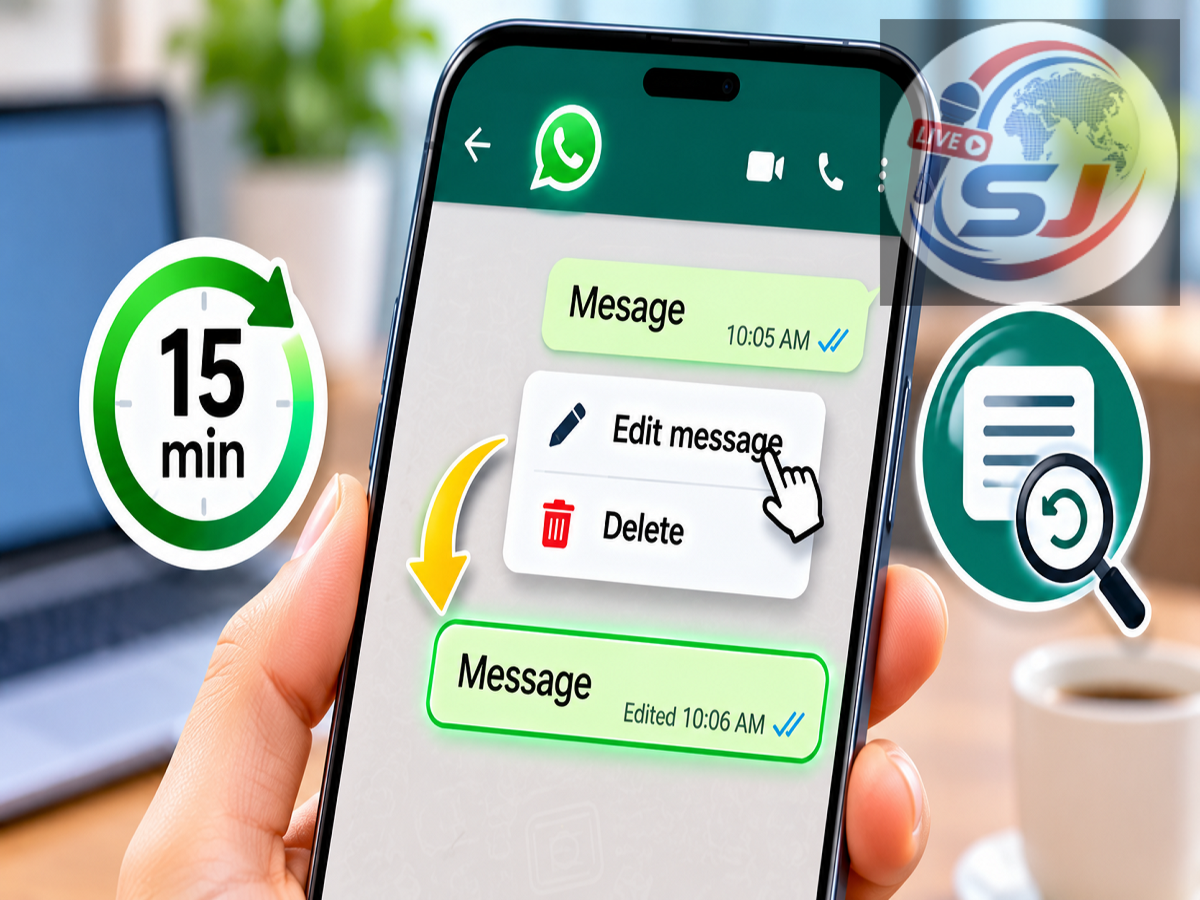
WhatsApp Message Editing Feature: Sending a WhatsApp message with spelling mistakes, incorrect information or grammatical errors is a common experience. Earlier, users often had to delete the entire message or send another text to correct the mistake. However, WhatsApp's message editing feature allows users to modify their sent messages without deleting them.
The instant messaging platform provides a 15-minute window during which users can make corrections to their original messages. Once a message is modified, WhatsApp displays an 'Edited' label alongside its timestamp, informing the recipient that changes have been made.
Interestingly, recipients cannot directly access the previous versions of an edited message through WhatsApp's official interface.
Here is everything you need to know about WhatsApp message editing, its limitations, privacy features and the process of correcting sent messages.
What Is the WhatsApp Message Editing Feature?
WhatsApp's editing facility allows users to modify text messages after sending them to individual contacts or groups.
Whether you have entered an incorrect date, misspelled someone's name or shared incomplete information, the editing feature enables you to make necessary corrections within the permitted time limit.
Users do not need to delete the original message or send a separate correction. The updated text appears in the existing conversation with an 'Edited' label.
The feature is particularly useful for professional communication, business discussions, family conversations and everyday messaging.
How to Edit a Sent WhatsApp Message on Android
Android smartphone users can modify their recently sent WhatsApp messages by following these steps:
-
Open WhatsApp on your smartphone.
-
Navigate to the individual or group conversation.
-
Locate the message you want to modify.
-
Press and hold the sent message.
-
Tap the three-dot menu in the upper-right corner.
-
Select the Edit option.
-
Make the necessary corrections.
-
Tap the confirmation button to save the updated message.
The modified message will appear in the conversation with an 'Edited' label.
How to Edit WhatsApp Messages on iPhone
iPhone users can also access the message editing feature without installing any additional applications.
Follow these simple steps:
-
Launch WhatsApp on your iPhone.
-
Open the relevant conversation.
-
Press and hold your recently sent message.
-
Select Edit from the available menu.
-
Modify the message according to your requirements.
-
Confirm the changes to update the text.
Remember that the editing option is generally available only within 15 minutes of sending the original message.
How to Edit Messages on WhatsApp Web and Desktop
Users accessing WhatsApp through a computer can also modify eligible sent messages.
Open WhatsApp Web or the desktop application and navigate to the relevant conversation. Move your cursor over the message and open its options menu.
Select Edit, make the required changes and confirm the updated message.
The availability and placement of menu options may vary depending on the application version.
WhatsApp Message Editing Rules at a Glance
| Feature |
Details |
|---|---|
| Message editing time limit |
15 minutes after sending |
| Multiple edits allowed |
Yes, within the permitted time |
| Edit received messages |
Not allowed |
| Edit personal chat messages |
Supported |
| Edit group chat messages |
Supported |
| Edited message indicator |
Displays an 'Edited' label |
| Previous message history |
Not available through WhatsApp |
| Original timestamp |
Retained |
| End-to-end encryption |
Applicable to edited messages |
| Supported platforms |
Android, iPhone, Web and Desktop, where supported |
Can You View the Original Version of an Edited WhatsApp Message?
One of the most frequently asked questions about WhatsApp's editing facility is whether recipients can recover the original message after it has been modified.
WhatsApp does not provide a built-in edit history feature that allows recipients to view previous versions of a message.
Once the sender makes a correction, the updated content replaces the original text displayed in the conversation. The recipient can identify that a modification has been made through the 'Edited' label, but cannot directly check what was changed.
However, the original message may already have been read, copied, captured in a screenshot or displayed in a notification before it was edited.
Therefore, editing a message does not guarantee that its original content will disappear completely from the recipient's knowledge or device.
How Many Times Can You Edit a WhatsApp Message?
Users can modify their own sent messages multiple times within the original 15-minute editing window.
For example, if you send a message at 10:00 AM, you can generally make corrections until 10:15 AM.
| Message Activity |
Time |
|---|---|
| Original message sent |
10:00 AM |
| First correction |
10:03 AM |
| Second correction |
10:07 AM |
| Third correction |
10:12 AM |
| Editing window expires |
10:15 AM |
Making a correction does not restart or extend the original editing period.
After the permitted time expires, users may need to send a separate clarification or use the Delete for Everyone feature if the message remains eligible.
Can You Edit Messages Sent by Other WhatsApp Users?
WhatsApp does not allow users to modify messages received from friends, family members, colleagues or other contacts.
The editing feature is restricted to messages sent from the user's own account.
Similarly, WhatsApp group administrators cannot use this feature to change messages posted by other group members.
This restriction helps maintain the integrity of conversations and prevents unauthorised alterations to another person's messages.
WhatsApp Edit Message vs Delete for Everyone
Although both features allow users to address messaging mistakes, they serve different purposes.
| Feature |
Edit Message |
Delete for Everyone |
|---|---|---|
| Primary purpose |
Correct existing text |
Remove a sent message |
| Original message position |
Retained |
Replaced with a deletion notice |
| Time limit |
15 minutes |
Separate WhatsApp-defined time limit |
| Updated content visible |
Yes |
No |
| Recipient informed |
Through 'Edited' label |
Through deletion notice |
| Suitable for |
Typing errors and corrections |
Accidentally sent messages |
The editing option is particularly convenient when users want to correct minor mistakes without interrupting the conversation.
Are Edited WhatsApp Messages Protected by Encryption?
WhatsApp uses end-to-end encryption to protect personal messages. This protection also applies to edited messages.
End-to-end encryption is designed to ensure that message content can be accessed by the communicating participants rather than unauthorised third parties during transmission.
However, encryption does not prevent recipients from taking screenshots, copying messages or sharing information they have already received.
Users should also avoid third-party applications claiming to recover complete WhatsApp message editing histories, as these applications may request unnecessary permissions and expose private information.
Why Is the WhatsApp Edit Option Not Showing?
If you cannot find the Edit option, several factors could be responsible:
-
The 15-minute editing window has expired.
-
You are attempting to modify a received message.
-
Your WhatsApp application is outdated.
-
The selected message type does not support editing.
-
Temporary application or connectivity issues are affecting the feature.
Updating WhatsApp through the Google Play Store or Apple App Store and restarting the application may help resolve certain technical problems.
WhatsApp's message editing facility provides users with greater flexibility while communicating. Whether correcting spelling mistakes, updating meeting details or fixing incorrect information, the feature makes everyday conversations more convenient without requiring users to delete and resend messages.
Disclaimer: The additional examples, comparison tables and troubleshooting instructions have been included to expand the supplied article. WhatsApp interface options and feature availability may vary depending on the application version and device. The procedures have not been independently tested for this article.