
WhatsApp May Stop Working on Older Phones: Check Your Android or iPhone Before You Lose Access
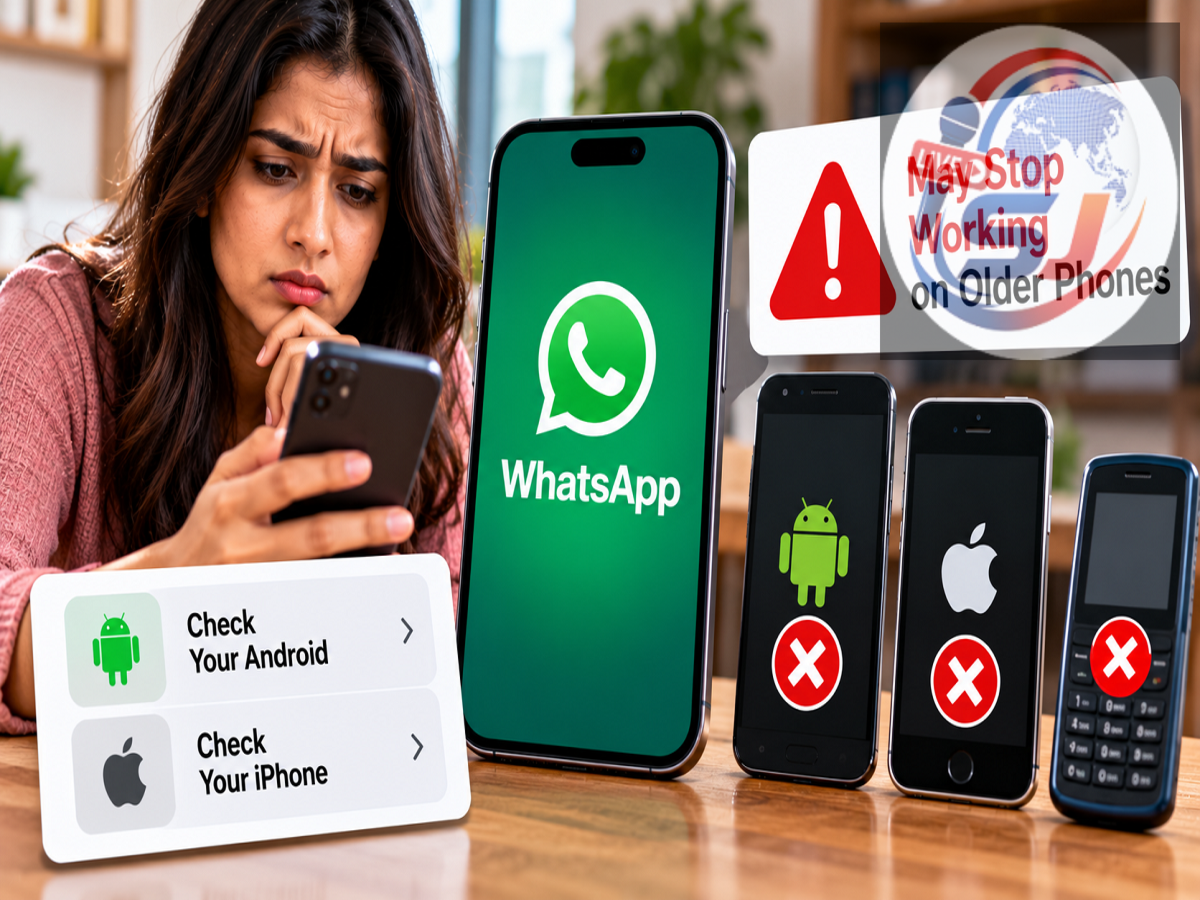
WhatsApp Support on Older Phones: If you are still using an older Android phone or iPhone, it is worth checking which operating-system version your device is running. WhatsApp periodically changes its minimum software requirements, and devices that can no longer run a supported operating system may eventually lose access to the messaging app.
For millions of users, WhatsApp is used not only for personal conversations but also for video calls, office communication, documents, photos and other important information. Losing access unexpectedly can therefore cause considerable inconvenience.
However, users should understand one important point: WhatsApp does not stop working on a phone merely because the device is old. Compatibility primarily depends on whether the device can run an operating-system version that WhatsApp continues to support.
Here's what older-phone users should check and what they can do if their device is approaching the end of WhatsApp support.
Why Does WhatsApp Stop Supporting Older Phones?
Apps such as WhatsApp are regularly updated with new security, privacy and functionality improvements.
Over time, older versions of Android and iOS may no longer provide the technical capabilities required for newer versions of an app.
Maintaining support for very old operating systems can also become difficult as developers introduce updated security technologies and features.
As a result, WhatsApp periodically reviews which operating systems it supports.
When an OS version falls below WhatsApp's minimum requirement, users may eventually be unable to install updates or continue using the app normally.
Will WhatsApp Stop Working on Every Old Smartphone?
No.
The age of the phone alone does not determine whether WhatsApp will continue working.
Two smartphones purchased around the same time could have different outcomes if one received newer operating-system updates while the other did not.
The most important things to check are:
-
Your current Android or iOS version
-
Whether a newer software update is available
-
WhatsApp's current minimum OS requirements
-
Whether your phone manufacturer still provides compatible system updates
Users should therefore verify their software version rather than relying only on lists of old phone models circulating online.
How Android Users Can Check Their OS Version
Android users can usually check their operating-system version through the phone's Settings menu.
Open Settings and look for About phone, About device or a similar option.
Then find Android version or Software information.
The exact menu names can vary depending on whether you use a Samsung, Xiaomi, OnePlus, Motorola, Vivo, Oppo, Realme or another Android device.
Once you know your Android version, compare it with WhatsApp's current official minimum requirements.
How iPhone Users Can Check Their iOS Version
The process is straightforward on an iPhone.
Go to:
Settings → General → About
Look for the iOS Version or Software Version entry.
You can also open:
Settings → General → Software Update
to check whether Apple has made a newer iOS version available for your device.
If an update is available and your device supports it, installing the latest compatible version may allow you to continue using supported apps for longer.
What If Your Phone Cannot Receive Any More Updates?
This is where older devices can become a problem.
If your smartphone is running an operating system below WhatsApp's supported minimum and the manufacturer no longer provides a compatible software update, simply updating WhatsApp may not solve the issue.
Eventually, the app could stop functioning properly or prevent continued use on that unsupported software.
In such a situation, moving to a device that supports WhatsApp's current requirements may become necessary.
Before switching phones, however, users should protect their chat history and other important data.
Back Up WhatsApp Before Changing Phones
If your device is approaching the end of software support, do not wait until WhatsApp becomes inaccessible before thinking about your data.
Open WhatsApp and review the app's backup settings.
Depending on the device and WhatsApp's current backup options, Android and iPhone users can protect eligible chat data using the supported backup or transfer process.
Make sure the backup is recent before moving to another device.
Also confirm that you can access the relevant account and phone number required to restore or transfer your WhatsApp data.
Update the Phone If an Update Is Available
Before buying a new smartphone, check whether your existing device can still receive a newer operating-system version.
Go to the software-update section in Settings and look for an available update.
If your phone supports a compatible version, updating the operating system may be enough to keep WhatsApp working.
Before installing a major system update, it is sensible to back up important phone data and ensure the device has sufficient storage and battery power.
What If No Compatible Update Is Available?
If your phone cannot run the minimum operating system required by WhatsApp, there may eventually be no practical software workaround.
In that situation, users who want to continue using WhatsApp will likely need to move their account to a compatible device.
After getting the new phone, install WhatsApp through the official app store, verify your existing phone number and follow WhatsApp's supported process for transferring or restoring chats.
The exact transfer method can vary depending on whether you are moving from Android to Android, iPhone to iPhone, Android to iPhone or iPhone to Android.
Don't Download Unofficial WhatsApp Versions
Users of unsupported smartphones may encounter websites claiming that a modified or older version of WhatsApp can keep working indefinitely.
Such downloads should be treated cautiously.
Installing WhatsApp from unknown websites or using unofficial modified apps can expose your device and account to privacy and security risks.
It is safer to use WhatsApp's official application and follow its published compatibility requirements.
Why Backing Up Early Matters
Waiting until the app completely stops working can make the migration process more stressful.
Your WhatsApp account may contain years of conversations, photographs, videos and documents.
A recent backup or supported device-to-device transfer can make switching phones significantly easier.
Users with an ageing smartphone should therefore periodically check their backup status even if WhatsApp is currently working normally.
What Older-Phone Users Should Do Now
If you are concerned that WhatsApp could stop working on your phone, follow this basic process:
Check OS version → Check for software updates → Compare with WhatsApp's official minimum requirements → Update if possible → Back up or transfer important chats → Move to a compatible phone if the device can no longer meet the requirements.
There is no need to replace a phone solely because it is several years old if it still runs a supported operating system and WhatsApp continues to work normally.
Don't Panic Over Viral “WhatsApp Will Stop Tomorrow” Messages
Lists claiming that WhatsApp will suddenly stop working on dozens of phone models often circulate on social media and messaging platforms.
Such claims should be checked carefully.
WhatsApp support is generally tied to operating-system requirements, and model-specific lists can sometimes be incomplete, outdated or misleading.
Users should rely on WhatsApp's official compatibility information and their phone's software settings before concluding that a device is no longer supported.
Bottom Line
Older Android phones and iPhones can eventually lose WhatsApp support when they can no longer run an operating-system version that meets the app's minimum requirements.
That does not mean every old smartphone will suddenly lose WhatsApp access at the same time.
If you use an ageing device, check its Android or iOS version, install any available system updates and make sure important WhatsApp chats are backed up or ready for transfer.
If the phone can no longer receive a compatible operating-system update, moving to a supported device may ultimately be necessary.
Most importantly, verify compatibility through official WhatsApp information instead of relying solely on viral lists of supposedly unsupported phones.