
WhatsApp Filling Your Phone Gallery? Here's How to Stop Photos and Videos From Saving Automatically
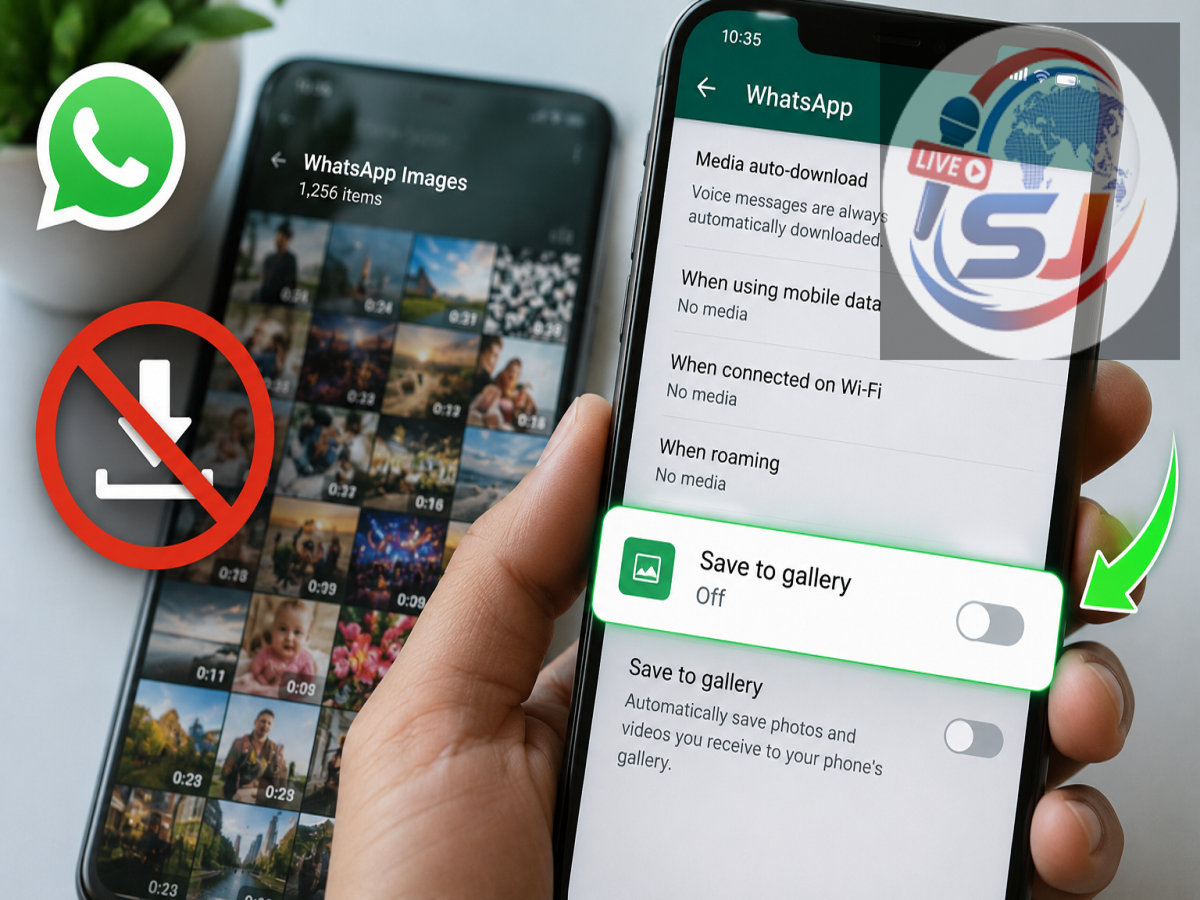
WhatsApp Tips: If your phone's gallery is getting crowded with unwanted WhatsApp photos and videos, you're not alone. By default, WhatsApp automatically downloads and saves media files received in chats, which can quickly consume your phone's storage space. Fortunately, the app offers built-in settings that let users control automatic media downloads and gallery visibility with just a few taps.
Whether you want to save storage, reduce mobile data usage, or keep your gallery clutter-free, adjusting these settings can make a big difference.
Why Does WhatsApp Fill Your Gallery?
Whenever someone sends you a photo, video, audio file, or document, WhatsApp may automatically download it based on your current settings. Images and videos are also often saved directly to your phone's gallery, making it difficult to keep personal photos separate from shared media.
Over time, this can lead to:
-
Gallery filled with unnecessary images and videos
-
Faster storage consumption
-
Slower phone performance
-
Difficulty finding personal photos
-
Increased mobile data usage
The good news is that you can easily prevent this from happening.
How to Turn Off Automatic Media Downloads on WhatsApp
Follow these simple steps to stop WhatsApp from downloading media files automatically:
-
Open the WhatsApp application.
-
Tap the three-dot menu in the upper-right corner (Android users).
-
Select Settings.
-
Go to Storage and Data.
-
Scroll to the Media Auto-Download section.
-
Open the settings for Photos, Audio, Videos, and Documents individually.
-
Choose your preferred option:
-
Wi-Fi
-
Mobile Data
-
Never (recommended if you want complete control)
-
Selecting Never ensures that media files are downloaded only when you choose to open them.
Hide WhatsApp Media From Your Gallery
If you don't want downloaded WhatsApp images and videos to appear in your phone's gallery, you can also disable media visibility.
On Android
-
Open WhatsApp.
-
Go to Settings.
-
Tap Chats.
-
Turn Media Visibility Off.
After disabling this option, newly downloaded WhatsApp photos and videos will no longer appear in your gallery app, although they will still remain accessible within WhatsApp.
Benefits of Changing These Settings
Disabling automatic downloads and gallery visibility offers several advantages:
-
Keeps your gallery clean and organized.
-
Saves valuable phone storage.
-
Reduces unnecessary mobile data usage.
-
Lets you download only important files.
-
Improves privacy by preventing shared media from appearing in your gallery automatically.
A Simple Way to Manage Storage
WhatsApp provides users with complete control over how media files are downloaded and stored. By spending just a minute adjusting these settings, you can prevent unnecessary photos and videos from filling your device and enjoy a cleaner, more organized smartphone experience.
If you frequently receive media in group chats, turning off automatic downloads is one of the easiest ways to free up storage while keeping only the files you actually need.