
UPI AutoPay Guide: How to Set Recurring Payments on Google Pay and PhonePe
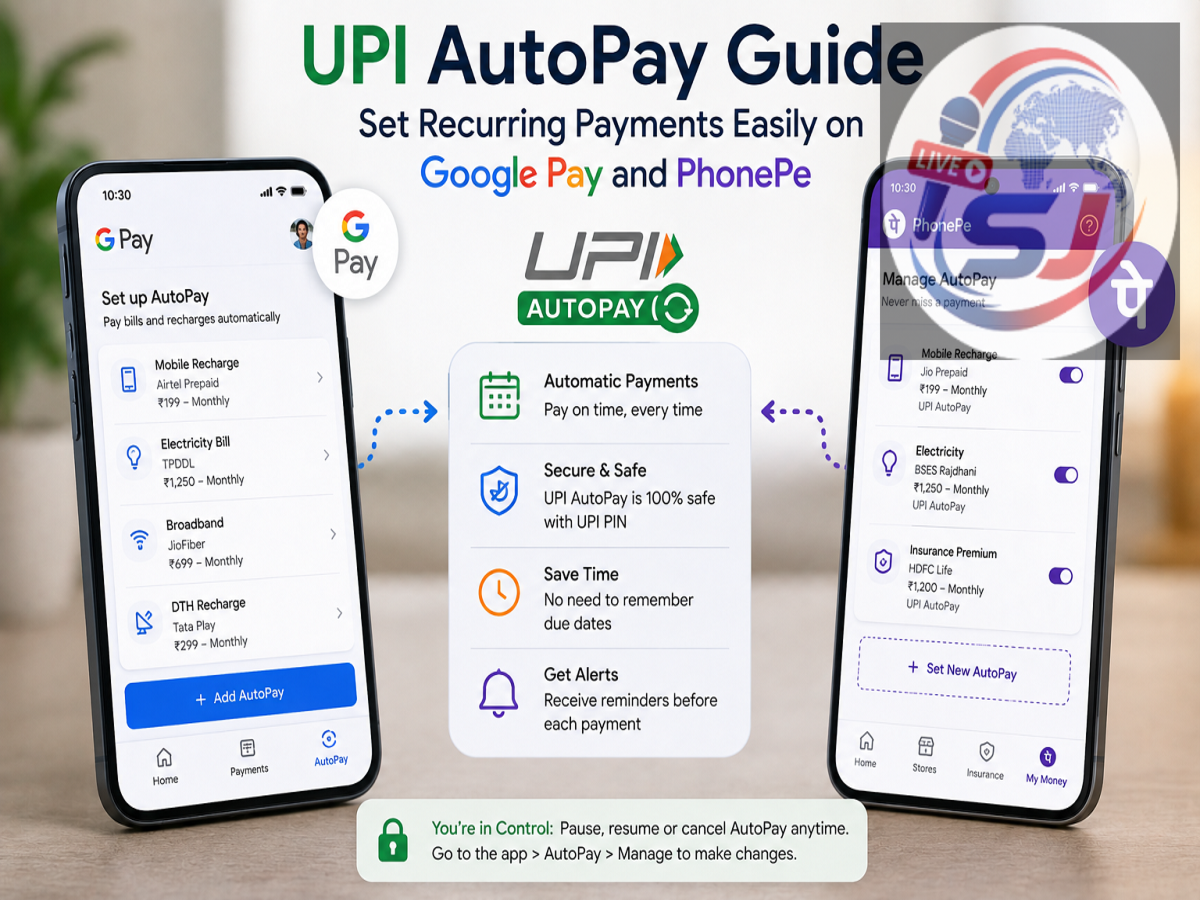
UPI AutoPay Guide: Remembering every monthly subscription, utility bill, insurance premium or investment payment can be difficult. Missing a due date may result in service interruptions, missed investment instalments or late-payment charges. UPI AutoPay is designed to reduce that burden by allowing users to approve recurring payment mandates through supported UPI apps.
The National Payments Corporation of India, or NPCI, offers UPI AutoPay for recurring transactions such as mobile and electricity bills, EMIs, insurance premiums and mutual fund payments. Once a mandate is authorised, eligible payments can be processed automatically according to the agreed schedule.
Users can also manage existing mandates through supported UPI applications, including options to pause, resume or revoke them in applicable cases. Here is how the system works and how you can manage AutoPay through Google Pay and PhonePe.
What Is UPI AutoPay?
UPI AutoPay is a recurring-payment facility built on the Unified Payments Interface.
Instead of manually making the same payment every month or at another fixed interval, a user can approve an electronic mandate authorising future debits under specified conditions.
The mandate contains important information such as the merchant, payment frequency and applicable amount or limits. Once approved using the required authentication, subsequent eligible payments can be processed automatically according to the mandate.
This can be especially useful for payments that occur regularly.
What Payments Can Be Managed Through UPI AutoPay?
Depending on the merchant, bank and UPI app, recurring mandates can be used for several types of payments.
Common examples include:
-
Mobile and utility bills
-
Electricity payments
-
EMI payments
-
Insurance premiums
-
Mutual fund investments
-
Subscription services
-
Other eligible recurring merchant payments
Google Pay's official support information lists mobile bills, electricity bills, EMIs, insurance and mutual funds among the recurring payments supported through UPI AutoPay.
Availability can vary between merchants and financial institutions.
Why Can AutoPay Be Useful?
The main advantage is convenience.
Once you have correctly approved a legitimate mandate, you do not need to manually remember every recurring due date. NPCI lists timely payment and avoidance of late fees or penalties among the benefits for customers.
It can also reduce repetitive payment steps for regular subscriptions or investments.
However, convenience should not mean ignoring your bank account. Users should periodically review active mandates to ensure they still need the service and recognise every recurring debit.
Know the Transaction Limits
UPI AutoPay limits can depend on the type of payment.
NPCI states that the additional-factor-of-authentication threshold for certain recurring use cases—including credit card bill payments, mutual funds and insurance—has been increased up to ₹1 lakh.
Other categories may operate under different applicable limits and rules.
Because UPI regulations and transaction limits can change, users should check the current limit displayed by their UPI app or bank when approving a mandate rather than relying on an old limit from another source.
How to Approve a UPI AutoPay Mandate on Google Pay
If a merchant creates an AutoPay request linked to your Google Pay UPI account, you can review it from the app.
The interface may change slightly with updates, but the general process is:
-
Open Google Pay on your smartphone.
-
Tap your profile picture.
-
Select Autopay.
-
Look for the relevant pending mandate or requested recurring payment.
-
Open it and carefully review the merchant, amount and schedule.
-
Choose the option to approve the mandate if everything is correct.
-
Enter your UPI PIN when prompted to authenticate the setup.
Google Pay also provides controls for managing active mandates from its AutoPay section.
Never approve a mandate simply because a notification appears on your phone. Verify that you actually initiated the subscription or payment request.
How to Manage an Existing Mandate on Google Pay
Google Pay allows users to review active recurring mandates directly inside the app.
According to Google's current instructions:
-
Open Google Pay.
-
Tap your profile picture.
-
Select Autopay.
-
Open the Live section.
-
Select the mandate you want to manage.
-
Choose the available option, such as Pause autopay or Cancel autopay.
-
Authenticate the change with your UPI PIN.
-
Check the mandate's status to confirm that the action was completed.
If you pause a mandate, Google Pay may allow you to specify the pause period where supported.
How to Set Up or Approve AutoPay on PhonePe
PhonePe also supports recurring UPI mandates.
The exact layout can vary by app version, but users can generally manage mandates from the profile and AutoPay settings.
A typical process is:
-
Open the PhonePe app.
-
Tap your profile icon.
-
Locate the AutoPay or recurring-payment settings.
-
Select the mandate you want to review.
-
Confirm the merchant name, amount, payment frequency and other conditions.
-
Approve the mandate only if you recognise and agree to it.
-
Enter your UPI PIN to authorise mandate registration.
PhonePe states that users authenticate mandate registration using their UPI PIN in accordance with applicable NPCI security requirements.
Can You Cancel a UPI AutoPay Mandate?
Yes, eligible mandates can generally be managed after they have been created.
NPCI lists modify, revoke, pause and unpause functionality among the customer controls available for UPI AutoPay.
The precise options you see can depend on the mandate, merchant and UPI app.
If you no longer use a subscription or service, cancelling the underlying service alone may not always be enough. Check your UPI app as well to confirm the associated mandate's status.
Review Mandates Before Approving Them
Recurring payment fraud can occur when people authorise requests without reading the details.
Before entering your UPI PIN, check:
Merchant name: Make sure you recognise the company requesting the mandate.
Amount: Confirm the maximum or scheduled debit amount.
Frequency: Check whether the debit is monthly, quarterly, yearly or follows another schedule.
Validity: Review how long the mandate will remain active.
If anything looks unfamiliar, decline the request and contact the merchant through verified channels.
PhonePe specifically advises users to check their AutoPay settings when they are unsure whether a subscription mandate is genuine.
Your UPI PIN Should Only Be Entered in the Official Payment Flow
A UPI PIN is used to authorise transactions and mandates. It should never be shared with another person.
No legitimate customer-care executive needs you to tell them your UPI PIN over a phone call, message or social-media chat.
When authorising AutoPay, enter the PIN only inside the official UPI app's secure authentication screen.
If someone sends you a link and asks you to disclose the PIN directly, treat it as suspicious.
AutoPay Does Not Mean You Should Stop Monitoring Payments
Automatic payments are convenient, but they can also make forgotten subscriptions easier to overlook.
Review your list of active mandates periodically. You may discover subscriptions you no longer use or payments that should have been cancelled.
Also make sure the linked bank account has sufficient balance when a valid recurring payment is due. A failed debit could still lead to disruption of a service or other consequences depending on the merchant's terms.
Can UPI AutoPay Help Avoid Late Fees?
Yes, that is one of its practical benefits.
For recurring bills or payments where late charges apply, an active and correctly funded mandate can help ensure the debit takes place on schedule. NPCI explicitly identifies avoidance of late fees and penalties as a benefit of AutoPay.
However, users should still monitor notifications and account activity because transactions can occasionally fail due to insufficient funds, bank issues or other technical reasons.
The Bottom Line
UPI AutoPay can make recurring payments much easier to manage by allowing users to approve an electronic mandate once and let eligible future payments happen according to the agreed schedule.
Google Pay and PhonePe both provide tools for reviewing and managing supported mandates, while NPCI allows customers to control recurring payments through functions such as pause, resume and revoke.
The most important rule is to read every mandate carefully before entering your UPI PIN. Check the merchant, payment amount, frequency and validity period, and periodically review active mandates so that forgotten subscriptions do not continue charging your bank account.