
Turn Your Android Phone Into a Portable PC: A Simple Guide to Building a Desktop Setup
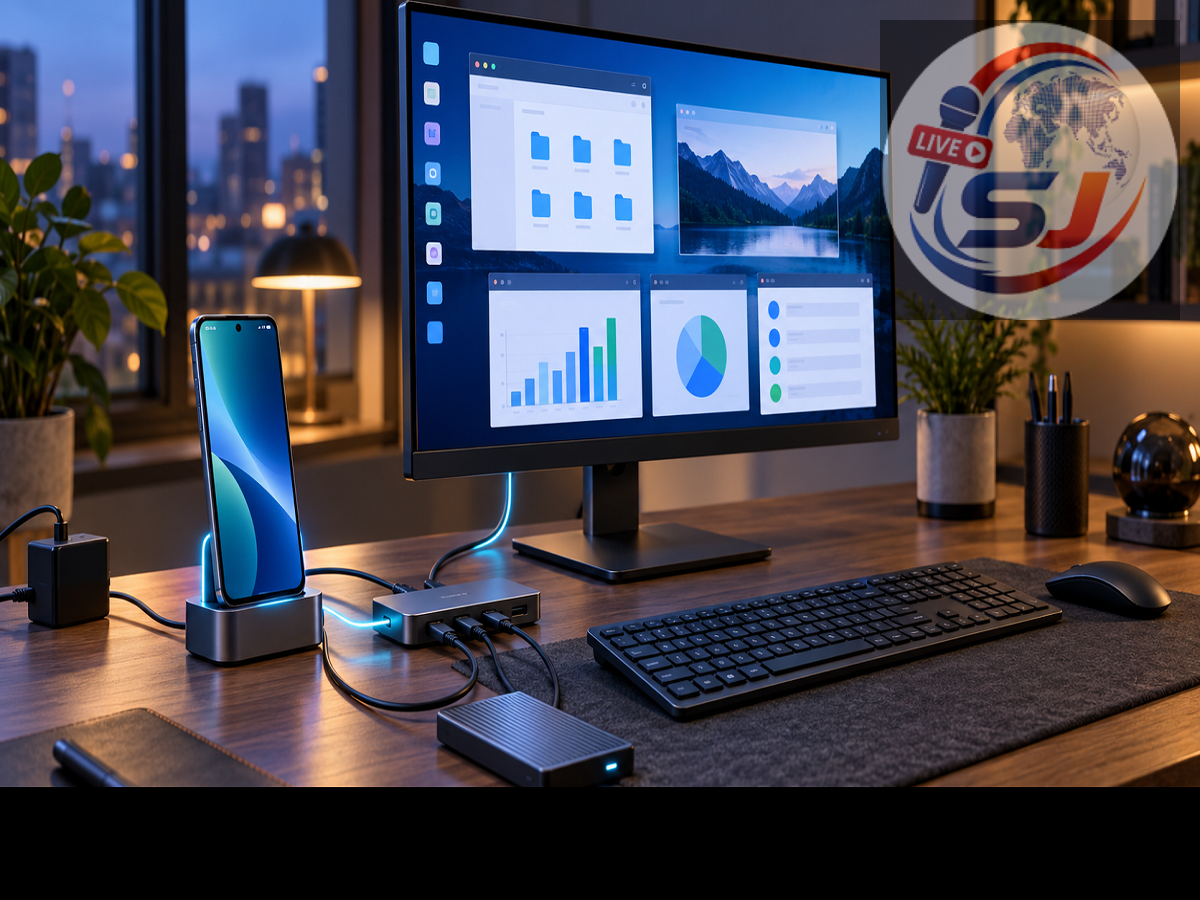
Modern Android smartphones are capable of handling much more than phone calls, messaging and entertainment. Powerful processors, generous storage, fast internet connectivity and USB-C ports have made it possible to complete many everyday computer tasks directly from a phone.
With the right accessories and a compatible device, an Android phone can be transformed into a compact workstation for writing documents, answering emails, attending video meetings, browsing websites and managing files. However, not every phone supports every desktop feature, so checking compatibility before purchasing accessories is essential.
Check Your Phone’s Display Support First
Connecting an Android phone to a monitor is one of the best ways to create a computer-style experience. The simplest wired setup generally requires a compatible USB-C-to-HDMI cable, adapter or multiport hub.
The important detail is that a USB-C connector does not automatically mean the phone can send video to an external screen. The device must support a suitable video-output standard, such as DisplayPort over USB-C. Some phones only use their USB-C port for charging and data transfer.
Check the manufacturer’s specifications or official support page for your exact model before buying an adapter. For example, Google says that supported Pixel 8 and newer phones can be connected to compatible monitors using an appropriate DisplayPort or HDMI-to-USB-C cable. Depending on the model and software, the phone may mirror its screen or offer additional display features. Google’s official Pixel instructions explain the available connection options.
Use a Built-In Desktop Interface
A desktop mode provides a more computer-like layout than ordinary screen mirroring. Instead of simply enlarging the mobile display, it may allow users to open apps in separate windows, resize them and move between multiple tasks.
Samsung DeX is one of the best-known examples. On supported Galaxy devices, it can display compatible Android apps on a monitor or television in a desktop-style environment. A keyboard and mouse can also be connected for navigation and typing. Some supported combinations can use DeX wirelessly, while others require a USB-C-to-HDMI connection or docking accessory. Compatibility varies between Galaxy models and software versions, so users should check Samsung’s device-specific information before assembling a setup. Samsung’s DeX support page provides further details.
Android also supports desktop windowing on certain compatible devices and large displays. According to Google’s Android guidance, the feature can run multiple applications in individual windows that users can resize and arrange.
Add a Keyboard and Mouse
Even without an external monitor, a Bluetooth keyboard can make an Android phone far more practical for productivity. It is especially helpful when drafting long emails, writing reports, editing documents or entering information into online forms.
A Bluetooth mouse can improve navigation, although the small phone screen may still limit the experience. Users can pair these accessories through the Bluetooth section in the phone’s settings. Wired USB accessories may also work when connected through an OTG adapter or compatible hub.
Google confirms that Android supports external keyboards and mice through USB or Bluetooth, although the precise settings can vary by device. Once connected, users may also be able to select a keyboard language, change the layout and access keyboard shortcuts.
Build a Complete Setup With a USB-C Hub
A USB-C hub can bring several connections together through a single accessory. Depending on the model, a hub may include:
-
An HDMI port for a monitor or television
-
USB ports for a keyboard, mouse or storage drive
-
An SD or microSD card reader
-
An Ethernet port for wired internet
-
A USB-C power-delivery port for charging
Power delivery is particularly valuable because using an external display, multiple accessories and demanding applications can drain a phone quickly. The charger and hub must support compatible charging standards, and the phone must also accept power while connected.
Avoid buying an unbranded hub solely because it is inexpensive. A poorly made accessory may cause connection failures, unstable charging or excessive heat. A hub from a reputable manufacturer with the correct video and power specifications is generally a safer choice.
Install Suitable Productivity Apps
Hardware is only one part of the arrangement. The phone also needs applications suited to the work being performed. Web browsers, email clients, cloud-storage platforms, video-meeting services and office suites can cover many daily requirements.
Google Docs, Sheets and Slides can be used for common document tasks, while Microsoft 365 and similar services offer additional office tools. Cloud storage can keep files accessible across devices. Some applications may behave differently on a large display, however, and not every Android app is optimized for keyboard input or resizable windows.
For specialized Windows or desktop software, remote-access services may be an option. These allow the phone to control another computer over the internet, but performance depends on connection quality and the security configuration of the remote system.
Can an Android Phone Completely Replace a Laptop?
For basic office work, web browsing, communication, presentations, media playback and lightweight file management, a capable Android phone can serve as a practical portable computer. It can be especially useful for travellers, students and professionals who want to carry less equipment.
A phone is less likely to replace a laptop for advanced video production, professional software development, large spreadsheets, complex design projects or applications available only on desktop operating systems. Heat, battery capacity, limited ports and mobile app restrictions may also become obstacles during long work sessions.
The most sensible approach is to treat the phone as a highly portable workstation rather than a universal PC replacement. Check the handset’s video-output and desktop-mode support, choose a reliable powered hub, connect comfortable input devices and use applications designed for your workload. With the right combination, a device that fits in your pocket can handle an impressive range of computer-like tasks.