
Smartphone Privacy Tips 2026: Change These 5 Settings to Protect Your Data and Improve Battery Life
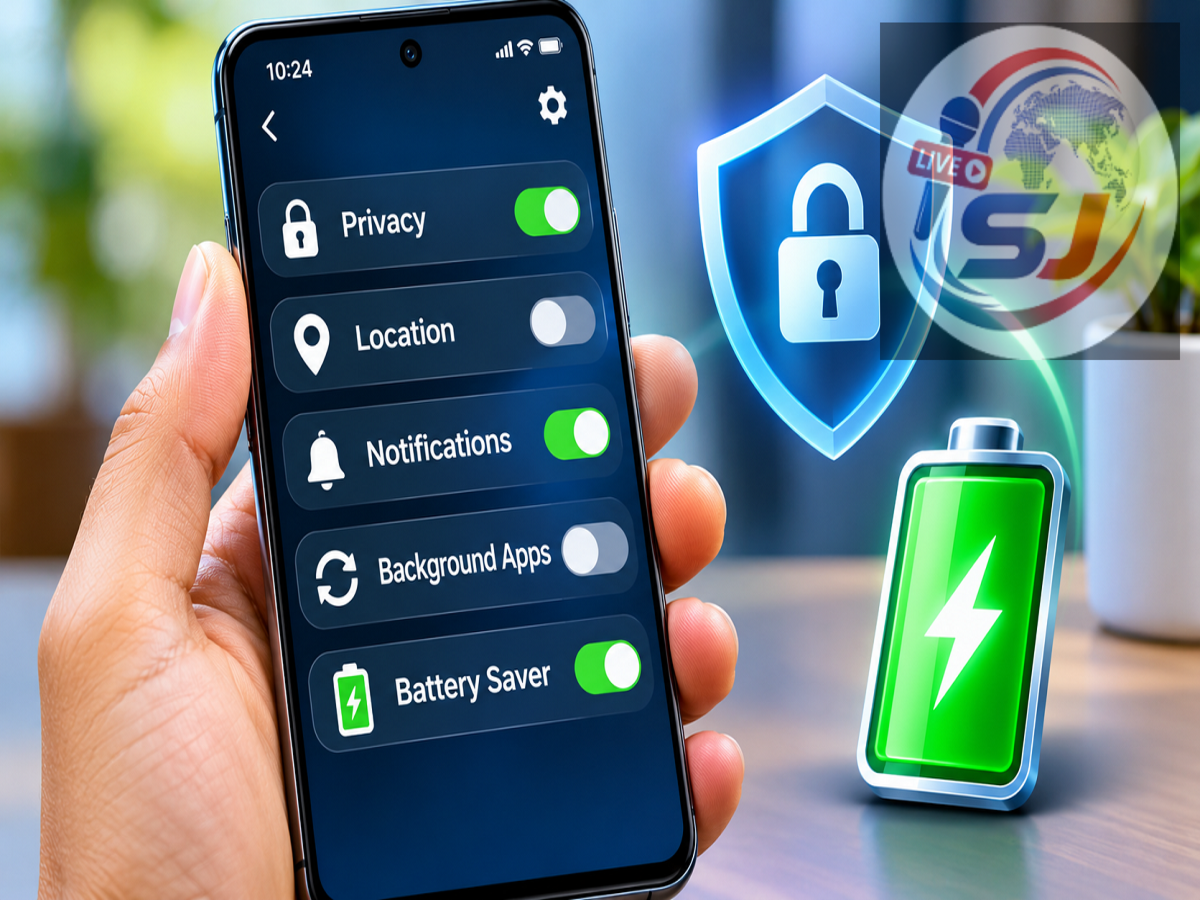
Smartphone Security Tips 2026: Smartphones have become an essential part of everyday life, storing everything from personal photographs and contact details to banking information, passwords and social media accounts. While modern Android phones and iPhones offer several security and convenience features, some settings may remain enabled even when users do not need them.
Unnecessary location tracking, background app activity, excessive notifications and sensitive app permissions can affect privacy, mobile data consumption and battery performance. Reviewing these settings regularly can help users maintain better control over their devices.
According to a report published by Live Hindustan on November 16, 2026, smartphone users should pay particular attention to five important settings that may create unnecessary privacy risks or consume additional battery power.
However, switching off every feature is not always the best solution. Some settings support navigation, emergency services, security alerts and essential connectivity. The key is to identify which permissions are genuinely necessary.
1. Location Permissions: Stop Apps From Tracking Your Location Unnecessarily
Location access is among the most sensitive permissions available on a smartphone. Applications such as Google Maps, ride-booking services, weather apps and food delivery platforms may require location information to function properly.
However, not every application needs continuous access to your whereabouts.
Some apps may request permission to access your location even when they are not actively being used. Depending on the application and operating system, this can increase background activity and expose more location information than necessary.
How to change location permissions on Android
-
Open your phone's Settings.
-
Select Location or Security & Privacy.
-
Open App Location Permissions or Permission Manager.
-
Choose an application from the list.
-
Select Allow only while using the app if continuous access is unnecessary.
-
Choose Don't Allow for applications that do not require location services.
On an iPhone, open Settings → Privacy & Security → Location Services and review permissions for individual applications.
Users can also disable precise location access for certain apps when an approximate location is sufficient.
Why it matters: Restricting unnecessary location access can improve privacy and may reduce battery consumption caused by repeated location requests.
2. Background App Activity: Reduce Unnecessary Data and Battery Usage
Many smartphone applications continue performing certain tasks even when they are not visible on the screen.
These activities may include checking for updates, synchronising information, refreshing content or communicating with online services.
While background processing is necessary for some applications, excessive activity can increase mobile data usage and battery consumption.
Social media, shopping, entertainment and other applications may periodically refresh information without direct user interaction.
How to control background activity
For Android users:
Open Settings → Apps, select the application and look for options such as Mobile Data, Background Data or Battery Usage.
Depending on the device, you may be able to restrict background data or limit battery activity.
For iPhone users:
Go to Settings → General → Background App Refresh.
You can disable background refresh for selected applications or adjust the feature according to your preferences.
Keep in mind that restricting background activity may delay updates, syncing or certain app functions. Important messaging, navigation and security applications should be managed carefully.
3. Unnecessary Notifications: Disable Alerts You Don't Need
Smartphone notifications are useful for receiving important information, including messages, payment confirmations, appointment reminders and security warnings.
However, allowing every application to send notifications can create unnecessary distractions.
Gaming applications, shopping platforms and entertainment services frequently send promotional alerts that may not require immediate attention.
Frequent notifications can also wake the screen, activate sounds or vibrations and contribute to battery usage, although the actual impact varies by device and notification frequency.
How to disable unwanted notifications
On Android, navigate to Settings → Notifications → App Notifications.
Choose the applications whose notifications you want to limit or disable.
On iPhone, open Settings → Notifications, select an application and adjust its notification permissions.
Many smartphones also allow users to disable specific notification categories instead of blocking all alerts from an application.
For example, you may be able to turn off promotional notifications while continuing to receive important account or transaction alerts.
Important: Avoid disabling essential notifications from banking, authentication, emergency or security applications without considering the consequences.
4. Nearby Device Scanning: Review Wi-Fi and Bluetooth Scanning Settings
Some Android smartphones include features that help identify nearby wireless devices and improve connectivity.
Depending on the manufacturer and Android version, these settings may appear as Nearby Device Scanning, Wi-Fi Scanning or Bluetooth Scanning.
They can support functions such as device discovery, location accuracy and connections with compatible accessories.
However, users who rarely rely on these features may wish to review whether continuous scanning is necessary.
How to find nearby scanning settings
On supported Android devices, open Settings → Location → Location Services and look for Wi-Fi or Bluetooth scanning options.
Some Samsung devices may provide a separate Nearby Device Scanning setting under connection-related menus.
The exact location varies depending on the smartphone brand and software version.
Disabling unnecessary scanning may reduce some background activity, but the battery savings are not guaranteed to be significant.
It may also affect nearby-device discovery, location-related features or connectivity with certain accessories.
Users should therefore disable these functions only after understanding how they affect their devices.
5. Special App Permissions: Check Which Apps Have Sensitive Access
One of the most important smartphone security precautions is reviewing applications that have been granted powerful system permissions.
Certain Android permissions allow applications to perform functions beyond ordinary access to the camera, microphone or storage.
These may include Accessibility Services, Notification Access, permission to install unknown applications and other special access settings.
Although these permissions are legitimate and necessary for some applications, they can become dangerous when granted to untrusted software.
For example, malicious applications may misuse accessibility permissions to observe screen content or interact with other applications.
Notification access can potentially expose sensitive information displayed in alerts, while permission to install unknown applications may increase the risk of installing harmful software.
How to review special app access
-
Open Settings on your Android smartphone.
-
Select Apps.
-
Find Special App Access or the equivalent option.
-
Review applications with sensitive permissions.
-
Check Accessibility and Notification Access separately where necessary.
-
Remove unnecessary permissions from applications you do not recognise or trust.
Users should be particularly cautious about applications downloaded from unfamiliar websites, unsolicited messages or unofficial app stores.
If an application appears suspicious, consider uninstalling it after checking whether it is required for a legitimate function.
Quick Guide: 5 Smartphone Settings Worth Reviewing
| Smartphone Setting |
Potential Concern |
Recommended Action |
|---|---|---|
| Location Permissions |
Unnecessary location access |
Allow access only when required |
| Background App Activity |
Additional data and battery usage |
Restrict non-essential apps |
| App Notifications |
Distractions and screen wake-ups |
Disable promotional alerts |
| Nearby Device Scanning |
Unnecessary wireless scanning |
Turn off if not needed |
| Special App Permissions |
Sensitive data and device access |
Revoke permissions from untrusted apps |
Additional Tips to Improve Smartphone Privacy and Battery Performance
Apart from reviewing these five settings, users can take several additional steps to improve smartphone security and everyday performance.
Keeping the operating system updated is particularly important because software updates often contain fixes for security vulnerabilities.
Users should also install applications from trusted sources and review permission requests before granting access.
Strong screen locks, biometric authentication and two-factor authentication can provide additional protection for personal accounts.
For better battery performance, reducing unnecessary screen brightness, using adaptive battery features and monitoring unusually power-hungry applications may also help.
Modern smartphones generally provide built-in battery usage reports, allowing users to identify which applications consume the most power.
Rather than disabling essential functions indiscriminately, users should make changes based on their actual usage patterns.
Can Turning Off These Settings Really Improve Battery Life?
Reducing unnecessary background activity can help improve battery efficiency, but the results depend on several factors.
Smartphone model, battery condition, operating system version, network strength and application behaviour all influence battery consumption.
For example, restricting a frequently active background application may provide noticeable benefits, while disabling a rarely used scanning feature might make little difference.
Similarly, limiting location permissions can reduce unnecessary tracking without necessarily producing a major improvement in battery life.
The most effective approach is to review battery usage statistics and identify applications that are consuming resources unexpectedly.
Conclusion
Smartphones contain valuable personal information, making privacy and security settings essential for every user.
Location permissions, background app activity, unnecessary notifications, nearby-device scanning and special app access are five areas worth reviewing regularly.
Making appropriate changes can reduce unnecessary data sharing, limit distractions and potentially improve battery performance.
However, users should avoid turning off essential services simply to save power. A balanced approach that preserves important functionality while restricting unnecessary permissions offers better long-term protection.
Note: Settings names and menu locations may differ depending on smartphone manufacturer, Android or iOS version, and device configuration.