
SIM Showing No Service? Check These Phone Settings Before Replacing Your SIM Card
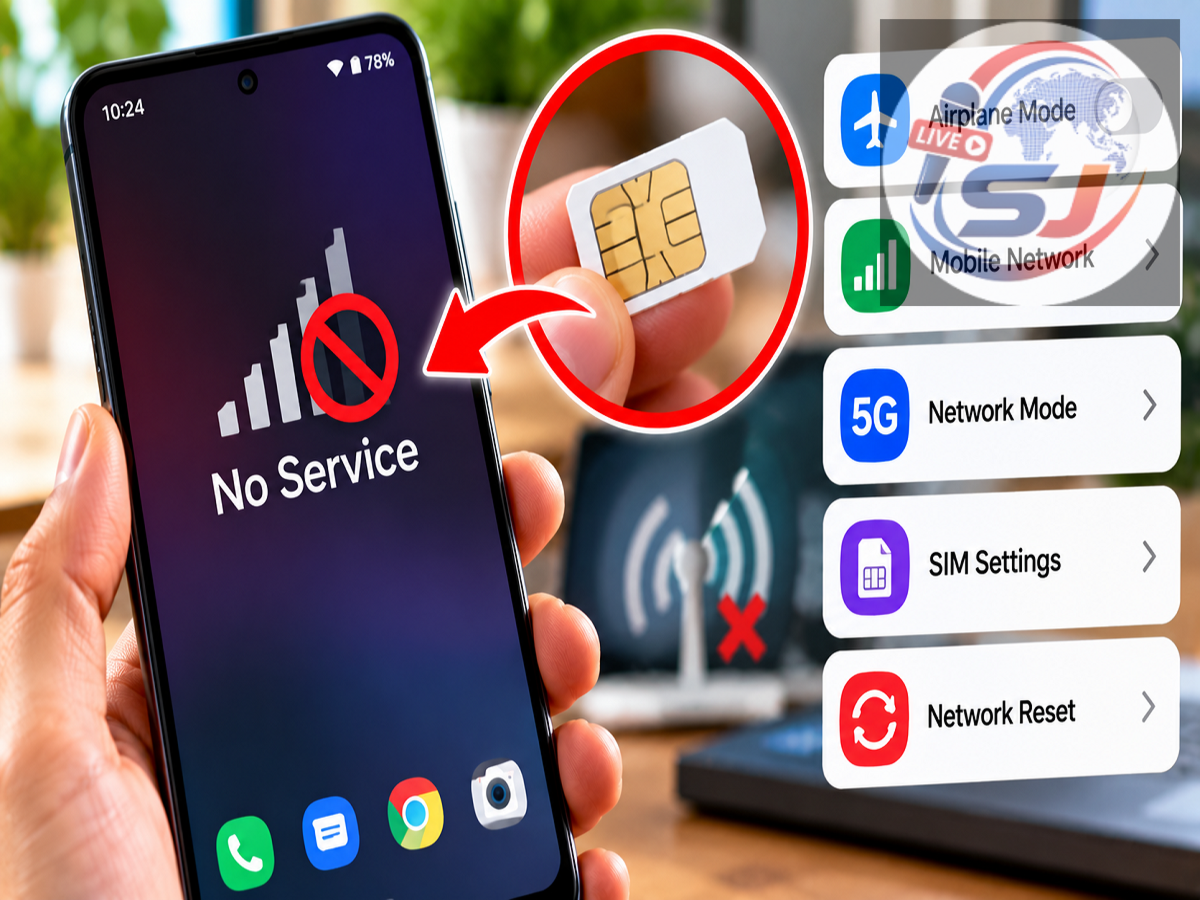
Seeing “No Service” suddenly appear on your smartphone can be frustrating, especially when calls, SMS and mobile internet stop working at the same time. The first assumption is often that the SIM card has failed or the telecom network is down.
However, a faulty SIM isn't always the reason.
Your phone may have a temporary software issue, incorrect network selection, unstable 5G connectivity or a setting that prevents it from registering correctly with the mobile network.
Before rushing to replace your SIM card, try these basic troubleshooting steps.
Start by Checking Airplane Mode
Airplane Mode is one of the simplest things to check when your phone suddenly loses cellular connectivity.
It can sometimes be enabled accidentally from the quick-settings panel. When Airplane Mode is active, the phone normally disconnects from the cellular network.
If it is turned on, switch it off and wait briefly for your device to reconnect.
If Airplane Mode is already off, you can try another simple trick.
Turn it on for around 10–15 seconds and then switch it off again.
This forces the phone to attempt a fresh connection with the available cellular network and can sometimes resolve a temporary connectivity problem.
Check Automatic Network Selection
If Airplane Mode doesn't solve the problem, check how your smartphone is selecting its mobile network.
On many Android phones, you can find the relevant options under a path similar to:
Settings > Network & Internet > SIMs/Mobile Network
The exact wording varies depending on the manufacturer and Android version.
Look for Automatically select network, Network operators or a similarly named setting.
Automatic network selection is usually the appropriate option for everyday use because it allows the phone to connect to the available network belonging to your carrier.
If manual network selection was enabled accidentally, your device may struggle to register when the selected network is unavailable.
iPhone users can find related carrier/network options under the cellular settings, although available menus can vary by carrier and iOS version.
Check the Preferred Network Type
Another setting worth checking is the phone's preferred network mode.
Modern smartphones can support combinations such as 5G, 4G/LTE and older network technologies, depending on the device and carrier.
Problems can occasionally occur when the phone is configured for an unsuitable network mode or keeps trying to connect to a network that isn't reliably available in the area.
Open the mobile network settings and check the preferred network type.
For most users, an automatic or recommended mode provided by the carrier or smartphone manufacturer is the best starting point.
Try Switching From 5G to 4G/LTE
5G coverage can vary significantly depending on location, network congestion and indoor signal conditions.
If 5G coverage is weak or unstable, a phone may repeatedly switch between 5G and 4G/LTE.
If you're experiencing intermittent service, try temporarily changing the preferred network type to 4G/LTE, if your phone and carrier provide that option.
Use the phone for a while and see whether the connection becomes more stable.
If 4G works normally while 5G repeatedly loses service, the problem may be related to local 5G coverage or network switching rather than the SIM card itself.
Restart Your Smartphone
A simple restart can resolve many temporary connectivity problems.
Your phone's modem and operating system continuously manage communication with nearby cellular networks. Occasionally, a temporary software or modem issue can prevent the device from registering correctly.
Turn the phone off or use its Restart option.
Once it switches back on, give it a little time to search for and register with the carrier network.
If the signal returns, the issue may have been a temporary software or connectivity glitch.
Remove and Reinsert the Physical SIM
If the problem continues, check the physical SIM card.
First, turn off the phone.
Remove the SIM tray carefully and inspect the SIM card for obvious dirt, physical damage or improper positioning.
Place the SIM correctly back into the tray and restart the phone.
Avoid aggressively cleaning or scratching the metallic contacts because this can damage the card.
If the SIM appears physically damaged, contacting your telecom provider for a replacement may eventually be necessary.
Using an eSIM? Toggle the Line Off and On
The troubleshooting process is slightly different for eSIM users because there is no physical card to remove.
Open your phone's cellular or SIM settings and check whether the relevant eSIM line is enabled.
If your device provides the option, temporarily turn the line off and then switch it back on.
Do not delete the eSIM profile simply as an initial troubleshooting step. Removing an eSIM can require carrier assistance or a new activation process to restore it.
Check Whether the Problem Is With the Carrier
If your phone settings appear correct but “No Service” remains, the issue may be outside your device.
Your telecom provider could be experiencing a temporary outage or maintenance in your area.
You can check the carrier's official support channels or test whether another person using the same network nearby is experiencing a similar problem.
If several users on the same operator have simultaneously lost service, changing your SIM settings repeatedly may not solve the issue.
Test the SIM and Phone Separately
If possible, testing can help identify where the problem lies.
A compatible working SIM can be tested in your phone, or your existing SIM can be tested in another compatible device, provided you are comfortable doing so.
If your SIM works normally in another phone, the issue may be related to your handset or its settings.
If the SIM fails in multiple compatible devices while other SIM cards work normally, the SIM itself or the carrier account may require attention.
Network Settings Reset Should Be a Later Step
If the basic fixes fail, you can consider resetting your phone's network settings.
This is more significant than simply restarting the device.
A network reset can remove stored networking configurations and may erase saved Wi-Fi networks/passwords, Bluetooth pairings and cellular-related settings, depending on the device.
It generally does not erase personal photos, videos or installed applications, but you should carefully read the warning shown by your phone before confirming the reset.
Because it removes saved connectivity settings, this option is better used after simpler troubleshooting steps have failed.
Also Check for Software and Carrier Updates
An outdated operating system or carrier configuration can occasionally contribute to connectivity problems.
Check whether your phone has a pending software update.
iPhone users may also receive carrier settings updates, while Android implementation varies among manufacturers and network operators.
Installing official updates can resolve known network compatibility issues, but make sure your device has adequate battery power and preferably a reliable Wi-Fi connection before beginning a major software update.
When Should You Contact Your Telecom Operator?
If your phone continues showing No Service after checking Airplane Mode, network selection, preferred network type, restarting the device and checking the SIM, contacting your carrier is the next sensible step.
The operator can check whether the SIM is active, whether there is an account-level issue and whether the network is experiencing a local outage.
A SIM replacement may be appropriate if the card is old, physically damaged or has developed a fault.
Don't Replace the SIM Immediately
A “No Service” warning doesn't automatically mean your SIM card is dead.
Start with the easiest checks: toggle Airplane Mode, restart the phone and verify automatic network selection. If you're in an area with unstable 5G coverage, temporarily testing 4G/LTE can also help identify the problem.
Next, check the physical SIM or eSIM status and consider a network settings reset only if the simpler methods don't work.
If service remains unavailable, contact your mobile operator before purchasing or activating a replacement SIM.
In many cases, a small settings change or simple restart may be all that's needed to bring the cellular connection back.