
Photo QR Code Guide 2026: Turn Any Picture Into a Scannable Code Using Google Photos, Drive or iPhone
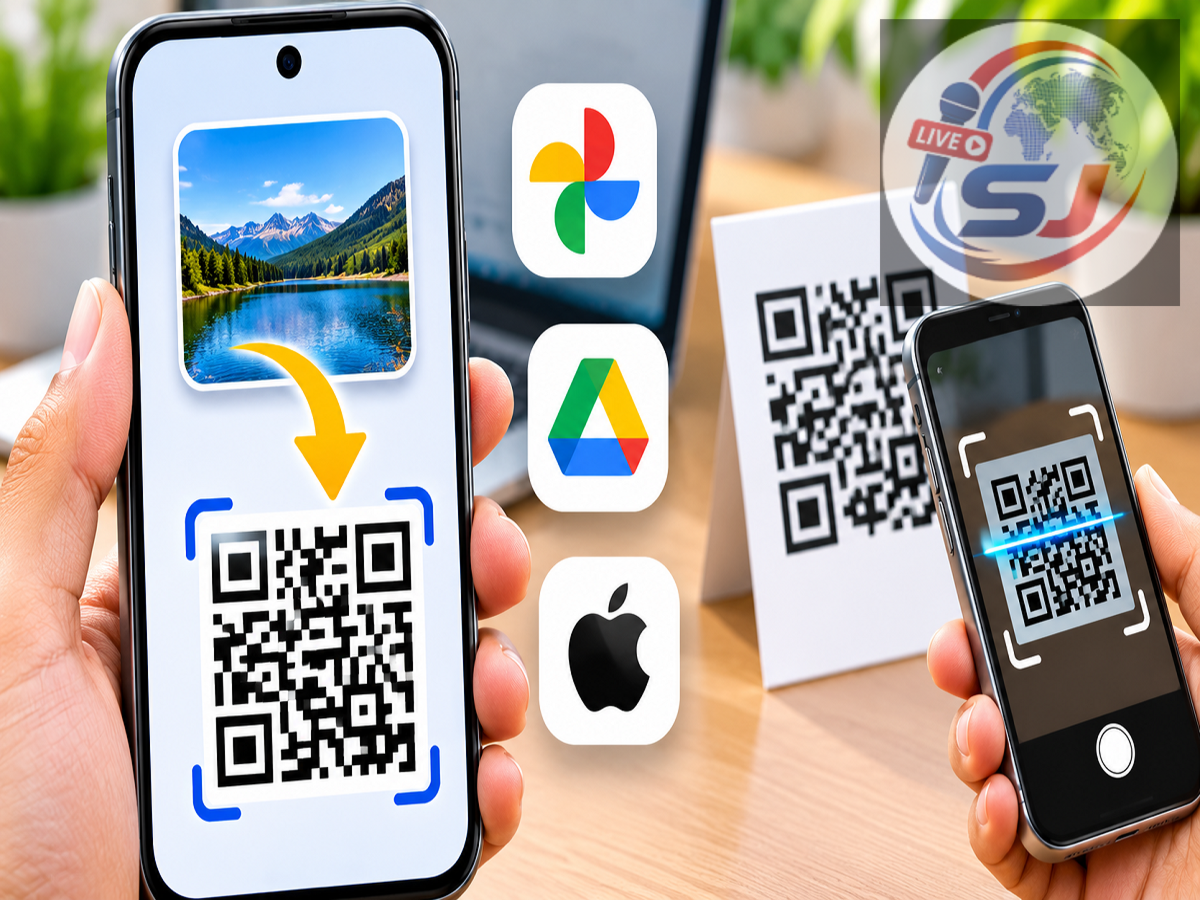
Photo QR Code 2026: Sharing photographs has become an everyday activity, whether people are sending family pictures, distributing event photographs or exchanging important images with friends and colleagues. While messaging applications and email remain popular methods, QR codes offer another convenient way to share pictures without sending large files or lengthy website links.
With a photo QR code, recipients can access an image simply by scanning a code using their smartphone camera. The process does not require advanced technical knowledge or paid software. Users can upload their photographs to cloud storage platforms such as Google Photos, Google Drive or iCloud and convert the resulting sharing link into a QR code using an online generator.
This method works across Android smartphones, iPhones, laptops and desktop computers. It can also be used to share an entire collection of photographs through a single QR code.
What Is a Photo QR Code and How Does It Work?
A photo QR code is a machine-readable code that directs users to an image or photo album stored online.
Unlike a regular photograph, a standard URL-based QR code does not contain the actual image file. Instead, it stores a web address that opens the photograph when scanned.
For example, if someone uploads a picture to Google Drive and generates a public viewing link, that link can be converted into a QR code.
Anyone scanning the code can access the photograph, provided the cloud storage permissions allow them to view it.
This makes QR codes useful for sharing photographs at weddings, birthday celebrations, business events, educational institutions and family gatherings.
Which Platforms Can Be Used to Generate Photo QR Codes?
Several free services can help users create QR codes for photographs.
| Platform | Main Function | Suitable For |
|---|---|---|
| Google Photos | Creates shareable photo and album links | Individual photos and albums |
| Google Drive | Stores photographs and generates sharing links | Single images and documents |
| iCloud Photos | Provides photo-sharing links | iPhone and Apple users |
| QR Code Monkey | Converts website links into QR codes | Downloadable and custom QR codes |
Users can select a platform according to their device, storage preferences and the number of photographs they want to share.
How to Generate a Photo QR Code Using Google Photos
Google Photos is particularly useful for people who want to share multiple pictures through one QR code.
Instead of generating separate links for every photograph, users can create a shared album containing all the required images.
Follow these steps:
-
Launch the Google Photos application on your Android smartphone or iPhone.
-
Sign in using your Google account.
-
Select the photographs you want to share.
-
Create a new album and add the selected images.
-
Open the album after creating it.
-
Tap the Share option.
-
Check whether a QR code sharing feature is available in your version of Google Photos.
-
If the feature is available, generate the code and share it with the intended recipients.
If the application does not provide a QR code option, users can copy the album's sharing link and convert it using a separate QR code generator.
The same approach can be used for a single photograph by sharing its link or creating an album containing only that image.
How to Make a QR Code for a Photo Using Google Drive
Google Drive provides another straightforward method for sharing photographs through QR codes.
It is especially convenient when users want to distribute one particular image.
Step 1: Upload Your Photograph
Open the Google Drive application or visit https://drive.google.com on your computer.
Sign in to your Google account and select the option to upload a file.
Choose the photograph you want to share and wait for the upload to finish.
Step 2: Open Sharing Settings
Locate the uploaded image and select the three-dot menu or sharing option.
Open the access management settings to review who can view the photograph.
Step 3: Change Link Permissions
If you want anyone with the QR code to access the image, change the general access setting from Restricted to Anyone with the link.
Choose Viewer permission so recipients can see the photograph without receiving editing privileges.
Step 4: Copy the Sharing Link
Select Copy link and save the URL temporarily.
This link can now be converted into a scannable QR code.
Remember that enabling access for anyone with the link means the photograph may be viewed by people beyond your intended recipients if the QR code is forwarded.
How to Convert a Photo Link Into a QR Code for Free
After obtaining a shareable photograph link, the next step is generating the QR code.
Several online QR code generators offer this facility without requiring users to install additional software.
Here is the process using QR Code Monkey:
-
Open your preferred internet browser.
-
Select the URL option.
-
Paste the photo-sharing link copied from Google Photos, Google Drive or iCloud.
-
Select Create QR Code.
-
Wait for the QR code to appear.
-
Customise its appearance if required.
-
Download the generated code in an available image format, such as PNG or SVG.
The downloaded QR code can be shared digitally or included in printed materials.
For reliable scanning, users should maintain sufficient contrast between the code and its background.
How iPhone Users Can Create a QR Code for Photos
Apple iPhone users can also create photo QR codes without purchasing a dedicated application.
The iCloud Photos sharing feature can generate a link that can be converted into a QR code.
Follow these instructions:
-
Open the Photos application on your iPhone.
-
Select the photograph you want to share.
-
Tap the Share icon.
-
Choose Copy iCloud Link if the option is available.
-
Allow the device to generate the sharing link.
-
Open Safari and visit an online QR code generator.
-
Paste the copied iCloud link into the URL field.
-
Generate and save the QR code.
The availability of iCloud sharing options may depend on device settings and software configuration.
Users should also remember that iCloud sharing links can expire, so a QR code created from such a link may not remain functional indefinitely.
How to Scan a Photo QR Code on Android and iPhone
Opening a photograph through a QR code is generally simple.
Most modern Android smartphones and iPhones support QR code scanning through their built-in camera applications.
To access a shared photograph:
-
Open the Camera application on your smartphone.
-
Point the camera toward the QR code.
-
Wait for the device to recognise the code.
-
Tap the website link displayed on the screen.
-
Allow the browser or relevant application to open the photograph.
If the QR code does not work, verify that the original sharing link remains active and that the photograph is accessible.
Some devices may also offer QR scanning through Google Lens or a dedicated scanning feature.
How to Share Photo QR Codes on WhatsApp, Instagram and Facebook
Once a QR code has been downloaded, it can be distributed like any ordinary image.
WhatsApp: Open a conversation, select the attachment option and send the QR code image from your gallery.
Instagram: Share the code through a direct message or add it to a story where viewers can scan it using another device or a supported image-scanning feature.
Facebook: Upload the QR code as an image in a post or send it through Messenger.
Email: Attach the QR code image to an email and send it to the intended recipients.
Printed invitations: Add the QR code to wedding cards, birthday invitations, event posters or business materials.
This approach is especially useful when multiple people need access to the same photographs.
Important Privacy and Security Tips Before Sharing Photo QR Codes
Although QR codes simplify photo sharing, users should take precautions to protect their personal information.
Review access permissions: Confirm whether the photograph is available only to selected individuals or to anyone possessing the link.
Avoid sharing sensitive images publicly: Private family photographs, identification documents and confidential images should not be exposed through unrestricted links.
Test the QR code: Scan the generated code using another device or a private browsing session to confirm that it works correctly.
Verify the destination: Make sure the code opens the intended photograph rather than an incorrect or unrelated website.
Keep the original file accessible: Removing the photograph, disabling link sharing or deleting the associated album may make the QR code unusable.
Use reputable QR code services: Avoid unfamiliar generators that request unnecessary personal information or access to your cloud accounts.
Can One QR Code Be Used to Share Multiple Photos?
Yes. A single QR code can provide access to several photographs if they are stored in a shared online album.
For instance, users can create an album containing photographs from a wedding, family vacation or college event.
After generating the album's sharing link, they can convert it into one QR code.
Recipients scanning that code can view the entire album according to the permissions established by its owner.
This eliminates the need to create individual QR codes for every photograph.
Final Takeaway
Creating a QR code for a photograph is a convenient way to distribute images without repeatedly uploading files or sending lengthy links.
Google Photos is a practical choice for sharing albums, while Google Drive can be useful for individual photographs. iPhone users can also take advantage of iCloud sharing links.
By combining these services with a QR code generator, users can create scannable codes within minutes and share them through messaging platforms, social networks or printed materials.
However, checking privacy settings, confirming link accessibility and testing the QR code before distribution are essential steps.
Source Credit: Original article by Kumar Rishav, published November 19, 2026, at 5:58 PM IST. Additional platform references: Google Photos, Google Drive, Apple iCloud Photos and QR Code Monkey.