
Phone Battery Draining Fast? How to Find Power-Hungry Apps on Android and iPhone
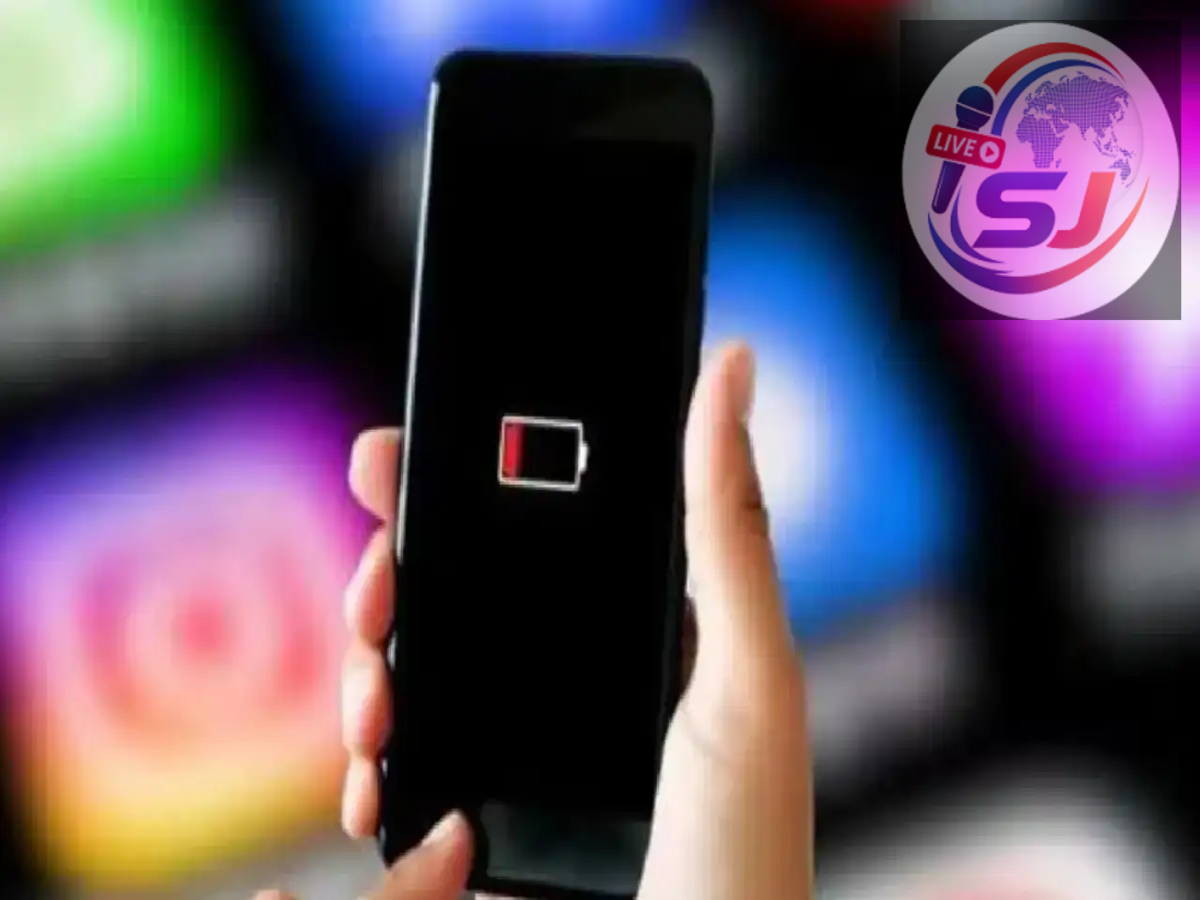
If your phone’s battery suddenly starts running out much faster than usual, an app may be using excessive power in the background. Social media platforms, video-streaming services, navigation tools, games and poorly optimised applications can all place heavy demands on a phone’s battery.
You do not need to install a third-party battery-monitoring application to identify the problem. Both Android phones and iPhones include built-in tools that show how much battery each app has consumed.
These reports can help you distinguish between normal battery use and unexpected background activity. Once you identify the likely cause, you can update, restrict or remove the affected application.
How to Check Battery Usage on an Android Phone
The exact names and locations of settings can differ across Samsung, Google Pixel, OnePlus, Xiaomi and other Android devices. However, the general process is similar.
Follow these steps:
-
Open the Settings application.
-
Select Battery or Battery and Device Care.
-
Tap Battery Usage, Battery Activity or Battery Usage Since Last Charge.
-
Review the list of applications and their battery percentages.
-
Select an app to view additional information, including foreground and background activity where available.
An app appearing near the top of the list is not automatically malfunctioning. If you spent two hours watching videos, for example, it would be normal for the streaming application to account for a substantial share of recent battery consumption.
The more important warning sign is an app using a large amount of power despite receiving little or no active use.
Google recommends checking for apps with unusually high battery use and keeping features such as Adaptive Battery enabled. Menu options can vary by manufacturer and Android version.
How to Find Battery-Draining Apps on an iPhone
iPhone users can review battery consumption directly from iOS:
-
Open Settings.
-
Tap Battery.
-
Review the Daily Usage information.
-
Tap View All Battery Usage for a broader history.
-
Select a day or app to examine its activity in greater detail.
The App and System Activity section shows the percentage of battery consumed by individual apps and system processes. It may also explain whether the activity occurred while the app was visible on the screen or operating in the background.
Apple’s latest battery interface can display usage information for several recent days, allowing users to compare normal patterns with an unusually demanding day.
Understand “On Screen” and “Background” Activity
On-screen activity means the application was open and visible while consuming power. Long periods of gaming, recording video, browsing social media or using navigation can naturally result in high on-screen battery usage.
Background activity means the application continued working while it was not visible. Legitimate examples include:
-
A navigation app providing directions
-
A music service playing audio
-
A messaging app receiving notifications
-
A cloud service synchronising photographs
-
An email application checking for new messages
-
A fitness app recording movement or location
Excessive background time in an app you rarely use may indicate a configuration problem, failed synchronisation or software bug.
Poor mobile-network coverage can also increase battery consumption because the phone repeatedly searches for a stronger signal. Apple’s Battery section may identify cellular coverage as a factor when relevant.
What to Do When an App Uses Too Much Battery
Begin by updating the application through the Google Play Store or Apple App Store. Developers frequently release fixes for bugs that cause overheating, crashes or excessive background processing.
Restart the phone after installing updates. A restart can end a process that has become stuck and continued consuming power.
If the problem remains, try these measures:
-
Reduce the time spent using the app.
-
Disable unnecessary notifications.
-
Limit location permission to “While Using the App.”
-
Turn off automatic video playback where possible.
-
Reduce background refresh or synchronisation.
-
Clear the app’s cache on supported Android phones.
-
Reinstall the application if its behaviour remains abnormal.
-
Remove the app if you no longer need it.
Before uninstalling an important app, confirm that your data is backed up and that you know the correct login details.
How to Restrict Background Battery Use on Android
On many Android devices, you can open the app’s information page and choose its battery setting. Options may include Unrestricted, Optimised and Restricted.
Google recommends keeping most applications on the optimised setting. Adaptive Battery can learn usage patterns and limit power consumption by apps that are not used frequently.
Restricting an app too aggressively can have consequences. Messaging alerts may arrive late, fitness tracking may stop, cloud files may not synchronise and navigation functions could become unreliable.
Security, emergency-alert, messaging, health and navigation apps should be restricted only after considering which background features they require.
Use Low Power or Battery Saver Mode
Android’s Battery Saver and the iPhone’s Low Power Mode can extend usage when the remaining charge is low. These features may reduce screen brightness, limit background processing, pause automatic downloads and restrict some visual effects.
On supported iPhones, Low Power Mode also limits display refresh rates and temporarily reduces activities such as mail fetching and background app refresh.
These modes are useful temporary measures, but they do not resolve an app bug or a physically degraded battery.
Check Battery Health and Phone Temperature
If no single app explains the rapid drain, the battery itself may have aged. iPhone users can review Battery Health from the Battery settings. Android battery-health information varies by brand and model.
Excessive heat can also reduce battery life and accelerate long-term degradation. Avoid leaving the phone in direct sunlight, inside a hot vehicle or under a pillow while charging.
If the phone becomes unusually hot, shuts down unexpectedly, develops a swollen battery or drains rapidly even when idle, stop using it and arrange an inspection through an authorised service centre. A swollen battery should never be pressed, punctured or charged.
Battery-usage tools are most helpful when reviewed over several hours or days. By comparing active use with background activity, users can identify whether the problem comes from a demanding app, poor signal, software settings or an ageing battery.