
Laptop Camera Not Clear? Turn Your Android Phone Into a High-Quality Webcam With These Easy Steps
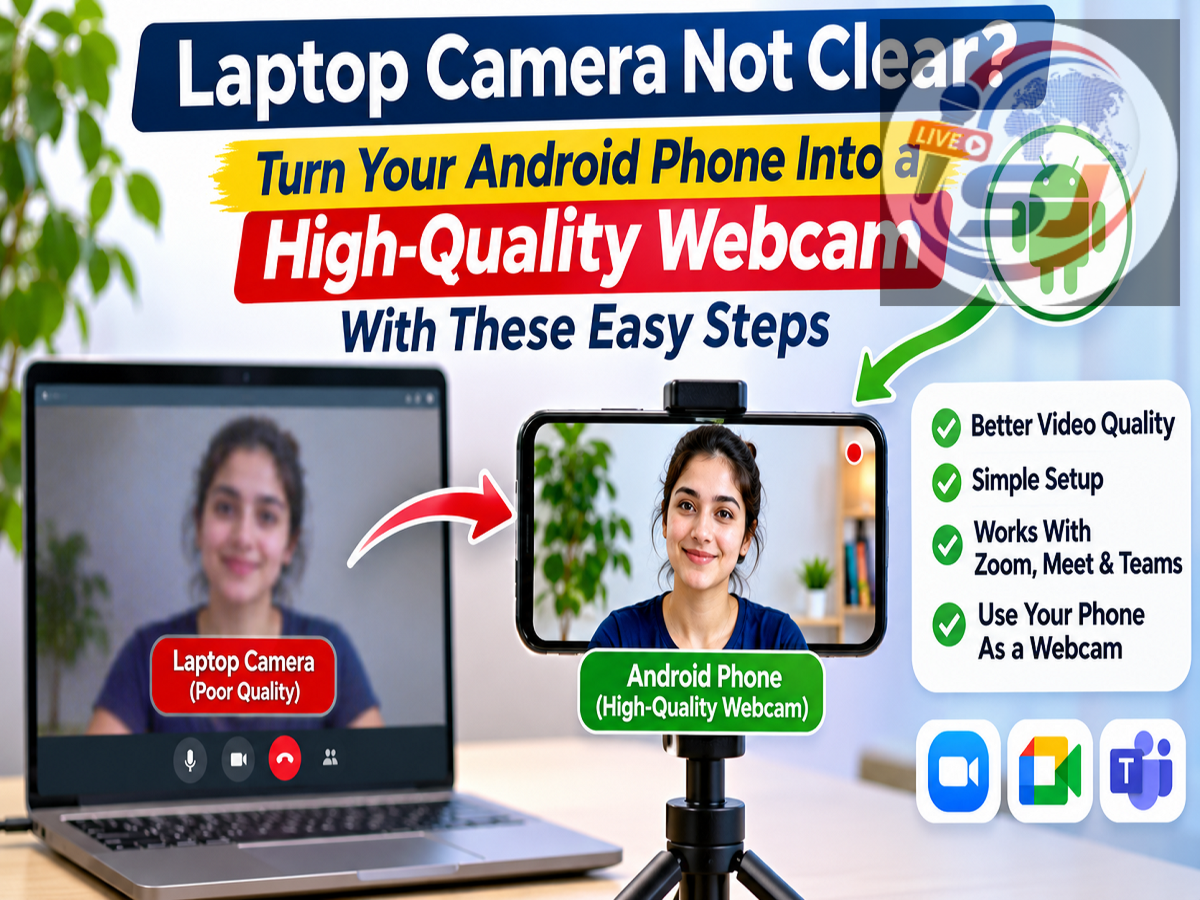
Android Phone as Webcam: Is your laptop's built-in camera producing blurry or low-quality video during online meetings? You may not need to spend money on an external webcam. If you own a compatible Android smartphone and a Windows 11 computer, you can use your phone's camera for video calls, online classes, interviews and even video recording.
Microsoft offers a useful feature that allows supported Android smartphones to function as wireless webcams for Windows computers. With the help of Link to Windows and the connected camera functionality, users can access their smartphone cameras directly from compatible desktop applications.
This can be particularly helpful for people working from home, students attending virtual classes and professionals who frequently participate in video conferences.
Many laptops still come with basic webcams that struggle to deliver sharp images, especially in poorly lit environments. Modern smartphones, on the other hand, often feature better camera sensors and image-processing technology.
Here is a complete guide explaining how to connect your Android smartphone to a Windows laptop, enable the webcam feature and fix common connection problems.
What Do You Need to Use an Android Phone as a Webcam?
Before getting started, make sure your smartphone and computer meet the minimum technical requirements.
| Requirement |
Details |
|---|---|
| Laptop or desktop |
Windows 11 |
| Smartphone |
Android 10 or later |
| Required application |
Link to Windows |
| Minimum app version |
1.24022.0 or later |
| Device connection |
Android phone linked to Windows |
| Permissions |
Camera access must be allowed |
Your Windows computer should also have the necessary updates and mobile device integration components installed.
Once these requirements are met, you can begin setting up your smartphone as an additional camera.
How to Connect Your Android Smartphone to Windows 11
Microsoft's connected camera feature allows users to access their smartphone camera from a Windows computer without requiring a separate external webcam.
Follow these steps to activate the feature.
Step 1: Turn on your Windows 11 laptop or desktop computer.
Step 2: Press the Windows + I keyboard shortcut to open the Settings application.
Step 3: Select Bluetooth & devices from the available settings.
Step 4: Find and open the Mobile devices section.
Step 5: Check whether your Android smartphone is already connected to your Windows computer.
Step 6: If your phone has not been linked, select the option to add or manage a device. Follow the pairing instructions, which may include scanning a QR code with your smartphone.
Step 7: Complete the connection process using the Link to Windows application and approve the required permissions.
Step 8: Once the smartphone appears in the connected devices list, locate the Use as connected camera option.
Step 9: Turn on the connected camera feature.
After successful configuration, your Android smartphone should become available as a camera source in supported Windows applications.
Depending on your Windows version, some menu names or pairing screens may appear slightly different.
How to Use Your Phone Camera for Video Meetings
After connecting the devices, you can select your smartphone camera in a compatible video conferencing or recording application.
Open the application you want to use and navigate to its video settings.
Look for the camera selection menu, where your laptop's built-in webcam and other connected cameras are displayed.
Choose the connected Android smartphone camera from the list.
Once the connection is established, the video preview should display footage captured by your phone.
This can be useful for virtual meetings, online interviews, remote learning sessions and video presentations.
If you want to return to the laptop's original camera, simply open the same camera selection menu and choose the built-in webcam.
Why Does Android Ask for Camera Permission?
When you activate the connected camera feature for the first time, your Android device may request permission to access its camera.
This is an important privacy and security measure designed to prevent applications from using your camera without appropriate authorization.
To continue using the feature, approve the required permission on your smartphone.
You can also review camera permissions through your phone's application settings.
If you no longer want your smartphone to work as a webcam, disable the connected camera option on Windows or select another camera in your video calling application.
Android Phone Connected but Webcam Not Working? Try These Fixes
Sometimes your smartphone may appear as a connected device, but the video feed fails to load.
Several common issues can cause this problem, including missing permissions, outdated applications or temporary connection errors.
Start by checking whether the Link to Windows application has permission to use your smartphone's camera.
On your Android device, open Settings, navigate to Apps, select Link to Windows and review its permissions.
Make sure camera access is enabled.
Next, check whether your Windows computer and smartphone are properly linked and have the required connectivity.
If the video preview appears black, look for a camera-related notification or control window on your computer. The video stream may need to be resumed or refreshed.
You can also close and reopen the video conferencing application.
If the issue continues, restart the smartphone and laptop, check for software updates and reconnect the devices.
Phone Camera Video Appearing Sideways? Check Rotation Settings
Another issue users may experience is incorrect video orientation.
For example, you may position your smartphone horizontally, but the video preview continues to appear vertically.
First, check whether Auto Rotate is enabled on your Android device.
If screen rotation is locked, disable the lock and try changing the phone's orientation.
However, video orientation may also depend on the connected camera software and the application being used.
Some applications control the camera's orientation independently, so changing the phone's rotation settings may not always fix the issue.
How to Remove Background Blur During Video Calls
If your smartphone camera is working but the background looks artificially blurred, the problem may be related to video effects.
Many conferencing applications provide background blur, virtual backgrounds and other visual enhancements.
Open the application's video settings and check whether any background effects are enabled.
Turn off Background Blur or similar effects if you prefer a natural-looking video.
For improved results, position your smartphone on a stable stand and ensure that your face receives sufficient lighting.
Avoid placing a bright light directly behind you, as this can make your face appear darker.
Benefits of Using an Android Smartphone Instead of a Laptop Webcam
Using your Android smartphone as a webcam offers several practical advantages.
One major benefit is cost savings. If you already own a smartphone with a capable camera, you may not need to purchase a separate webcam.
Another advantage is potentially improved image quality. Many smartphones feature camera hardware and image-processing capabilities that outperform basic laptop webcams.
The setup can also provide greater flexibility when positioning the camera.
For example, users can place their phones at eye level for professional-looking video meetings rather than relying on the fixed position of a laptop camera.
This feature may be particularly valuable for teachers conducting online classes, employees attending remote meetings, job applicants preparing for interviews and creators recording video content.
However, the final picture quality depends on several factors, including the smartphone's camera, available lighting, connection stability and the video application's supported resolution.
A phone stand or tripod can help prevent shaky footage, while keeping the smartphone charged can reduce interruptions during longer sessions.
Can Windows 10 Users Turn Their Android Phone Into a Webcam?
Microsoft's built-in connected camera integration described in this guide is designed for Windows 11.
Therefore, Windows 10 users may not find the same feature in their computer settings.
However, certain third-party webcam applications may offer alternative ways to connect Android smartphones to older Windows systems.
Users should download such software only from reputable sources and review its privacy permissions before installation.
For the Microsoft method, a compatible Android device, supported Link to Windows version and Windows 11 computer are required.
Final Thoughts
A poor-quality laptop webcam does not necessarily mean you need to invest in additional hardware.
With Microsoft's connected camera feature, compatible Android smartphones can serve as practical webcam alternatives for Windows 11 laptops and desktops.
The setup requires only a few configuration steps, and once the devices are linked, users can select their phone camera in supported video calling and recording applications.
Whether you are attending an important job interview, joining a business meeting or participating in an online class, using your smartphone camera may help you achieve clearer and more professional-looking video without buying a new webcam.
Source Credit: Microsoft Support – Use Your Mobile Device's Camera as a Webcam on Your PC.