
How to Turn Off Apple Intelligence on iPhone: Easy Steps to Disable AI Features in iOS 26
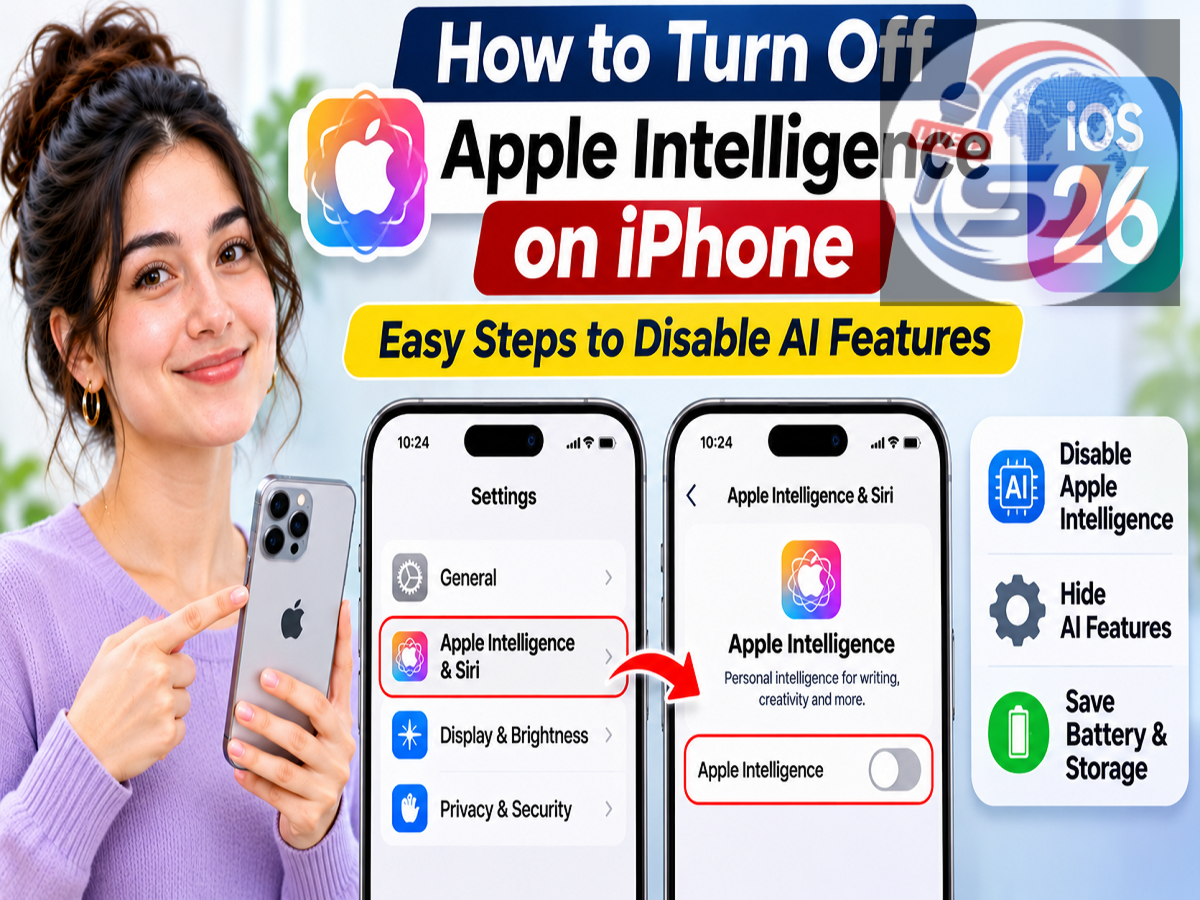
Apple Intelligence Disable Guide 2026: Not everyone wants artificial intelligence features running on their smartphone. If you own a compatible iPhone and prefer a simpler experience without AI-generated notifications, writing suggestions or image creation tools, Apple provides several settings that allow you to turn off Apple Intelligence entirely or restrict individual features.
Apple has introduced a range of artificial intelligence capabilities across supported iPhone models. These features are designed to make everyday activities more convenient, including writing messages, summarising notifications, generating images and interacting with Siri.
However, some users may prefer traditional smartphone functions without additional AI assistance. Others may want greater control over AI-generated content, notifications or third-party integrations.
Fortunately, supported iPhones offer options to manage these features directly through the Settings application.
Here is a detailed guide explaining how to disable Apple Intelligence, switch off selected AI tools and understand what changes after the feature is turned off.
What Is Apple Intelligence and What Does It Do?
Apple Intelligence is Apple's artificial intelligence system developed for compatible iPhone, iPad and Mac devices.
It combines different AI-powered capabilities to help users complete tasks more efficiently.
Some of its notable features include Writing Tools, Notification Summaries, Image Playground, Genmoji and enhanced Siri functionality.
Writing Tools can help users rewrite sentences, proofread content and summarise selected text.
Notification Summaries can condense information from supported notifications, allowing users to review important updates more quickly.
Image Playground provides tools for generating images, while Genmoji allows users to create personalised emoji-style images using text descriptions.
Apple Intelligence can also enhance certain Siri interactions, depending on the device, language and software version.
However, the availability of these features varies according to iPhone model, iOS version, supported languages and region.
How to Completely Disable Apple Intelligence on iPhone
If you want to stop using Apple Intelligence altogether, you can turn it off through your iPhone's main settings.
On a compatible iPhone running iOS 26, follow these steps:
-
Open the Settings app on your iPhone.
-
Scroll down and select Apple Intelligence & Siri.
-
Find the Apple Intelligence control.
-
Turn the Apple Intelligence toggle off.
-
If a confirmation message appears, follow the instructions to complete the process.
Once disabled, Apple Intelligence-powered system features will no longer be available in the same way.
However, ordinary iPhone functions, including calling, messaging, internet browsing, photography and application downloads, will continue to work.
If you decide to use Apple Intelligence again, you can return to the same menu and reactivate it.
How to Disable Specific AI Features Without Turning Everything Off
Some users may find certain Apple Intelligence tools useful while preferring to disable others.
For example, you might want to keep Writing Tools available but stop AI-generated notification summaries.
Apple provides individual controls for several supported features.
| AI Feature |
Settings to Check |
|---|---|
| Message Summaries |
Settings → Apps → Messages → Summarize Messages |
| Mail Summaries |
Settings → Apps → Mail → Summarize Message Previews |
| Notification Summaries |
Settings → Notifications → Summarize Notifications |
| Priority Notifications |
Settings → Notifications → Prioritize Notifications |
| Journal Writing Prompts |
Settings → Apps → Journal → Get Writing Prompts |
Open the relevant settings section and turn off the feature you no longer want to use.
The exact wording and availability of these controls may differ between iOS versions.
How to Stop AI-Generated Notification Summaries on iPhone
Notification Summaries is one of the features associated with Apple Intelligence.
Instead of displaying only the original notification text, the system may generate a shorter summary of information from supported applications.
Although this can save time, AI-generated summaries may occasionally miss context or present information differently from the original message.
If you prefer to read notifications without AI-generated summaries, follow these instructions:
Step 1: Open Settings on your iPhone.
Step 2: Select Notifications.
Step 3: Find Summarize Notifications.
Step 4: Turn off the feature.
After disabling it, your iPhone will continue receiving ordinary notifications, but the affected AI-generated summaries will no longer appear.
Depending on the available settings, you may also be able to manage summarisation for individual applications.
How to Turn Off Apple Intelligence Writing Tools
Apple's Writing Tools can assist with proofreading, rewriting and summarising text in supported applications.
However, users who prefer writing without AI assistance may want to restrict access to these functions.
One way to manage certain AI capabilities is through Screen Time.
Follow these steps:
-
Open Settings.
-
Tap Screen Time.
-
Select Content & Privacy Restrictions.
-
Enable restrictions if they are currently disabled.
-
Open the available Intelligence & Siri restrictions section.
-
Select Writing Tools.
-
Choose Don't Allow, if the option is available.
This can restrict access to supported Writing Tools features.
The available restriction categories may depend on your iOS version and device compatibility.
How to Disable AI Image Generation and Genmoji
Apple Intelligence also includes creative features such as Image Playground and Genmoji.
These tools allow users to generate visual content and customised emoji-style images using artificial intelligence.
If you want to prevent access to supported image creation functions, check the restrictions available through Screen Time.
Open Settings, navigate to Screen Time and select Content & Privacy Restrictions.
Look for the Intelligence & Siri restrictions category.
If an Image Creation option is available, select it and choose Don't Allow.
This can restrict supported AI image generation capabilities.
Keep in mind that restricting Apple's built-in image creation features does not necessarily prevent separately installed third-party applications from generating images.
Those applications may have their own settings and permissions.
How to Restrict ChatGPT and Other AI Extensions on iPhone
Apple Intelligence can support integrations with external AI services, including ChatGPT, on compatible devices.
These integrations may provide additional assistance for certain requests.
However, users who do not want third-party AI extensions to be available can review the relevant controls.
Open Settings and navigate to Screen Time.
Under Content & Privacy Restrictions, check the available Intelligence & Siri settings.
Where supported, use the Intelligence Extensions restriction to limit access to compatible AI extensions.
You can also review any ChatGPT integration controls available under Apple Intelligence & Siri.
Disabling an AI extension does not automatically uninstall a separate ChatGPT application or another third-party AI app already installed on your phone.
Can You Disable Siri's AI Features Without Turning Off Siri?
Apple Intelligence can enhance Siri with additional language understanding and other supported capabilities.
However, disabling Apple Intelligence and disabling Siri completely are different actions.
If you want to reduce AI-powered Siri functionality, open Settings and navigate to Apple Intelligence & Siri.
Turn off Apple Intelligence if you do not want its integrated features.
You can then review the available Siri controls to manage voice activation, button activation and other assistant settings.
There is not necessarily a dedicated Siri Classic switch on every iPhone.
The available options depend on the software version and the capabilities supported by your device.
What Changes When You Turn Off Apple Intelligence?
Disabling Apple Intelligence affects supported AI-powered features, but it does not prevent your iPhone from performing its basic functions.
Here is a comparison of some of the changes users may notice.
| Feature |
Effect After Disabling Apple Intelligence |
|---|---|
| Notification Summaries |
AI-generated summaries become unavailable |
| Writing Tools |
AI-powered rewriting and proofreading are disabled |
| Image Playground |
Apple Intelligence image creation becomes unavailable |
| Genmoji |
AI-generated custom emoji creation is disabled |
| Siri AI Capabilities |
Apple Intelligence enhancements are disabled |
| Downloaded AI Models |
Associated on-device models may be removed |
Your phone will still support regular activities such as making calls, sending messages, using the camera, browsing websites and accessing compatible applications.
Some Apple Intelligence-related models stored on the device may also be removed after the feature is disabled.
The amount of storage affected depends on the iPhone model, installed software and downloaded AI components.
Turning off Apple Intelligence does not mean that every machine-learning feature used by iOS or third-party apps will be disabled.
Which iPhone Models Support Apple Intelligence?
Apple Intelligence is not available on every iPhone.
The system requires compatible hardware and a supported version of iOS.
| iPhone Model |
Apple Intelligence Support |
|---|---|
| iPhone 15 |
No |
| iPhone 15 Plus |
No |
| iPhone 15 Pro |
Yes |
| iPhone 15 Pro Max |
Yes |
| iPhone 16 series |
Yes, on supported models |
| iPhone 17 series |
Yes, on supported models |
Apple Intelligence also requires supported languages, sufficient device storage and compatible software.
If the Apple Intelligence option does not appear in your iPhone settings, your device may not support the feature, or the required software, language or regional conditions may not be met.
Will Turning Off Apple Intelligence Improve Battery Life?
Some users disable AI features because they want to reduce background processing or conserve battery power.
However, turning off Apple Intelligence does not guarantee a specific improvement in battery life.
Actual power consumption depends on several factors, including which features are being used, device activity, battery health and software optimisation.
Similarly, any storage savings from disabling Apple Intelligence depend on whether associated on-device models are removed.
Users should not assume that disabling the feature will automatically produce a major increase in battery life or device performance.
How to Enable Apple Intelligence Again
If you change your mind, Apple Intelligence can generally be reactivated on a supported iPhone.
Follow these steps:
-
Open Settings.
-
Select Apple Intelligence & Siri.
-
Find the Apple Intelligence toggle.
-
Turn it on.
-
Complete any additional setup instructions if prompted.
Your iPhone may need to download the necessary AI models again.
For this reason, ensure that the device has sufficient free storage and a stable internet connection.
The feature will become available according to the software and device requirements.
Final Words
Apple Intelligence offers several tools designed to make iPhone usage more convenient, but these features are optional for users who prefer a simpler experience.
If you do not want AI-generated notifications, writing suggestions, image creation tools or certain Siri enhancements, you can disable Apple Intelligence through your iPhone settings.
Alternatively, Screen Time restrictions and individual application controls allow you to manage selected AI features without necessarily turning off the entire system.
By reviewing these settings, you can decide how much artificial intelligence you want to use while keeping your iPhone's essential functions available.
Source Credit: Apple iPhone User Guide and Apple Intelligence – Official Apple Website. Article independently rewritten and adapted from the supplied Hindi content. Feature availability and settings may vary by iPhone model, iOS version, language and region.