
How to Scan Documents on Android Phone: Convert Papers Into PDF or JPG Without Installing Extra Apps
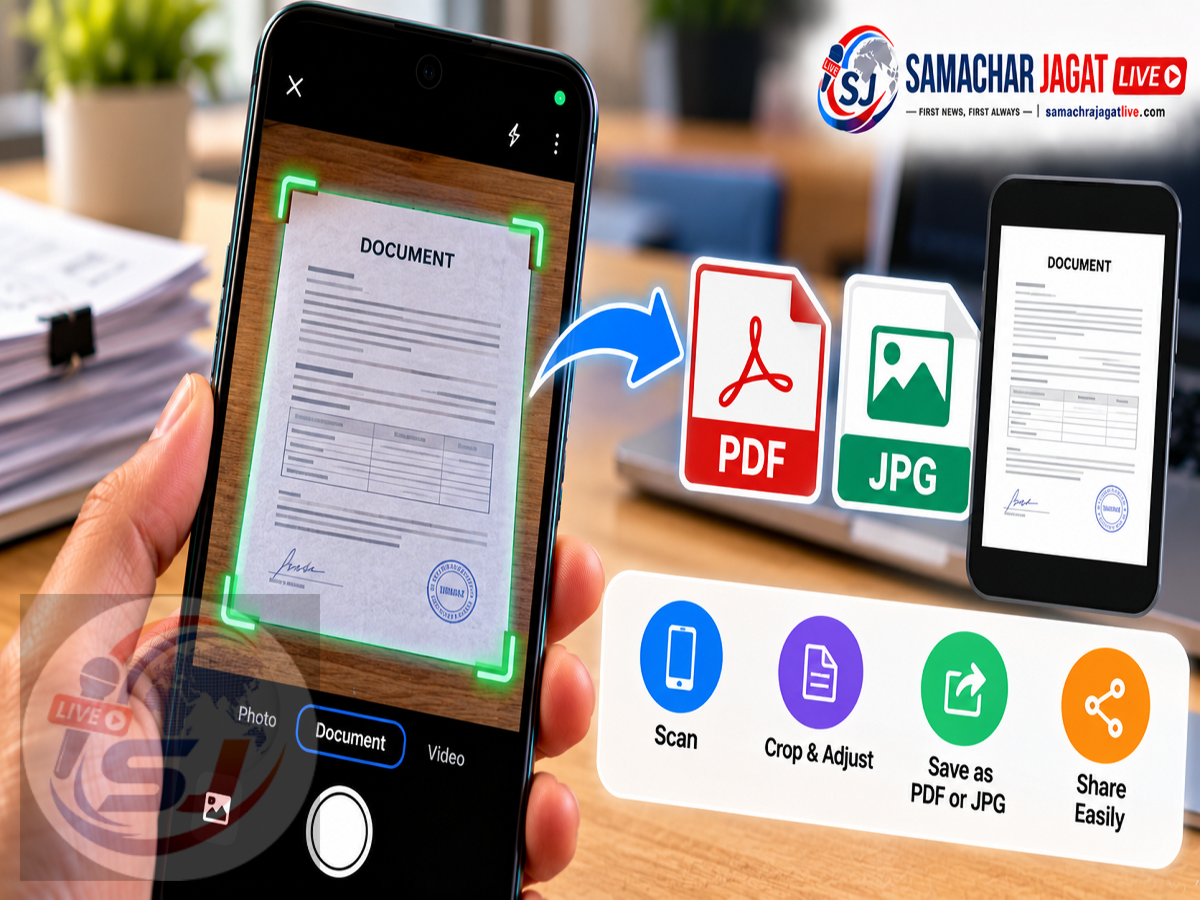
Android Document Scanner Guide 2026: Need to scan an Aadhaar card copy, office document, certificate or handwritten notes? You no longer need to visit a cyber café or use a separate scanning machine for many everyday document-scanning tasks. Your Android smartphone can help turn physical papers into digital files within minutes.
Many Android users are unaware that Google Drive already includes a built-in document scanning feature. It allows users to capture documents, adjust their appearance, combine multiple pages and save them in supported digital formats.
Some Android smartphones also offer document scanning directly through their default camera applications.
These features can be useful when you need to send paperwork through email, share a PDF on WhatsApp or maintain digital copies of important documents.
Here is a step-by-step guide to scanning documents using Google Drive and your phone's camera, along with tips for improving scan quality and sharing files securely.
Scan Documents Without Downloading a Separate Scanner App
Document scanning is one of the most useful features available on modern smartphones.
Previously, people often relied on dedicated scanning machines to create digital copies of printed documents.
Today, a smartphone camera combined with document processing software can perform many basic scanning tasks.
Google Drive offers a convenient option for Android users because the application is commonly available on Android devices.
Its scanning tools can help users capture pages, adjust their borders, improve readability and organise scanned documents.
Depending on the available options, users may be able to save scans as PDF or image files.
The exact interface and export formats can vary with the application version.
How to Scan Documents Using Google Drive
Google Drive's built-in scanner provides a straightforward way to digitise paper documents.
Follow these steps:
-
Open the Google Drive application on your Android smartphone.
-
Look for the camera or scan button, commonly available near the bottom of the screen.
-
Tap the button to open the document scanning interface.
-
Place the document on a flat, well-lit surface.
-
Position your phone above the paper so all four corners are visible.
-
Wait for the application to identify the document's edges.
-
Capture the document using the available automatic or manual option.
-
Review the captured page before saving it.
On supported versions, Google Drive may display a coloured outline around the detected document.
This helps identify the area that will be included in the final scan.
Users can adjust the page boundaries if the automatic detection is not accurate.
How to Improve the Quality of a Scanned Document
After capturing a document, Google Drive provides editing tools that can improve the appearance of the scan.
These tools may include cropping, rotating, applying filters and cleaning unwanted marks.
Crop and Rotate: This option helps remove unnecessary background areas and straighten a document that was captured at an angle.
Filters: Available filters may improve contrast, make text easier to read or adjust the appearance of the scanned page.
Clean: On supported versions, this tool can help remove certain unwanted marks or imperfections from the scanned image.
Users should review the edited result carefully to ensure that important information remains visible.
For official documents, it is especially important that names, identification numbers, dates and other details are not accidentally cropped or obscured.
How to Scan Multiple Pages Into One PDF
One of the most convenient features of a document scanner is the ability to combine several pages into a single file.
For example, a student may need to scan multiple pages of handwritten notes.
An employee may need to digitise a multi-page office document.
Instead of creating a separate file for each page, Google Drive allows users to add additional pages during the scanning process.
After capturing the first page, look for the Add option.
Tap it to scan the next page.
Repeat the process until all required pages have been captured.
Before saving, review the page order and check that each scan is clear.
If a page is blurred or incorrectly captured, use the available retake or delete option.
This can help create a more organised document that is easier to store and share.
How to Save a Scanned Document as PDF or JPG
Once the scanning and editing process is complete, users can save the document.
According to the supplied instructions, the process generally involves tapping Done, entering a file name and selecting an available output format.
Where supported, users may be able to choose between PDF and JPG.
Next, select the Google Drive folder where the file should be stored.
Finally, tap Save.
The scanned document will then be saved to the selected location.
If a particular format is not available in your version of Google Drive, check the supported export options or use an appropriate conversion method.
PDF is generally convenient for multi-page documents, while JPG is useful for individual page images.
PDF vs JPG: Which Format Should You Choose?
Both formats are useful, but they serve different purposes.
| Feature | JPG | |
|---|---|---|
| Best For | Documents, forms and multi-page files | Individual document images |
| Multiple Pages | Supported | Normally one image per file |
| Sharing | Convenient for email and document submission | Convenient for image sharing |
| Printing | Suitable for document printing | Suitable for image printing |
| File Size | Depends on content and compression | Depends on image quality and resolution |
| Common Uses | Applications, certificates and office paperwork | Receipts, notes and single-page copies |
If you need to submit several pages together, PDF is usually the more practical choice.
If you only need a picture of a receipt or a single page, JPG may be sufficient.
However, always follow the file format requirements specified by the receiving organisation.
How to Scan Documents Using Your Phone's Camera App
Some smartphone manufacturers include document scanning features directly in their default camera applications.
This means users may not need to open Google Drive at all.
The process varies by device, but the general steps are:
-
Open the phone's Camera application.
-
Place the document on a flat surface.
-
Point the camera at the document.
-
Look for a document scan icon or automatic detection prompt.
-
Tap the available scanning option.
-
Capture the document.
-
Adjust the scan if editing options are available.
-
Save the result.
Depending on the smartphone, the scanned file may be stored in the Gallery, Photos or Files application.
Some devices may also provide an option to export the scan as a PDF.
Because manufacturers use different camera interfaces, the feature may appear under different names or may not be available on every device.
How to Share a Scanned PDF on WhatsApp
After scanning a document, many users want to share it through WhatsApp.
If the file is saved in Google Drive, open the file and use the available sharing options.
You may be able to send a link or share a copy, depending on the file and application settings.
To send a PDF directly through WhatsApp, follow these general steps:
-
Open the relevant WhatsApp conversation.
-
Tap the attachment icon.
-
Select Document.
-
Find the scanned PDF in your phone's available file locations.
-
Select the file.
-
Review the recipient and tap Send.
If the scan is stored only in Google Drive, you may first need to download a copy to your phone or use a supported sharing option.
Sending the file as a document can help preserve its format.
How to Send a Scanned Document by Email
Scanned documents can also be shared through email.
Open your email application and create a new message.
Enter the recipient's email address and add an appropriate subject.
Use the attachment option to select the scanned document.
If the file is stored in Google Drive, your email application may allow you to attach it directly or insert a Drive link.
Before sending, check that the correct file has been attached.
Also confirm that the document is readable and that the recipient has the necessary access permissions if you are sharing a cloud link.
Tips for Getting Clearer Document Scans
Good scanning technique can make a significant difference in the final result.
Use a well-lit area so the document is evenly illuminated.
Avoid strong shadows, reflections and glare, particularly when scanning laminated cards.
Keep your phone steady and position the camera directly above the paper.
Make sure the entire document fits inside the frame.
For printed forms, check that small text remains readable after scanning.
If the document contains several pages, verify that none are missing and that they appear in the correct order.
These simple precautions can help reduce the need to rescan documents later.
Is It Safe to Scan Aadhaar Cards and Other Personal Documents?
Smartphone scanning can be convenient, but users should take precautions when handling sensitive information.
Aadhaar copies, bank statements, identification documents and financial records may contain personal details that should not be shared unnecessarily.
Before uploading such documents to cloud storage, review your account security settings.
Use a strong password and enable additional account protection where available.
Avoid sharing document links publicly.
If a file is intended for a particular person or organisation, check that access is restricted appropriately.
For Aadhaar-related submissions, follow the receiving organisation's requirements and consider using a masked Aadhaar copy where it is accepted.
Do not share more personal information than necessary.
Google Drive Scanner vs Regular Camera Photo
A normal camera photograph can capture a document, but a dedicated scanning feature may produce a more suitable result for paperwork.
| Feature | Google Drive Scanner | Regular Camera Photo |
|---|---|---|
| Document Edge Detection | Available | Depends on device |
| Automatic Cropping | Supported | May require manual editing |
| Scan Filters | Available | Depends on camera editor |
| Multi-Page Scanning | Supported | Usually separate photos |
| PDF Creation | Supported | May require additional steps |
| Cloud Storage | Integrated with Google Drive | Depends on backup settings |
For everyday document submissions, a scanner feature may provide a cleaner and more organised result.
However, a regular camera photo can still be useful when scanning features are unavailable.
Common Problems While Scanning Documents
Users may occasionally face problems such as blurred text, incorrect cropping or incomplete pages.
If the scan appears blurry, clean the camera lens and capture the document again.
If the edges are missing, adjust the crop boundaries or move the phone farther away.
If text is difficult to read, improve the lighting and try a suitable filter.
If a file cannot be uploaded, check its format and size against the receiving website's requirements.
If Google Drive does not save the scan, verify your internet connection, available storage and application permissions.
For cloud-based saving, the file may need to finish uploading before it becomes available on another device.
Frequently Asked Questions
Can I scan documents on Android without installing a scanner app?
Yes. Google Drive includes a document scanning feature, and some smartphones also provide scanning through their built-in camera applications.
Can Google Drive scan multiple pages into one PDF?
Yes. Supported versions allow users to add multiple scanned pages before saving the document.
Can I scan an Aadhaar card using my phone?
Yes. A smartphone can capture a digital copy, although users should follow the requirements of the organisation requesting the document.
Can I save scanned documents as JPG?
The available formats depend on the Google Drive version and scanning interface. Some supported workflows provide image export options.
Where are Google Drive scans saved?
They are generally saved to the selected Google Drive location. Users can download copies to their devices when needed.
Can I share a scanned PDF on WhatsApp?
Yes. You can send the PDF as a document attachment or share it through a suitable file-sharing option.
Is a smartphone scan accepted for official applications?
Acceptance depends on the receiving organisation's requirements. Some applications require particular file formats, sizes or certified copies.
Final Thoughts
Scanning documents using an Android smartphone is a convenient way to create digital copies of important paperwork without relying on a dedicated scanner.
Google Drive's built-in scanning tools allow users to capture documents, adjust their appearance, combine pages and save files in supported formats.
Some smartphones also offer similar functionality directly through the camera application.
Whether you need to share office paperwork, store notes or submit documents online, these tools can make the process faster and more convenient.
Before sharing any scanned file, check its clarity, format and privacy settings—especially when it contains personal or financial information.
With the right scanning method, your smartphone can handle many everyday document-digitisation tasks in just a few minutes.