
How to Download Your Instagram Photos, Videos and Stories on Android and iPhone
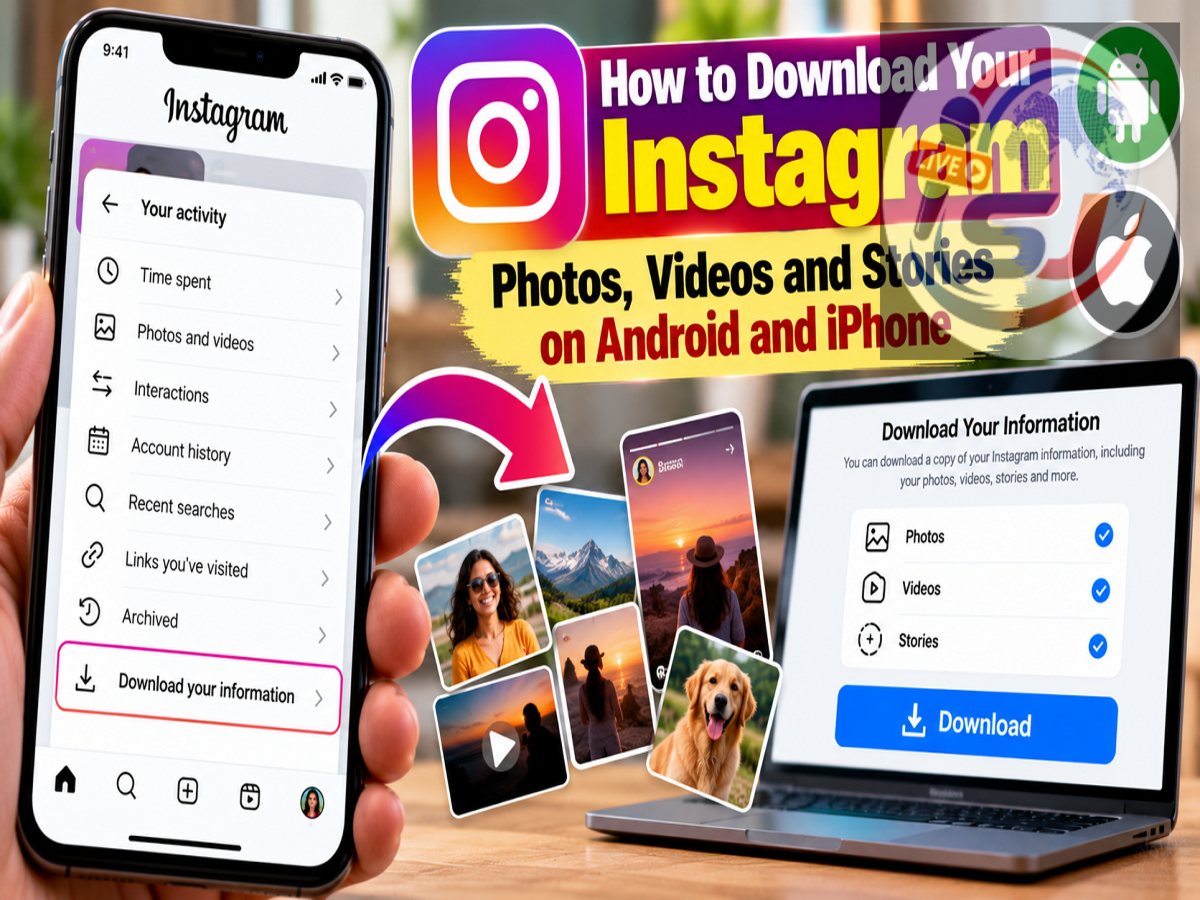
Instagram has evolved from a simple photo-sharing app into a platform for photos, videos, Reels and Stories. Many users upload their favourite pictures and videos to Instagram and later delete the original files from their phones to free up storage.
But what happens when you want that photo or video back?
Instagram provides options that can allow users to save certain photos and videos they have posted back to their smartphone. Users can also save their own Instagram Stories and enable settings that automatically keep copies of content on the phone.
The process can be performed through the Instagram mobile app on Android and iPhone. However, the exact names or locations of individual options can change as Instagram updates its interface.
Here's how you can save your Instagram content to your phone.
How to Download Your Instagram Photos and Videos
If you have already uploaded a photo or video to Instagram and want to save it to your smartphone, you can check for the download option from the post.
Follow these steps:
-
Open the Instagram app on your Android phone or iPhone.
-
Tap your profile picture in the bottom-right corner to open your profile.
-
Find the photo or video that you want to save.
-
Open the post.
-
Tap the Share option.
-
Look for the Download option in the available menu.
-
Tap Download if it is available.
-
The content should then be saved to your phone's photo library or camera roll.
Users should remember that Instagram's interface and available controls can vary depending on the app version, account and type of content.
Automatically Save Instagram Posts to Your Phone
People who regularly upload content to Instagram may prefer to save copies automatically instead of manually downloading individual posts later.
Instagram provides settings related to archiving and downloading that can help with this.
Open Instagram and go to your profile. Tap the menu in the upper-right corner and find the section related to Your App and Media.
From there, open Archiving and downloading.
Look for the option related to Saving to camera roll and enable it if you want Instagram to automatically keep supported content on your device.
The exact wording of this setting may vary with future Instagram app updates.
How to Save Your Instagram Stories
Instagram Stories normally disappear from public view after 24 hours unless they are added to Highlights, but users may still want to keep the original photo or video on their phones.
Instagram provides a way to save your own Story content.
Open the Instagram app and tap your profile picture in the Stories section.
Move through your Stories until you reach the photo or video you want to save.
Tap the three-dot More menu and select the available Save option.
The selected Story can then be saved to your smartphone.
Depending on the version of Instagram and the content involved, users may see slightly different saving options.
Can You Save Archived Instagram Posts?
Instagram's Archive can be useful when content is no longer visible on your main profile but has not been permanently deleted.
If you previously archived a post, you can open Instagram's archived-content section and check the options available for that photo or video.
This can be particularly helpful when you no longer have the original file stored locally on your smartphone.
Archiving and deleting are not the same thing. A permanently deleted item may be subject to different recovery rules and availability periods.
Can You Download Instagram Content on Android?
Yes. Instagram's Android application provides options for saving supported content to the phone.
The location of a saved file may depend on the device manufacturer, Android version and Instagram version.
Users can generally check their phone's Gallery, Photos or file-management application after saving a supported photo or video.
Can You Download Instagram Photos on an iPhone?
Instagram users on iPhones can also save supported photos, videos and their own Stories through the mobile application.
Saved content will generally be accessible through Apple's Photos app, subject to the permissions granted to Instagram.
If saving does not work, users should check whether Instagram has the necessary permission to access the device's photo library.
What If the Download Button Does Not Appear?
Not every piece of content or every account interface necessarily provides the same download controls.
Instagram frequently updates its mobile apps and tests features with selected users, which means the menu described in one version may appear differently in another.
First, make sure the Instagram application is updated.
Then check the post's Share or More menu for available saving options.
Also remember that these instructions primarily concern content associated with your own Instagram account. They should not be interpreted as permission to download and republish another person's copyrighted photos or videos.
Saving Your Content Is Different From Downloading Account Data
There is also an important distinction between saving an individual Instagram photo or video and obtaining a broader copy of information associated with your account.
Saving an individual post is useful when you simply want a photo or video back on your phone.
Downloading account information is a broader process that may include multiple categories of data associated with an Instagram account.
Therefore, users looking to back up a large amount of account information should check Instagram's account-data and information-download controls rather than manually saving every individual post.
Why You Should Keep a Backup of Important Instagram Content
Social-media platforms should not necessarily be the only place where important photos and videos are stored.
Accounts can become inaccessible, posts can accidentally be deleted and users can sometimes encounter technical problems.
For important personal photos and videos, consider maintaining a separate backup on your smartphone, computer or trusted cloud-storage service.
That way, Instagram remains a place where you share content rather than the only place where the original files exist.
Be Careful With Third-Party Instagram Download Websites
Users searching online for ways to save Instagram content will often encounter websites and applications claiming to download photos, Reels, Stories or videos.
Be especially cautious if one of these services asks for your Instagram username and password.
Avoid entering your login credentials on unknown third-party websites.
If your goal is simply to retrieve content from your own account, using Instagram's built-in features is generally preferable to handing account credentials to an unofficial service.
Instagram Makes It Easier to Keep Your Own Content
Instagram's built-in saving options can be useful when the original photo or video is no longer stored on your phone.
Users can check individual posts for a download option, configure supported content to save automatically to their camera roll and manually save their own Stories.
The functionality is available through Instagram's mobile apps, although individual menu names and feature availability may change as the platform is updated.
For the safest experience, keep Instagram updated and use its built-in tools whenever possible instead of relying on unknown third-party download services.