
How to Check Which Websites Share Your Activity With Meta
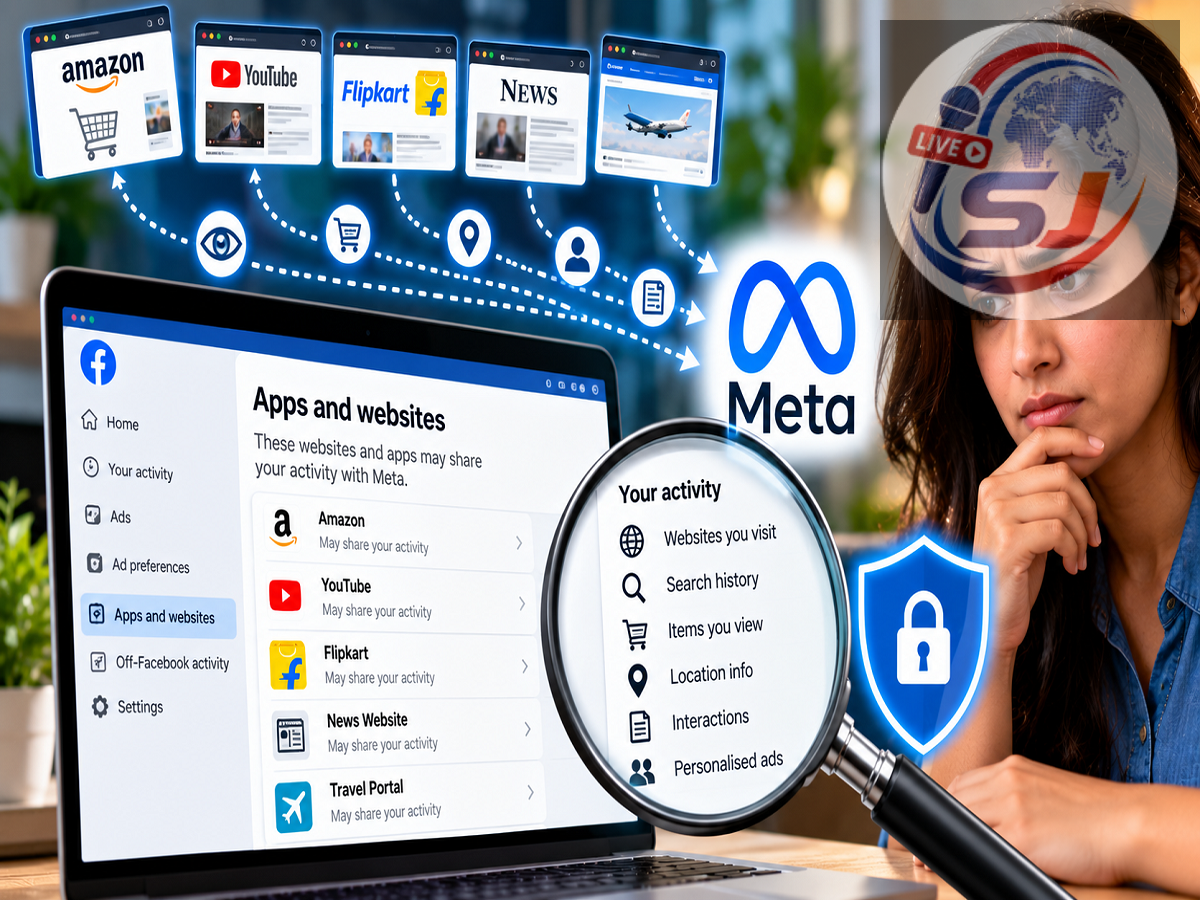
Your activity on Facebook and Instagram is not the only information that can be associated with your Meta account. Some websites, online stores and apps can also send information about interactions that happen outside Meta's own services.
For example, you may visit an online shopping website, search for a product or make a purchase. Depending on the website's technology and data-sharing setup, information about certain interactions may be sent to Meta. This information can be used for purposes such as measuring advertising performance and personalising experiences, subject to applicable settings and policies.
Meta provides controls that allow users to review and manage some of this activity through a feature known as Your Activity Off Meta Technologies.
If you want greater control over your privacy, here is how to find this setting and manage the activity associated with your account.
What Is Activity Off Meta Technologies?
Businesses and organisations can use Meta's business tools to understand how people interact with their websites and applications.
This can involve technologies and integrations that allow a business to send certain activity information to Meta.
For instance, an online store may record actions such as visiting its website, viewing a product or completing a purchase. Depending on the setup, some information related to those interactions may be shared with Meta.
That is one reason why you might browse a particular category of products on another website and later see related advertising on Facebook or Instagram.
However, seeing a relevant advertisement does not by itself prove that one particular website directly shared a specific piece of personal information. Ad personalisation can depend on multiple signals and settings.
How to Check Activity Shared With Meta
Meta provides controls through Accounts Center, which is used to manage connected experiences and settings across supported Meta accounts.
The exact names and location of menu options can change as Facebook and Instagram are updated, but users can generally look for the relevant privacy controls inside Accounts Center.
On Facebook, start by opening your profile menu and going to:
Settings & Privacy → Settings → Accounts Center
From there, look for:
Your information and permissions → Your activity off Meta technologies
This section can show information related to businesses and organisations that have sent activity associated with you to Meta.
If the option does not appear exactly as described, use the Settings search function because Meta occasionally reorganises its menus.
How to Find the Setting on Instagram
Instagram users can also access similar controls through Accounts Center.
Open Instagram and go to your profile, then open the menu and enter Accounts Center through Settings.
Look for:
Your information and permissions → Your activity off Meta technologies
From there, you can review available information and controls relating to activity received from businesses and organisations outside Meta.
Because Accounts Center can manage multiple Meta accounts, users should pay attention to which account or accounts are affected when changing a setting.
Review Your Recent Activity
The activity section can provide information about businesses and organisations that have shared interactions through Meta's business tools.
If you see a company you recognise, it could be an online store, application or service you have previously used.
But do not immediately assume that every unfamiliar business name represents fraud or unauthorised access.
Sometimes the business name displayed in an activity log can differ from the consumer-facing brand name you recognise. A parent company, technology provider or another business entity may appear instead.
Users can review the available information before deciding whether to disconnect activity.
Disconnect Activity From a Business
Meta provides controls for disconnecting certain activity from your account.
Depending on the version of Accounts Center available to you, you may see options for disconnecting activity associated with a particular business or managing several entries.
Selecting an individual entry can provide additional information and, where available, an option to disconnect that activity from your account.
Meta may also provide an option such as Disconnect specific activity for managing selected businesses.
The wording may vary slightly depending on your app version, device and region.
How to Clear Previous Activity
Users who want to manage historical information can look for the Clear previous activity option.
This control affects how past activity received from other businesses is associated with your account for relevant Meta experiences.
It is important to understand what “clear” or “disconnect” means in this context.
Using such a control should not automatically be interpreted as deleting every piece of information from the original website or business that generated it.
The external business may maintain its own records under its privacy policy, legal obligations and retention practices.
Therefore, Meta's activity controls and a third-party company's own data-retention policies are separate matters.
How to Manage Future Activity
Users can also review options related to future off-Meta activity.
Look for Manage future activity or similar controls.
Depending on the options currently available to your account, you may be able to select Disconnect future activity.
Before confirming the change, read the explanation displayed by Meta carefully. Changing this setting can affect how activity from other businesses is connected to your Meta account and may alter some personalised experiences.
It does not necessarily mean websites will stop collecting information about your activity altogether.
Websites and apps have their own privacy practices, cookies, analytics systems and account settings.
Use Facebook Privacy Checkup
Facebook also provides a Privacy Checkup tool that can help users review other important privacy settings.
This tool can be useful if you have not checked your Facebook privacy preferences for a long time.
Privacy Checkup can help you review who can see certain profile information and how different parts of your account are configured.
Depending on the available settings, this can include information such as your email address, phone number, date of birth and other profile details.
You can adjust visibility based on the options Facebook provides.
Review Apps and Websites Connected to Facebook
Another setting worth checking is the list of applications and websites where you have used Facebook to sign in.
This is different from simply reviewing off-Meta activity.
If you have selected Continue with Facebook or a similar Facebook Login option on another service, that app or website may appear in the relevant connected-app settings.
Review the list periodically.
If you find an application or website you no longer use, you can consider removing its connection.
However, removing Facebook Login access does not necessarily delete the account or information held by that external service. You may need to contact the service itself or use its privacy settings if you want to delete data stored by that company.
Check Your Advertising Preferences Too
Meta also provides settings related to advertisements.
These controls can help users understand and manage some of the information used for advertising and personalisation.
Ad settings are not necessarily the same as the Your Activity Off Meta Technologies controls, so users concerned about privacy may want to review both areas.
The available advertising options can vary by account and region.
Review Your Meta Privacy Settings Regularly
Privacy settings can easily be forgotten after an account has been used for several years.
During that time, you may have signed in to numerous applications, visited online stores or connected services that you no longer use.
Periodically checking Accounts Center, Your Activity Off Meta Technologies, Privacy Checkup, connected apps and advertising preferences can give you a better understanding of how your account is configured.
If you want to see which businesses have sent activity information to Meta, start with:
Accounts Center → Your information and permissions → Your activity off Meta technologies
From there, review the available entries and use the provided controls if you want to disconnect specific activity, clear previous activity or manage future activity.
Keep in mind that changing Meta's settings does not necessarily erase information separately stored by external websites or prevent all forms of tracking across the internet. For broader privacy control, you should also review the privacy, cookie and account settings of the websites and apps you use.