
Home Wi-Fi Running Slow? 5 Simple Fixes That Can Boost Speed Without Upgrading Your Plan
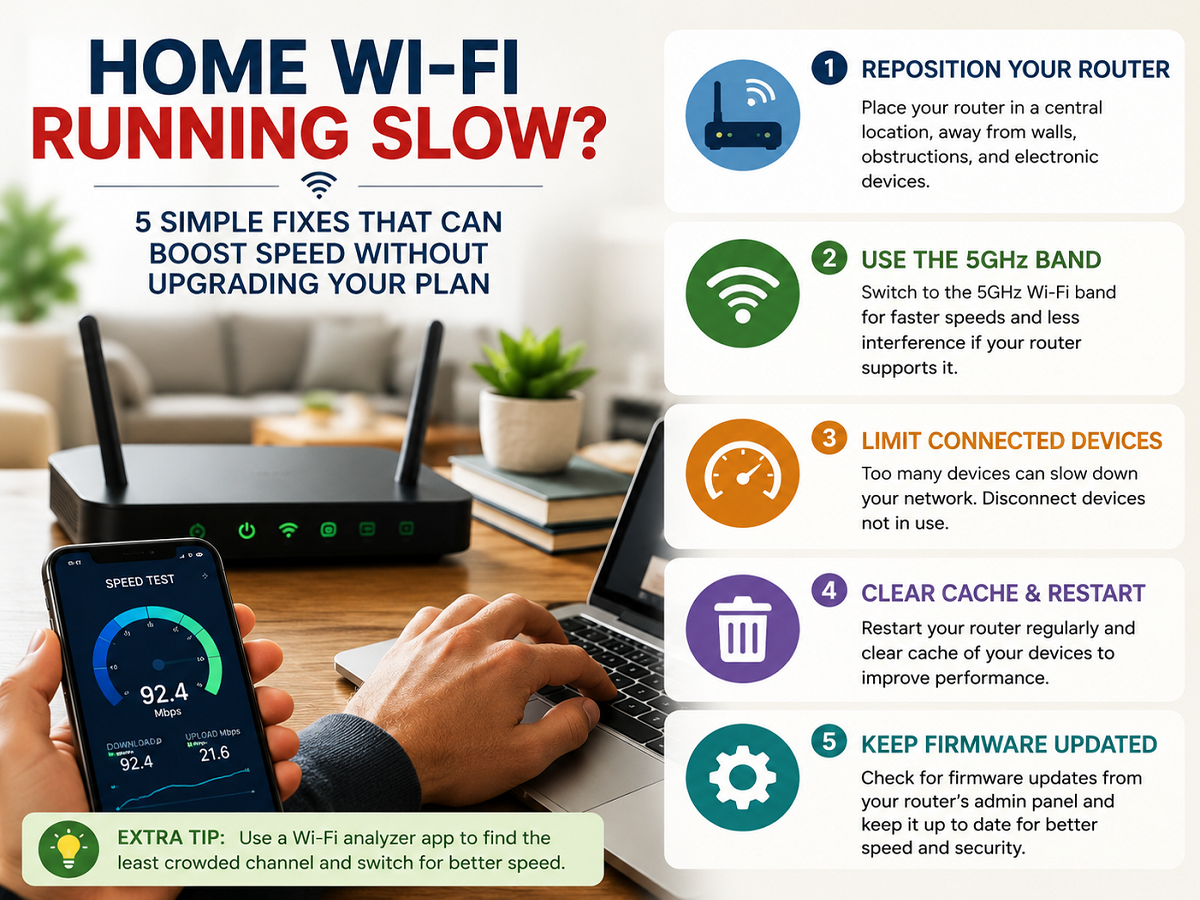
A high-speed broadband plan does not always guarantee fast internet in every corner of your home. You may get excellent speeds near the router but experience buffering videos, slow downloads or unstable video calls when you move into another room.
In many cases, the broadband connection itself is not responsible. The actual problem may be your Wi-Fi setup. Router placement, walls, wireless interference, connected devices and even the frequency band you use can significantly affect performance.
Before paying for a faster internet package or replacing your router, try these five practical fixes. Some improvements may cost absolutely nothing.
1. Change Your Wi-Fi Router's Location
Router placement is one of the most overlooked reasons for poor Wi-Fi performance.
Many people place their router wherever the broadband cable enters the house. Others hide it inside a cabinet or put it behind a television because they don't want the device and wires to remain visible.
Unfortunately, this can weaken wireless coverage.
Wi-Fi signals have to travel from your router to phones, laptops, televisions and other connected devices. Thick walls, large furniture, metal objects and other obstacles can reduce signal strength.
For better coverage, try placing the router in a central and relatively open location. Keeping it slightly elevated can also help the signal spread more effectively.
Avoid putting the router inside closed cabinets or surrounding it with large electronic devices.
A simple change in location can sometimes improve Wi-Fi performance more than upgrading your broadband plan.
2. Understand the Difference Between 2.4 GHz and 5 GHz
If you have a relatively modern dual-band router, you may see two Wi-Fi options: 2.4 GHz and 5 GHz.
They serve slightly different purposes.
The 2.4 GHz band generally offers better range and can penetrate walls more effectively. It can therefore be useful for devices located farther away from the router.
However, 2.4 GHz is usually more crowded because numerous household and wireless devices can operate around this frequency.
The 5 GHz band, meanwhile, generally provides higher speeds and can experience less congestion. It is often a better choice for laptops, smart TVs, gaming consoles and smartphones located reasonably close to the router.
The trade-off is range. A 5 GHz signal typically weakens faster as distance and physical barriers increase.
So, instead of assuming one band is always better, select the network according to the location and requirements of your device.
3. Find Out Which Devices Are Consuming Your Internet
Your Wi-Fi may appear slow even when the wireless signal itself is working perfectly.
The culprit could simply be too many devices consuming bandwidth simultaneously.
Modern homes can have dozens of connected devices, including smartphones, smart TVs, laptops, tablets, security cameras, gaming consoles and smart appliances.
Background activity also matters.
For example, one laptop could be downloading a large software update while another phone uploads hundreds of photos to cloud storage. At the same time, a smart TV could be streaming 4K video.
Combined, these activities can consume a substantial portion of the available bandwidth.
Open your router's administration page or companion app and check the list of connected devices. Remove unfamiliar devices and change your Wi-Fi password if you suspect someone is using your connection without permission.
You can also pause unnecessary downloads or cloud backups when you need maximum bandwidth for an important video call, game or stream.
4. Restart Your Router and Check for Firmware Updates
Restarting a router sounds like an overly simple solution, but it can sometimes resolve temporary connectivity problems.
Routers are essentially small computers that continuously manage connections between multiple devices. Occasionally, software glitches or connection problems can affect their performance.
A proper restart may clear some temporary issues.
Firmware updates are equally important.
Router manufacturers may release firmware updates to address security vulnerabilities, compatibility issues, bugs and performance problems.
Check your router manufacturer's official administration interface or app to see whether an update is available.
However, avoid downloading router firmware from unknown third-party websites. Use only the manufacturer's official software and instructions.
5. Fix Wi-Fi Dead Zones Instead of Ignoring Them
If Wi-Fi consistently works well in the living room but becomes unusable in a bedroom or on another floor, you probably have a coverage problem rather than a broadband-speed problem.
Start by relocating the router.
If changing its position does not solve the problem, additional networking equipment may be worth considering.
A mesh Wi-Fi system can be particularly useful in larger homes or properties with multiple floors. Multiple mesh units work together to provide more consistent coverage across the property.
A Wi-Fi extender can also improve coverage in certain situations, although its placement is crucial. Putting an extender in a location where the original Wi-Fi signal is already extremely weak may deliver disappointing results.
How to Check Whether Wi-Fi or Broadband Is Actually Slow
Before upgrading your internet plan, perform a simple comparison.
Connect a laptop or computer directly to the router using an Ethernet cable, if possible, and run a speed test. Then perform another test over Wi-Fi from your usual location.
Suppose your broadband plan offers 300 Mbps and the wired connection comes reasonably close to that speed, but your bedroom receives only a fraction of it over Wi-Fi.
That suggests the broadband line itself may not be the primary problem. Instead, wireless coverage, interference, distance or your router could be limiting performance.
On the other hand, if both wired and Wi-Fi speeds are consistently much lower than expected, contacting your internet service provider may be appropriate.
Don't Immediately Buy a More Expensive Internet Plan
Upgrading from a 100 Mbps connection to 300 Mbps will not necessarily fix a bedroom where the Wi-Fi signal barely reaches.
Likewise, buying an expensive new router may be unnecessary if your existing router is simply sitting in the wrong location.
Start with the basics: move the router, choose the appropriate frequency band, check connected devices, restart and update your equipment, and identify dead zones.
Only after testing these factors should you consider buying a mesh system, extender or faster broadband package.
Bottom Line
The speed advertised by your broadband provider is only one part of your home internet experience. What ultimately reaches your smartphone or laptop depends heavily on your wireless environment.
Walls, distance, router positioning, frequency bands and simultaneous internet usage can all make a fast broadband connection feel surprisingly slow.
So, before spending money on an upgrade, try improving your existing setup. In some homes, simply moving the router from behind the TV to a central, open location could make a noticeable difference.