
Google Account Mobile Number Update 2026: Changed Your Phone Number? Follow These Steps to Secure Gmail and Google Pay
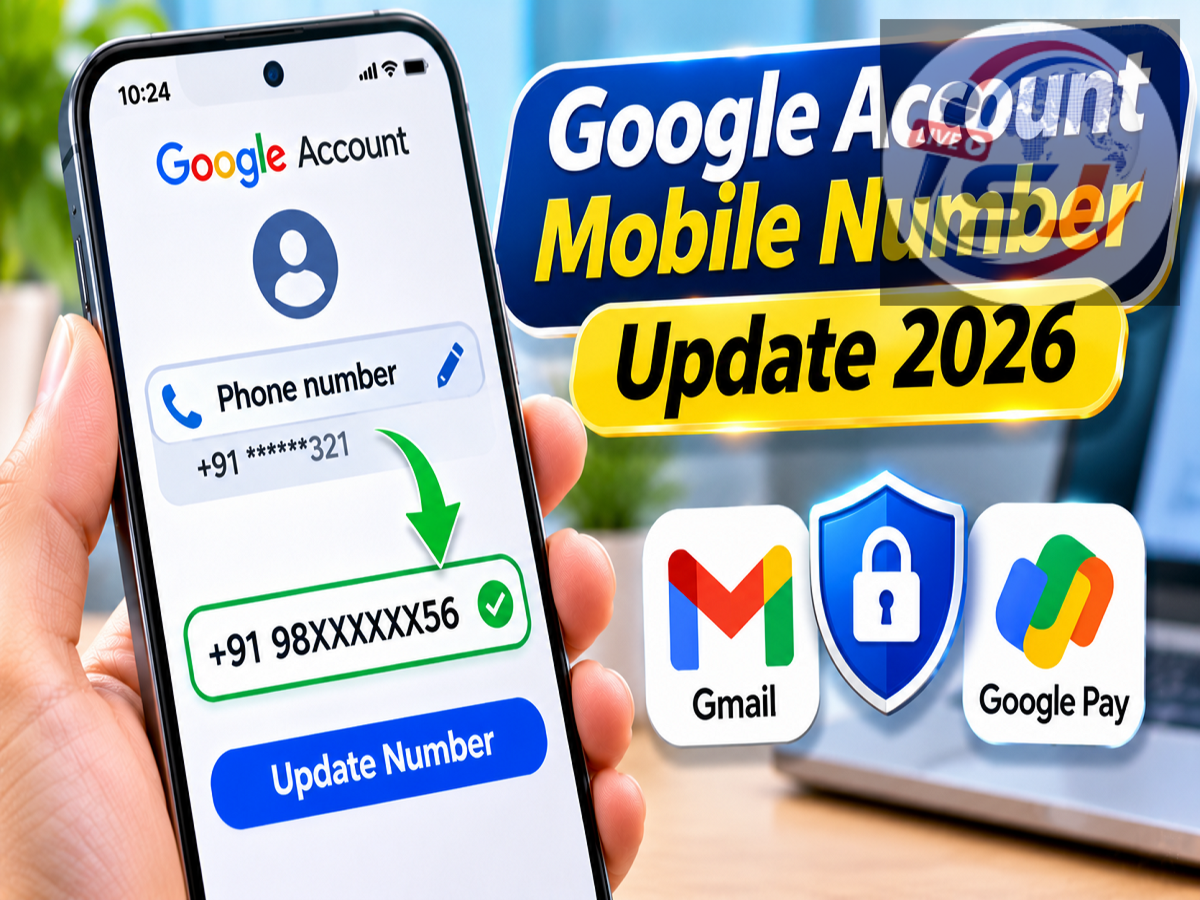
Google Account Phone Number Update 2026: Have you recently changed your mobile number or switched to a new SIM card? If yes, updating your contact information in your Google Account should be among your first priorities. However, simply adding a new phone number to your Google Account may not automatically update it across all Google services.
Your mobile number can play an important role in account recovery, identity verification and security settings. An outdated number could create difficulties when accessing Gmail, Google Pay or other Google services, particularly if you forget your password or need to verify your identity.
According to Google's account management guidance, newly added phone numbers may also take up to seven days to become eligible for certain sensitive verification activities.
Here is a complete guide to updating your Google Account phone number on Android, iPhone and computers, along with essential precautions to keep your account secure.
Why Is Updating Your Google Account Phone Number Important?
A Google Account connects users to several important digital services, including Gmail, Google Drive, Google Photos, YouTube and Google Calendar.
Many people store personal documents, photographs, financial information and work-related files within these services.
Keeping account recovery information updated is therefore an important security measure.
A registered phone number may help Google verify your identity when unusual account activity is detected or when you attempt to recover access to your account.
If your previous mobile number has been disconnected or reassigned, relying on it for verification could make account recovery more difficult.
However, changing the number in your main Google Account does not necessarily update every Google service.
Does Changing Your Google Account Number Update All Google Services?
No. Google explains that phone numbers may be used differently across its products and services.
Some applications maintain separate phone number settings.
Consequently, updating the number associated with your main Google Account may not automatically change the number used by other services.
These may include:
-
Google 2-Step Verification
-
Google Calendar
-
Google Chrome
-
Google Pay
-
Google Business Profile
For example, if you add a new mobile number to your Google Account, the number registered with Google Pay may remain unchanged.
Similarly, an older number may still be associated with your account's two-step verification settings.
Users should therefore review individual service settings after changing their primary phone number.
Why Can a New Google Account Phone Number Take Seven Days to Work?
Google applies security measures when users modify important account information.
According to Google's guidance, a newly added phone number may not immediately be available for every sensitive verification activity.
In certain situations, users may need to wait up to one week before Google allows the new number to be used for specific identity verification purposes.
For example, if you attempt to change your password and Google requires additional verification, the recently added number might not immediately be accepted.
This restriction helps protect accounts against unauthorised changes.
For this reason, users should maintain other secure recovery methods, such as a recovery email or an existing trusted authentication method.
How to Change Your Google Account Phone Number on a Computer
Users can update their account phone number through Google's official account management website.
Follow these steps:
-
Open a web browser on your laptop or desktop computer.
-
Visit myaccount.google.com.
-
Sign in using your Google Account credentials.
-
Select Personal info.
-
Find the Phone section.
-
Select the phone number associated with your account.
-
Choose Edit if the option is available.
-
Select Update number.
-
Enter your new mobile number and complete the required verification.
Depending on your account configuration, Google may ask you to sign in again or verify your identity.
Users may also see options to add a recovery number or remove an outdated phone number.
The exact labels can vary depending on Google's current interface and account settings.
How to Update Your Google Account Number on Android
Android smartphone users can manage Google Account information through their device settings.
Here is the process:
-
Open the Settings application on your Android phone.
-
Find Google or the account management section.
-
Tap Manage your Google Account.
-
Open Personal info.
-
Select Phone.
-
Tap the registered mobile number.
-
Choose Edit or the relevant update option.
-
Enter your new phone number.
-
Follow the on-screen instructions to complete verification.
Different Android manufacturers may arrange their settings menus differently.
If you cannot locate the relevant option, you can open Google's account management website in your mobile browser.
How to Change Your Google Account Mobile Number on iPhone
iPhone and iPad users can also update their Google Account information.
If the Gmail application is installed, follow these steps:
-
Open Gmail on your iPhone.
-
Tap your profile picture.
-
Select Manage your Google Account.
-
Open Personal info.
-
Navigate to Phone.
-
Select the phone number currently associated with your account.
-
Tap the available editing option.
-
Choose Update number if displayed.
-
Enter your new number and complete verification.
Alternatively, iPhone users can visit myaccount.google.com through Safari or another browser.
This provides access to the same general account management settings.
How to Remove an Old Mobile Number From Your Google Account
An outdated mobile number can create security and account recovery concerns, particularly if the number is no longer under your control.
To review or remove an old number, open your Google Account settings and navigate to Personal info.
Select Phone and choose the number you want to review.
If Google provides a Delete or Remove number option, follow the on-screen instructions.
Before removing an old number, confirm that your new contact details and recovery methods are correctly configured.
However, if your old number has already been disconnected or reassigned, removing it from relevant security settings should be treated as a priority.
How to Add a Recovery Phone Number to Your Google Account
A recovery phone number can help users regain access to their accounts when they forget a password or encounter verification problems.
To review this setting, open your Google Account and locate the recovery phone option in the account's security or personal information settings.
Depending on the interface, you may find it under Personal info, Phone or the relevant security settings.
Select the option to add or update your recovery phone.
Enter a mobile number you control and complete any required verification.
Using an active number that you can reliably access is important.
Users should also maintain a recovery email address to avoid depending entirely on one phone number.
Why Should You Check Google Pay Separately?
Google Pay uses mobile numbers for important payment-related processes.
In India, Google Pay's UPI functionality is linked to mobile number verification and the phone number registered with participating banks.
Therefore, changing your Google Account phone number does not necessarily update the mobile number associated with your bank account or UPI services.
If you have switched mobile numbers, you should verify the number registered with your bank and review Google Pay's official instructions for updating or setting up the service.
Depending on your situation, additional SIM verification or payment account setup may be required.
Never assume that Google Pay will automatically recognise a new mobile number simply because you changed it in your Google Account.
Check Your Google 2-Step Verification Settings
Two-step verification adds another layer of security by requiring additional authentication when necessary.
However, if your account still relies on an old mobile number for verification, you may experience difficulties accessing your account.
After changing your number, open your Google Account's Security settings and review the available two-step verification methods.
Check whether an outdated phone number is still listed.
Where appropriate, update the number and configure other supported authentication methods.
Google prompts, authenticator applications, passkeys and security keys may provide alternatives to SMS-based verification, depending on your account and device.
Google Account Number Change: Important Settings to Review
| Setting or Service |
Why You Should Check It |
|---|---|
| Google Account Phone |
Ensures your account information is current |
| Recovery Phone |
Helps with account recovery |
| 2-Step Verification |
Supports secure login and identity verification |
| Google Pay |
Checks the number used for payment-related services |
| Google Calendar and Chrome |
Reviews any separately configured phone number settings |
| Seven-Day Verification Period |
Helps avoid unexpected verification difficulties |
Reviewing these settings can help prevent problems after switching to a new SIM card.
Common Mistakes to Avoid When Changing Your Google Account Number
Users should take several precautions while updating their mobile numbers.
First, ensure that your new SIM card is active and capable of receiving verification messages.
Avoid using a phone number controlled by someone else as your recovery number.
Always access Google Account settings through Google's official website or trusted applications.
Never share OTPs, verification codes or account recovery information with unknown callers.
Cybercriminals may impersonate Google representatives and request verification codes to gain unauthorised access.
Users should also review their recovery email and other authentication options before removing an old phone number.
Should You Remove Your Old Number Immediately?
The answer depends on whether the old number remains under your control.
If your previous number is still active and accessible, you may want to confirm that the new number and alternative recovery methods work before removing it.
This is particularly relevant because Google may restrict the use of newly added phone numbers for certain sensitive verification activities for up to seven days.
However, if your old number is no longer under your control, leaving it associated with account recovery or verification settings could create security risks.
In that situation, prioritise removing the outdated number and configuring secure alternatives.
Conclusion
Updating your mobile number in your Google Account is an important step after changing SIM cards or switching phone numbers.
Android, iPhone and computer users can manage their phone number through Google's account settings.
However, changing the number in the main account may not automatically update Google Pay, two-step verification or other Google services.
Users should also remember that a newly added number may take up to seven days to become eligible for certain sensitive verification activities.
Checking recovery settings, reviewing connected services and removing outdated contact information can help keep Gmail, Google Pay and other Google services accessible and secure.