
Free Digital Business Card: Create a Professional Visiting Card With AI and QR Code in Minutes
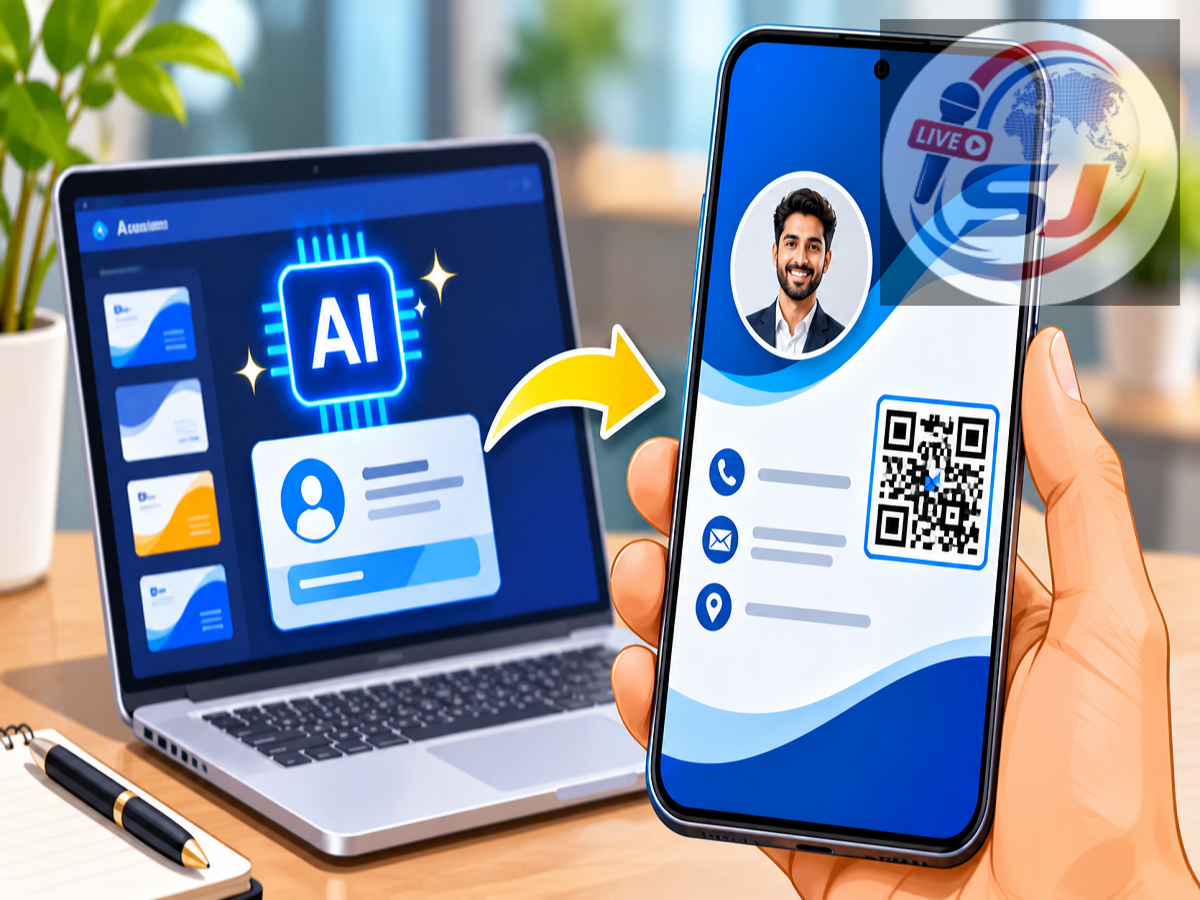
Digital Business Card Creation Guide: In today's increasingly digital world, professionals, entrepreneurs, freelancers and small business owners no longer need to depend entirely on printed visiting cards to share their contact information.
A digital business card allows individuals to introduce themselves, promote their businesses and exchange professional details using a smartphone. Adding a QR code makes the process even more convenient, as recipients can scan the code to access contact information, websites or professional profiles.
With AI-powered platforms such as ChatGPT and Google Gemini, along with design tools like Canva, HiHello and Adobe Express, users can create personalised digital visiting cards without advanced graphic design skills.
Several of these platforms offer free features that are sufficient for creating a basic professional business card.
Here is a step-by-step guide to designing and sharing your own digital business card.
What Is a Digital Business Card?
A digital business card is an electronic version of a traditional visiting card that can be shared through smartphones, email, messaging applications and social media platforms.
Unlike printed cards, certain digital business card platforms allow users to update their professional information without creating an entirely new card.
Users can also include clickable website links, social media profiles, email addresses and QR codes, making professional networking more interactive.
What Information Should You Include in a Digital Business Card?
A professional digital visiting card should contain relevant information that allows potential customers, clients and business associates to contact you easily.
| Information |
Purpose |
|---|---|
| Full name |
Professional identification |
| Job title or designation |
Explains your professional role |
| Company or business name |
Establishes business identity |
| Mobile number |
Direct communication |
| Professional email address |
Business correspondence |
| Website URL |
Provides additional business information |
| Company logo |
Strengthens brand recognition |
| LinkedIn profile |
Professional networking |
| Business address |
Helps customers locate your office, if applicable |
| QR code |
Provides quick access to digital contact details |
Avoid including unnecessary personal information such as your Aadhaar number, PAN number, residential address or confidential financial details.
How to Create a Digital Business Card Using ChatGPT
ChatGPT can help users prepare professional business card content, develop design concepts and select suitable colour combinations.
Step-by-Step Process
-
Open ChatGPT on your smartphone or computer.
-
Enter your professional name, designation and company details.
-
Specify your preferred business card style.
-
Request a professional layout, colour palette and contact information arrangement.
-
Review and customise the generated content.
-
Use the final content in a design platform such as Canva.
You can use the following sample prompt:
Create a modern and professional digital business card layout for my business. Include my name, designation, company name, mobile number, email address, website and space for a QR code. Use a premium blue and white colour combination with a clean, minimal design.
Copy prompt
Users can also request multiple design concepts suitable for different industries.
How to Design a Business Card With Google Gemini
Google Gemini can assist users with professional introductions, business taglines, design ideas and content arrangements.
Visit gemini.google.com and provide the necessary professional details. Ask the AI tool to suggest a visually appealing digital business card layout.
Users can specify their preferred colours, industry, branding requirements and overall design style.
The generated suggestions can then be used in a graphic design platform to prepare the final digital card.
How to Create a Free Digital Business Card Using Canva
Canva offers numerous customisable business card templates suitable for professionals and business owners.
Follow these steps:
-
Visit canva.com or download the Canva application.
-
Sign in or create a free account.
-
Search for Digital Business Card or Visiting Card templates.
-
Select a suitable free template.
-
Replace the sample information with your professional details.
-
Upload your company logo or professional photograph.
-
Customise the colours, fonts and layout.
-
Insert your QR code into the design.
-
Download the completed business card in PNG, JPG or PDF format.
Canva also offers premium templates and design elements, but users can create a basic professional card using its free resources.
How to Make an Interactive Digital Business Card With HiHello
HiHello is a dedicated digital business card platform that allows users to create and share professional contact profiles.
Unlike a standard image-based visiting card, an interactive digital card can provide recipients with clickable contact information and links.
To create a card, visit hihello.com, register for an account and select the digital business card creation option.
Enter your name, company details, designation, contact number, website and relevant social media links. Customise the available design options and save your digital profile.
You can then share the card using its available link or QR code.
Certain advanced branding and business management features may require a paid subscription.
How to Generate a Free QR Code Using Adobe Express
A QR code allows recipients to access your digital business card by scanning it with their smartphone camera.
Adobe Express provides an online QR code generation facility that can be used to create a code linked to your professional profile or website.
Steps to Generate a Business Card QR Code
-
Visit the Adobe Express QR Code Generator.
-
Enter the URL of your digital business card, website or professional profile.
-
Customise the QR code's appearance using the available options.
-
Generate the QR code.
-
Download it in a supported image format.
-
Upload the QR code to your Canva business card design.
-
Test the QR code using another smartphone before sharing.
Ensure that the destination URL remains active. A static QR code generally cannot be redirected to a different URL after it has been generated.
Best Free Tools for Creating Digital Business Cards
| Platform |
Primary Purpose |
Website |
|---|---|---|
| ChatGPT |
Content creation and design concepts |
|
| Google Gemini |
AI-powered content and branding ideas |
|
| Canva |
Professional business card designing |
|
| HiHello |
Interactive digital business cards |
|
| Adobe Express |
QR code generation |
Basic free features are available across these platforms, although premium services may attract additional charges.
How to Share Your Digital Visiting Card
Once your digital business card is ready, you can distribute it through various online channels.
Popular sharing options include WhatsApp, Telegram, email signatures, LinkedIn profiles, business websites, Instagram profiles and professional presentations.
Business owners can also display their QR codes at reception counters, retail outlets, exhibitions, conferences and promotional events.
Recipients can scan the QR code to access the linked business profile and save the available contact information.
Important Safety Tips When Sharing Digital Business Cards
Users should follow basic privacy and cybersecurity precautions when creating and distributing digital visiting cards.
-
Use a professional email address and business contact number.
-
Avoid publishing confidential personal information.
-
Generate QR codes through trusted platforms.
-
Verify that the QR code opens the correct website.
-
Use secure HTTPS website links wherever possible.
-
Review your digital profile's privacy settings.
-
Update outdated contact information regularly.
-
Maintain a backup copy of the original business card design.
A digital business card can help professionals reduce printing expenses, improve networking opportunities and establish a consistent brand identity.
With free AI tools and online design platforms, creating a professional digital visiting card with a functional QR code has become accessible even to individuals without graphic design experience.
Disclaimer: Platform features, free-plan limitations, interface options and subscription charges may change. The procedures described are based on the supplied information and general platform functionality and have not been independently tested for this article.