
Does a Laptop Have an Expiry Date? Here Are the Signs It's Time to Replace Your Device
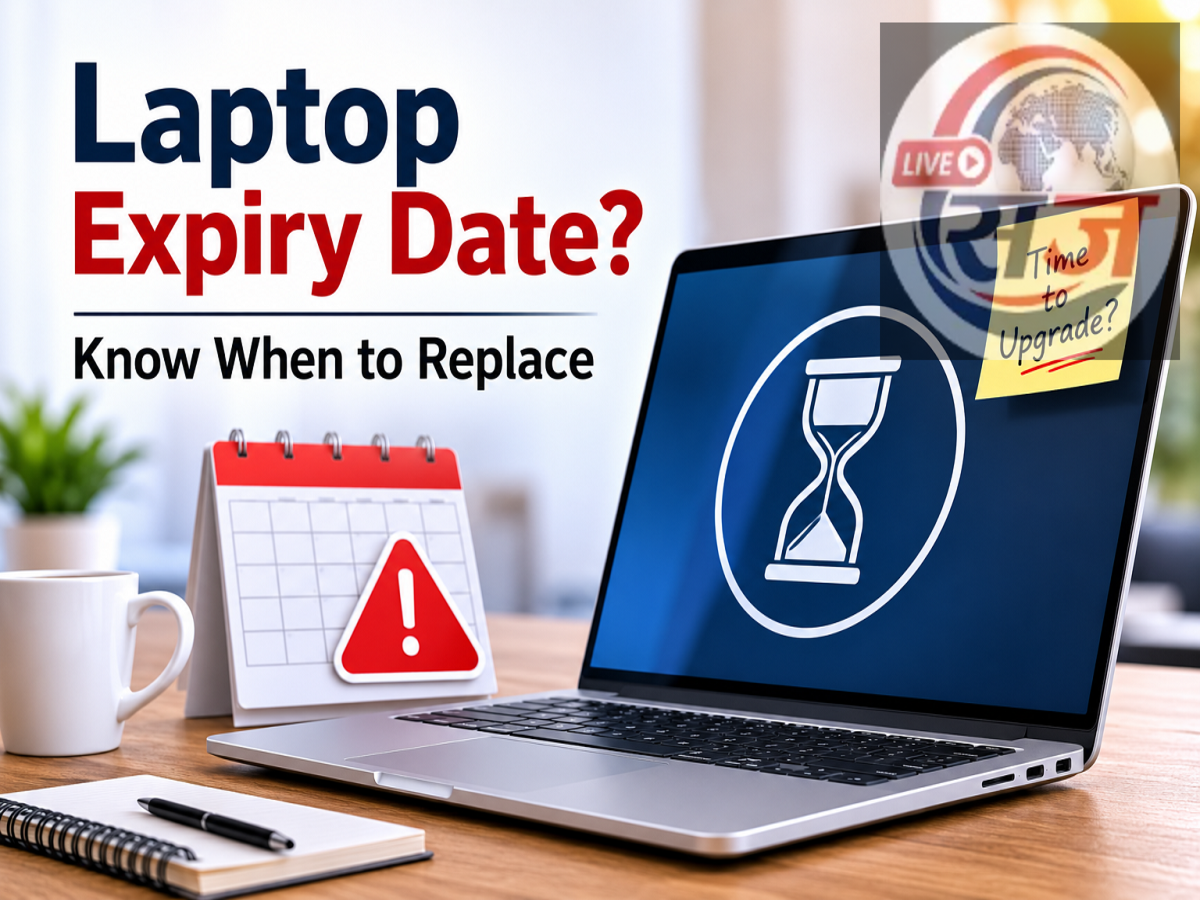
Laptop Lifespan Guide: Laptops do not come with a fixed expiry date, but like any electronic device, their performance and reliability decline over time. Factors such as aging hardware, reduced battery capacity, software compatibility, and frequent repairs can indicate that it's time to consider an upgrade. Here's how to know when replacing your laptop makes more sense than repairing it.
Do Laptops Actually Expire?
Unlike food or medicines, laptops don't have an official expiration date. However, every laptop has a practical lifespan that depends on how it is used, maintained, and upgraded.
For most users, a well-maintained laptop can remain functional for several years. Over time, though, hardware components become less efficient, operating systems evolve, and modern software demands more processing power than older machines can provide.
Recognizing the warning signs early can help you decide whether to upgrade existing hardware or invest in a new device.
1. Your Laptop No Longer Receives Software or Security Updates
One of the biggest indicators that a laptop has reached the end of its useful life is the loss of software support.
Older devices may not be compatible with the latest operating system versions or security updates. Manufacturers also stop releasing firmware and driver updates for aging models after a certain period.
Without regular security updates, your laptop becomes more vulnerable to malware, viruses, and cyber threats.
If your device can no longer support essential operating system updates, replacing it may be the safest long-term option.
2. Battery Performance Has Significantly Declined
Battery health naturally deteriorates with repeated charging cycles.
If your laptop lasts only a short time after being unplugged or constantly needs to remain connected to a charger, the battery may have reached the end of its service life.
In many cases, replacing the battery can restore portability. However, if the laptop is also experiencing multiple hardware limitations, purchasing a newer model could provide better overall value.
3. Performance Has Become Noticeably Slower
Slow startup times, frequent freezing, delayed application launches, and poor multitasking performance are common signs of aging hardware.
Many older laptops can be improved by upgrading:
-
RAM
-
SSD storage
-
Operating system
These upgrades often provide a noticeable performance boost. However, if the system continues to struggle even after hardware improvements, the processor and motherboard may simply be too outdated for modern workloads.
4. Repair Costs Are Becoming Too Frequent
Occasional repairs are normal during a laptop's lifetime.
However, if you repeatedly spend money replacing components such as:
-
Keyboard
-
Display
-
Motherboard
-
Charging port
-
Cooling fan
-
Hinges
the cumulative repair cost may eventually exceed the value of the laptop itself.
When repair expenses continue to increase, replacing the device is often the more practical financial decision.
How Long Does a Laptop Usually Last?
Although actual lifespan varies depending on usage and build quality, most laptops generally remain reliable for approximately:
-
Basic everyday use: 5–7 years
-
Business laptops: 5–8 years
-
Gaming laptops: 4–6 years (depending on hardware demands)
-
Premium professional laptops: Up to 8 years or longer with upgrades and proper maintenance
Users performing demanding tasks such as video editing, software development, or gaming may need hardware upgrades sooner than casual users.
Tips to Extend Your Laptop's Life
Proper maintenance can significantly improve both performance and longevity.
Here are a few practical ways to keep your laptop running efficiently:
-
Regularly install software and security updates.
-
Delete unnecessary files and unused applications.
-
Keep the cooling vents clean to prevent overheating.
-
Use trusted antivirus software.
-
Avoid exposing the laptop to excessive heat or moisture.
-
Upgrade RAM or switch to an SSD if supported.
-
Shut down or restart the system periodically instead of leaving it running continuously.
These simple practices can help maintain speed and reduce wear on internal components.
Should You Upgrade or Buy a New Laptop?
If your laptop still supports current software and performs well after a RAM or SSD upgrade, replacing individual components may be the most cost-effective solution.
However, if the device no longer receives software updates, experiences frequent hardware failures, struggles with everyday tasks, or requires repeated repairs, investing in a new laptop is likely to provide better performance, improved security, and a longer usable life.
Choosing the right option depends on the age of your device, repair costs, and your computing needs.
Disclaimer: Laptop lifespan varies depending on manufacturer, hardware specifications, maintenance, usage patterns, and environmental conditions. The recommendations in this article are intended for general informational purposes and may differ based on individual devices.