
Dangerous Files on Your Phone: How APKs, ZIPs and Fake Documents Can Put Your Data at Risk
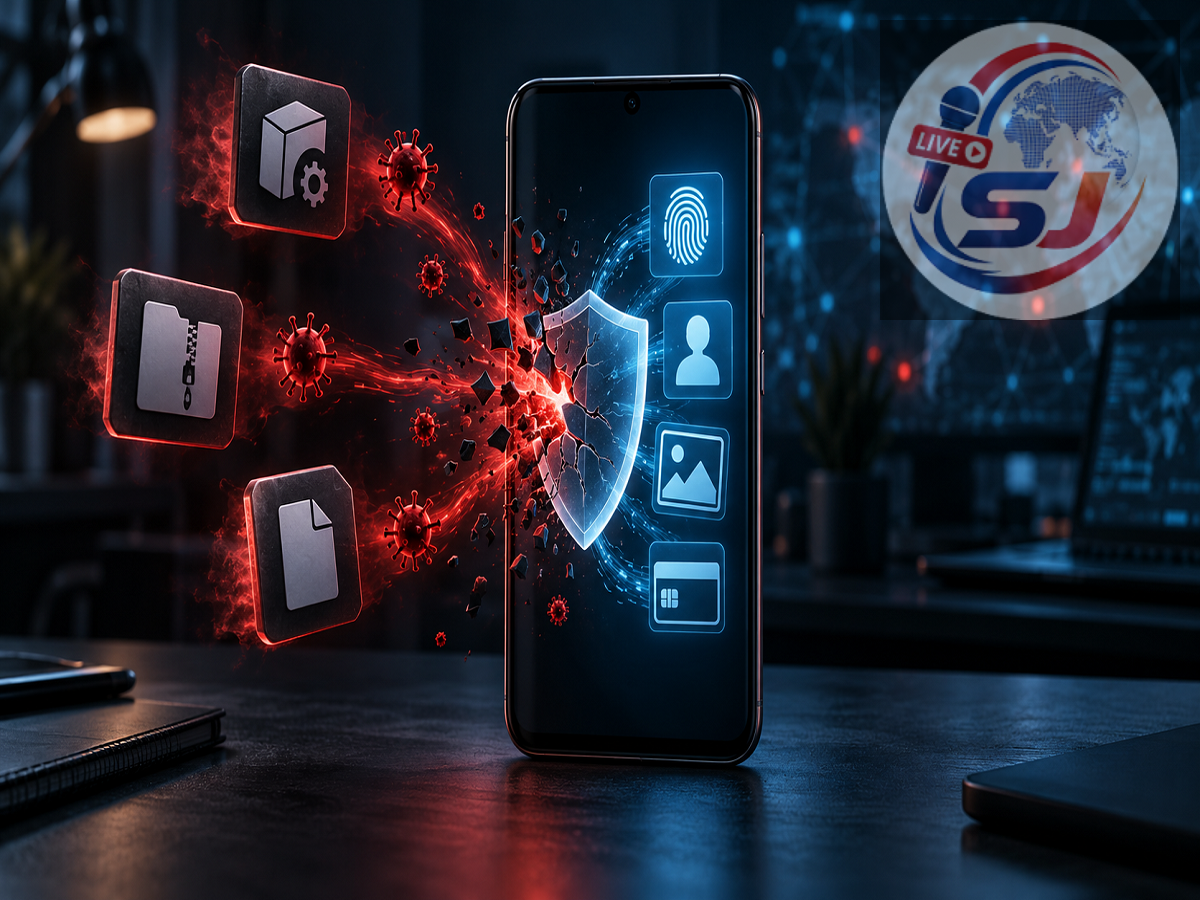
Smartphones now hold far more than contact numbers and casual photographs. Many people use their phones to store bank statements, identity documents, office files, passwords, payment information and private conversations. This makes mobile devices attractive targets for scammers and cybercriminals.
Not every PDF, ZIP file or document stored on a phone is dangerous. A legitimate file does not suddenly infect a device simply because it remains in the Downloads folder. The real threat usually comes from malicious attachments, fake applications, deceptive links or sensitive files that criminals could misuse after gaining access to the phone.
Understanding which files require extra caution can reduce the risk of malware, identity theft and financial fraud.
APK Files From Unknown Sources Carry a Higher Risk
An APK is an application installation file used on Android devices. APK files are not inherently harmful, but installing one from an unverified website, message or email can be risky.
Cybercriminals sometimes disguise malicious apps as banking applications, government services, courier-tracking tools, loan platforms or software updates. Once installed, such an app may request access to SMS messages, contacts, photos, notifications, the microphone or accessibility services.
These permissions can potentially be misused to read one-time passwords, monitor the screen, steal files or perform unauthorized actions.
Users should preferably download applications from trusted stores and verified developer pages. Google says its Play Protect service checks applications when they are installed and periodically scans Android devices for potentially harmful software. It can warn users, disable suspicious apps or remove known threats. Google recommends keeping Play Protect enabled. Google Play Protect guidance provides instructions for checking the setting.
PDFs and Office Documents Can Be Used as Bait
A PDF, spreadsheet or text document may contain genuine information, but scammers frequently use these formats to make fraudulent messages appear official. A file may be presented as an electricity bill, bank notice, court document, tax refund form, job offer or parcel-delivery receipt.
The attachment may contain a link leading to a fake website designed to collect passwords, card details or banking credentials. In other cases, attackers may exploit security flaws in outdated document-viewing software.
An unexpected file should therefore be treated carefully, even if its name looks professional. The sender’s identity, email address and reason for sending the document should be verified independently. Users should avoid calling a phone number or visiting a website mentioned in a suspicious attachment until its authenticity has been confirmed through an official channel.
ZIP and Other Compressed Files Need Extra Attention
ZIP, RAR and similar archive formats are used to package multiple files together. They are common in legitimate work, but they may also conceal scripts, APKs or other potentially harmful content.
Password-protected archives deserve particular scrutiny when received unexpectedly. Attackers sometimes use passwords to prevent automated security tools from examining what is inside. The US Cybersecurity and Infrastructure Security Agency has previously warned that malicious campaigns may use password-protected archive attachments to bypass email security systems. CISA’s advisory describes this technique.
Do not extract an unknown archive simply because the sender provides a password. First confirm the sender and ask why the file was shared.
Sensitive Personal Files Must Also Be Protected
Copies of Aadhaar, PAN, passports, bank statements, salary slips and signed documents may not infect a phone, but they can create serious problems if stolen. Criminals may use personal details for impersonation, targeted scams or fraudulent account applications.
Avoid keeping unnecessary copies of identity documents in easily accessible folders. When a copy must be shared, use only an official platform or verified recipient. Where appropriate, consider using a masked document, watermarking the copy with its purpose and date, or securely deleting it after the task is complete.
Cloud backups should also be protected with a strong, unique password and two-factor authentication.
Do Not Automatically Trust Files From Known Contacts
A message appearing to come from a relative, colleague or friend is not always safe. Their account may have been compromised, or a criminal could be impersonating them with a similar name and photograph.
Be cautious if a familiar contact suddenly sends an unexplained file, asks you to install an application or creates urgency around a payment. Contact that person through another trusted method before opening the attachment.
Warning signs include unusual filenames, spelling mistakes, double extensions, promises of unexpected rewards and demands to enable special permissions.
Review the Downloads Folder Regularly
Deleting an old file does not fix an infection if a malicious application has already been installed. However, cleaning the Downloads folder can reduce confusion and prevent sensitive documents from remaining on the device longer than necessary.
Review Downloads, Documents, received media and messaging-app folders regularly. Remove duplicate files, outdated identity copies, unknown APKs and attachments you no longer require. Back up important information to a trusted encrypted service or another secure location before deleting it.
Check App Permissions and Install Updates
Applications should receive only the permissions necessary for their functions. A calculator, wallpaper or flashlight app generally has no obvious reason to access contacts, SMS messages or the microphone.
On most Android phones, permissions can be reviewed through Settings > Apps > Select an app > Permissions. Menu names may differ depending on the manufacturer. Google also allows users to review permissions by category through Android’s Permission Manager. Android’s official permission guide explains the available controls.
Finally, install operating-system and application updates promptly, use a strong screen lock and keep security scanning enabled. If a suspicious app has already been installed, disconnect the phone from the internet, remove the application, review banking and email activity, and change important passwords from a trusted device. Contact the bank immediately if any unauthorized transaction is detected.