
ChatGPT Locked Chats 2026: How to Protect Private Conversations With a PIN and Unlock Them Safely
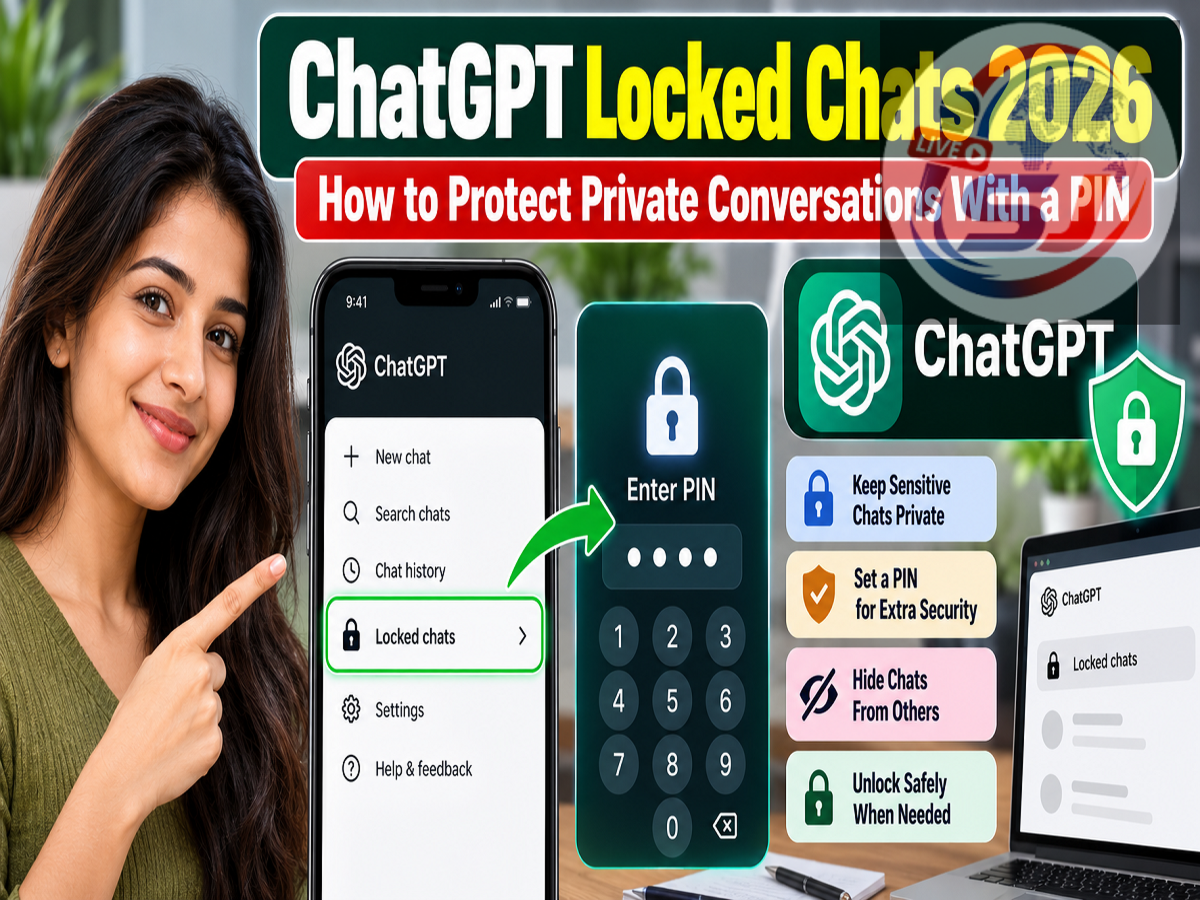
ChatGPT Privacy Feature 2026: OpenAI has reportedly started introducing a privacy feature called Locked Chats, designed to give ChatGPT users greater control over sensitive conversations. The feature allows users to protect selected chats behind an additional authentication step instead of leaving them visible in their regular conversation history.
The reported feature could be particularly useful for people who share their computers or smartphones with family members, use ChatGPT on workplace devices, or frequently share their screens during online meetings.
According to the October 21, 2026 report, locked conversations are separated from the normal chat list and require a four-digit account PIN or supported device authentication to access.
The report also describes an important security precaution: resetting a forgotten PIN may permanently delete conversations and associated information protected by that PIN.
Here is what users should know about the reported ChatGPT Locked Chats feature, including how to lock conversations, access protected chats, and avoid losing important information.
What Is the ChatGPT Locked Chats Feature?
Locked Chats is described as an additional privacy control that allows users to restrict access to selected ChatGPT conversations.
Normally, conversations saved in ChatGPT appear in the user's chat history, where they can be reopened and reviewed.
With the reported locking feature, users can move selected conversations into a separate protected area.
Once locked, those conversations are reportedly removed from ordinary chat history, pinned conversations, and standard conversation search results.
Instead, users must open a dedicated Locked Chats section and complete an authentication step before viewing the protected content.
This additional layer of protection is intended to reduce the chances of someone accidentally seeing private conversations while using a shared device or viewing a screen presentation.
Who Can Use ChatGPT Locked Chats?
The source report states that the feature is being introduced for users across several ChatGPT subscription categories.
These reportedly include Free, Go, Plus, Pro, Business, Enterprise, and Edu.
However, the appearance of a feature may depend on account eligibility, application version, platform support, and rollout status.
Users should check their ChatGPT interface to determine whether the Locked Chats option is available for their account.
How to Lock a Private Conversation in ChatGPT
According to the reported instructions, users can protect an existing conversation through its options menu.
Follow these steps if the feature is available in your account:
-
Open ChatGPT on your smartphone or computer.
-
Navigate to your saved conversation history.
-
Locate the conversation you want to protect.
-
Open the three-dot menu associated with that conversation.
-
Look for the Lock chat option.
-
Select the option and confirm your decision.
-
If you are using the feature for the first time, follow the prompt to create a four-digit account PIN.
-
Enter the PIN again to confirm it.
-
Complete the setup to move the selected conversation into the protected area.
Once the process is completed, the conversation should appear in the Locked Chats section rather than the regular conversation list, as described in the report.
Users should choose a PIN that is difficult for others to guess and avoid sharing it with anyone who does not need access to their private conversations.
How to Open Locked Chats in ChatGPT
Users who have protected conversations may need to visit a separate section to view them again.
The reported process is as follows:
-
Launch ChatGPT and sign in to your account.
-
Open the Projects area if that is where Locked Chats appears in your interface.
-
Select Locked Chats.
-
Enter your four-digit account PIN.
-
Alternatively, use supported biometric or device authentication if offered.
-
Select the protected conversation you want to read or continue.
After successful authentication, the conversation should become accessible.
The source report also indicates that users may be able to start new private conversations directly from the Locked Chats area after setting up their account PIN.
Can You Use Face ID or Fingerprint Authentication?
The reported feature is not limited to PIN-based access.
On supported devices, users may be offered additional authentication methods, including Face ID, Touch ID, or the device's existing unlock mechanism.
This could make it easier to access protected conversations without repeatedly entering a PIN.
However, biometric authentication availability may vary according to the smartphone, operating system, and application version.
Users should not assume that every device will provide identical authentication choices.
What Happens When You Forget Your ChatGPT Account PIN?
PIN management is one of the most important aspects of the reported Locked Chats feature.
According to the source article, users may be able to change an existing PIN without losing protected conversations, provided they can complete the required authentication.
However, resetting a forgotten PIN is described as having significantly different consequences.
The report warns that a PIN reset could permanently remove all conversations protected by the previous PIN.
It further states that files and memory information exclusively associated with those protected conversations may also be deleted.
This means users should understand the consequences before initiating a reset.
Reported Steps to Reset a ChatGPT Account PIN
If the feature and settings are available, the source describes the following path:
-
Open ChatGPT.
-
Go to Settings.
-
Select Security and login.
-
Open Account PIN.
-
Choose Reset PIN.
-
Review any deletion warnings carefully before confirming.
The source states that conversations deleted during this reset process cannot subsequently be recovered through customer support.
These reported consequences should be verified against the official in-product warning before proceeding.
ChatGPT Locked Chats vs Regular Conversations
The proposed privacy feature introduces a distinction between ordinary saved conversations and conversations requiring additional authentication.
| Feature | Regular Chat | Reported Locked Chat |
|---|---|---|
| Appears in normal chat history | Yes | No |
| Visible in ordinary chat search | Generally yes | Reportedly hidden |
| Additional PIN required | No | Yes |
| Supported biometric access | Not normally required | May be available |
| Separate protected section | No | Yes |
| PIN reset implications | Not applicable | Potential deletion risk |
The feature is intended to improve access privacy, but it should not be confused with a guarantee that sensitive information can never be exposed.
Account security, device protection, and careful information sharing remain important.
Why Could Locked Chats Be Useful?
Many people now use ChatGPT for activities that involve information they would prefer to keep private.
These may include drafting personal correspondence, discussing confidential workplace matters, preparing financial plans, or reviewing sensitive documents.
A protected conversation area could reduce accidental exposure in several everyday situations.
For example, a user presenting their screen during a meeting might not want private conversation titles appearing in the sidebar.
Similarly, someone using a shared family computer may prefer to keep selected discussions separate from their ordinary chat history.
The reported Locked Chats feature aims to provide an additional access barrier for these situations.
However, users should still avoid entering information they are not authorised to share and follow relevant workplace confidentiality policies.
Important Security Precautions for ChatGPT Users
Even with conversation locking, basic digital security practices remain essential.
Users should protect their ChatGPT accounts with strong passwords or supported secure sign-in methods.
They should also use available account security features and avoid leaving an active session unattended on shared devices.
When handling sensitive conversations, it is important to review the application's privacy and data controls.
Users should also be cautious about downloading unknown browser extensions or third-party tools claiming to provide additional ChatGPT security features.
Official ChatGPT features should be accessed through supported applications and the authentic ChatGPT website.
Final Word
The reported ChatGPT Locked Chats feature represents a potentially useful addition for people who want greater control over access to selected AI conversations.
By moving sensitive chats into a separate area and requiring additional authentication, the feature could help prevent accidental exposure during device sharing or screen presentations.
However, the reported PIN reset process deserves particular attention because it may involve irreversible deletion of protected conversations and related information.
Users should confirm that Locked Chats is officially available in their account, review the on-screen security instructions, and understand any deletion warnings before enabling or resetting the feature.
Verified information from OpenAI
OpenAI's official documentation confirms that Locked Chats is gradually rolling out across eligible ChatGPT plans. The documented locking, unlocking, PIN management, and authentication procedures are consistent with the main guide above.
Two additional details are important for readers:
-
Permanently unlocking a chat: Open the protected conversation, select the three-dot menu, choose Unlock chat (or Unlock on iOS), and confirm. The conversation then returns to regular history.
-
Privacy limitation: Locked Chats adds access protection but does not create a separate end-to-end encrypted vault or automatically change existing data-retention settings.
Official reference: OpenAI Help Center — Using Locked Chats in ChatGPT.