
Aadhaar Card on WhatsApp: How to Access Your Aadhaar Through MyGov Helpdesk and DigiLocker
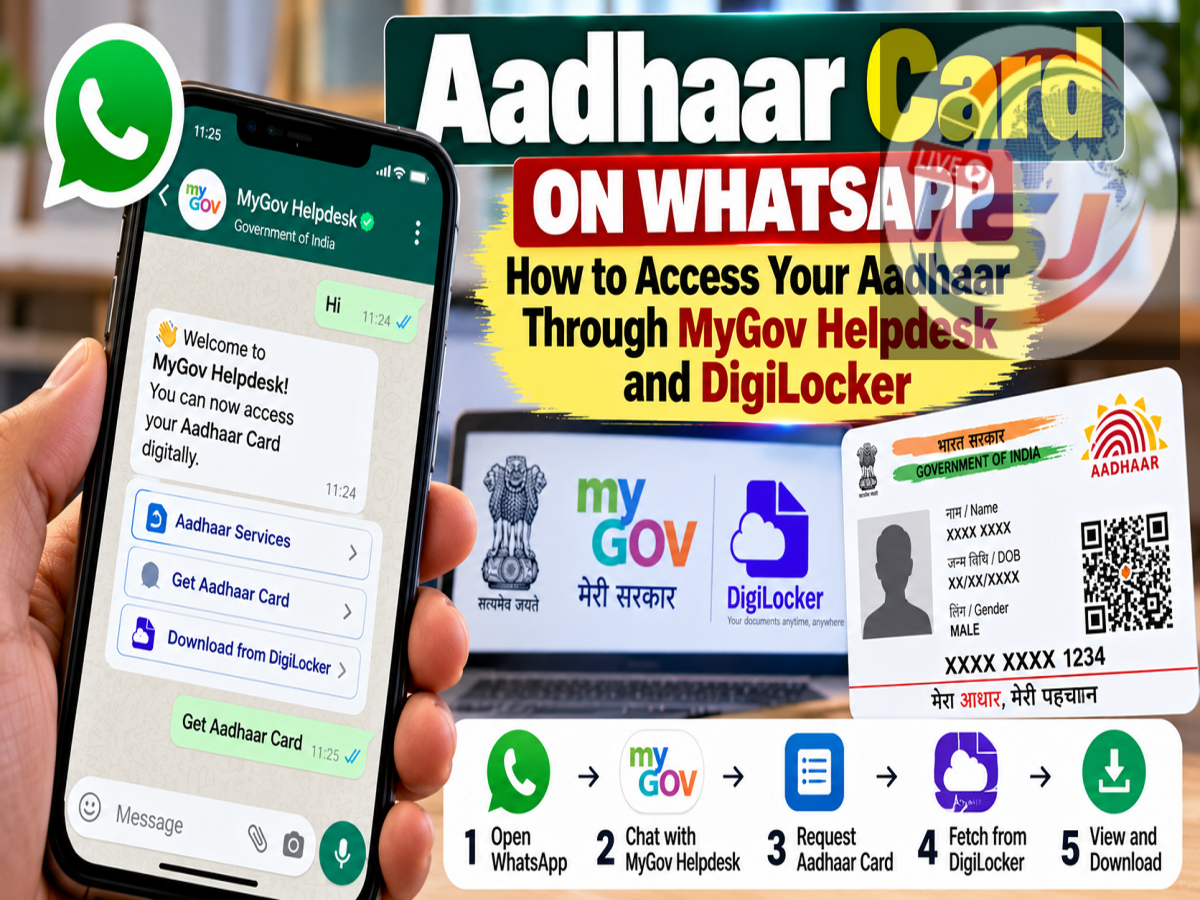
Forgot to carry your Aadhaar card when you suddenly need it? You may not always need to search for the physical copy or visit a cyber cafe. If your Aadhaar is available in your DigiLocker account, the MyGov Helpdesk on WhatsApp can provide a convenient way to access supported DigiLocker documents from your smartphone.
The facility allows users to interact with the government's MyGov Helpdesk through WhatsApp and access DigiLocker services after completing the required authentication.
However, there is an important distinction: WhatsApp itself does not generate or issue Aadhaar cards. The service acts as an interface for accessing documents linked with DigiLocker.
Users should also be careful to interact only with the official MyGov Helpdesk contact and should never share Aadhaar details or OTPs with unknown WhatsApp accounts.
Can You Really Get Aadhaar Through WhatsApp?
Users can access supported DigiLocker documents through the MyGov Helpdesk's WhatsApp service.
According to the supplied information, the MyGov Helpdesk can be reached at:
+91 9013151515
After starting a conversation with the service, users can select DigiLocker services and proceed through the authentication process.
If Aadhaar is available among the documents accessible through the user's DigiLocker account, it can then be selected through the service.
This makes the feature particularly useful when a user needs digital access to the document but does not have the physical Aadhaar card available.
Step 1: Save the MyGov Helpdesk Number
Start by saving the MyGov Helpdesk number +91 9013151515 in your phone's contact list.
Before entering any sensitive information, make sure you are communicating with the correct official service.
Scammers can create misleading profiles or send messages pretending to represent government departments, so users should avoid responding to unsolicited requests for Aadhaar numbers, OTPs or banking information.
Step 2: Open the Chat on WhatsApp
After saving the contact, open WhatsApp and find the MyGov Helpdesk conversation.
Send a simple message such as “Hi” or “Namaste” to begin.
The automated helpdesk should respond with the services currently available through the chatbot.
The exact wording and menu layout can change over time, so users should follow the options displayed on their own screen rather than relying exclusively on older screenshots.
Step 3: Choose DigiLocker Services
The chatbot can display different government-service options.
To access Aadhaar or another document stored through DigiLocker, choose the DigiLocker Services option.
This is an important part of the process because the document is being retrieved through the user's DigiLocker-linked services rather than being created directly by WhatsApp.
Step 4: Confirm Your DigiLocker Account
The service may ask whether you already have a DigiLocker account.
If you have an account, follow the instructions to continue with the authentication process.
Users who do not have a DigiLocker account may first need to create one and complete the required account setup before they can retrieve documents through the service.
The personal information used during authentication should correspond with the relevant government records.
Step 5: Enter the Requested Aadhaar Information
During the authentication process, the service may ask for your 12-digit Aadhaar number or other information required to identify and authenticate the account.
Users should enter Aadhaar information only after confirming that they are interacting with the genuine government service.
Aadhaar numbers are sensitive personal information and should not be sent to unknown contacts or unofficial chatbots.
Step 6: Complete OTP Authentication
An OTP can be sent to the mobile number associated with the relevant authentication process.
Enter the OTP only within the official verification flow.
Never disclose an Aadhaar-related OTP to another person over a phone call, SMS reply, social-media message or an unsolicited WhatsApp conversation.
An OTP is intended to verify your identity and can potentially be misused if shared with a fraudster.
Step 7: Select Aadhaar From the Available Documents
After successful verification, the service can display documents available through the user's DigiLocker account.
Choose Aadhaar if it appears among the available documents.
Follow the instructions displayed by the chatbot to access the document.
Depending on the current implementation, the document may then be made available for viewing or retrieval through the supported digital flow.
Is the WhatsApp Aadhaar Facility Free?
The MyGov Helpdesk facility itself is intended to provide access to supported government digital services without users having to pay an agent simply to navigate the chatbot.
Users should be suspicious if an unknown person contacts them and demands money for activating the MyGov WhatsApp service or asks them to transfer a “processing fee” to obtain Aadhaar.
There is no reason to hand over your OTP or sensitive credentials to a third-party agent merely to use the official digital process.
Does Your Mobile Number Need to Be Linked?
Mobile-number access is important for services that require OTP-based Aadhaar or DigiLocker authentication.
If you cannot receive the required OTP on the registered or associated number, you may not be able to complete that particular authentication flow.
Users who have changed their mobile number should therefore make sure that the relevant records are updated through the appropriate official process.
Also remember that the phone number currently being used for WhatsApp and the number required for Aadhaar/DigiLocker authentication are separate concepts. What matters for verification is whether you can successfully complete the authentication requested by the official service.
Don't Share Your Aadhaar OTP With Anyone
Convenience should not come at the cost of security.
An OTP should only be entered when you personally initiated the process through an official government service.
Be cautious if anyone calls or messages claiming to be from Aadhaar, DigiLocker, a bank or another government department and asks you to read out an OTP.
Similarly, avoid clicking suspicious links claiming that your Aadhaar is about to be blocked or that you need to “verify Aadhaar immediately.”
What If the WhatsApp Method Does Not Work?
The availability and menu structure of chatbot-based government services can change.
If you cannot access your Aadhaar through the MyGov Helpdesk, you can use other authorised digital methods instead.
For example, users can access Aadhaar-related services through UIDAI's official digital channels, while documents issued or available through DigiLocker can be accessed through the official DigiLocker service.
This means WhatsApp is a convenient option, but it is not the only way to access a digital Aadhaar document.
A Convenient Option When You Forget the Physical Card
The MyGov Helpdesk can make it easier to access supported DigiLocker documents directly from a smartphone.
The basic process involves contacting the official MyGov Helpdesk, selecting DigiLocker services, completing identity verification and choosing Aadhaar from the available documents.
Most importantly, users should remember that WhatsApp is only the communication interface in this process. Aadhaar remains an official identity document governed by UIDAI, while DigiLocker provides access to supported digital documents.
Always verify the official contact, protect your Aadhaar number and never disclose an OTP to another person while using the service.