
UGC NET December 2026 Registration: Camera Not Working During Application? Fix Live Photograph Errors With These Steps
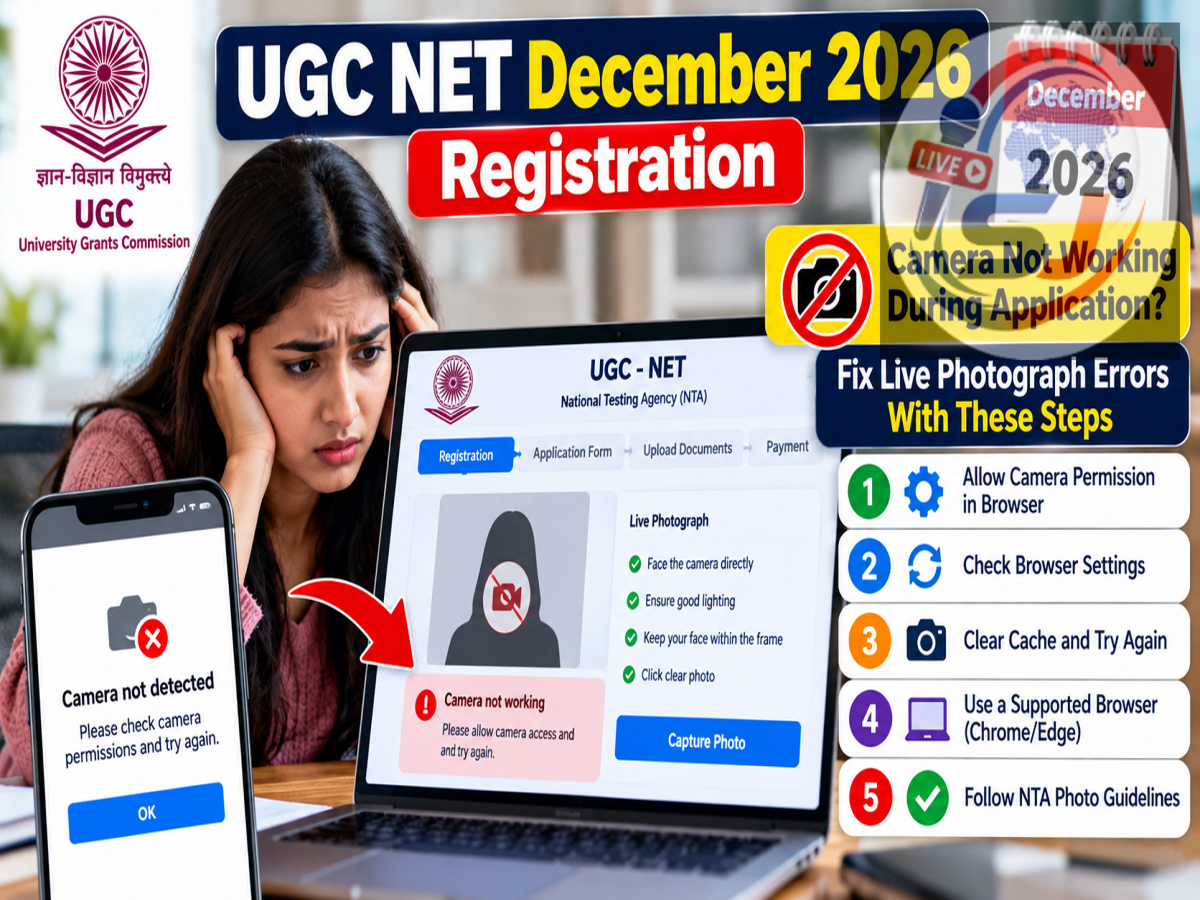
UGC NET December 2026 Application Update: Candidates completing their online registration for the University Grants Commission National Eligibility Test (UGC NET) December 2026 session may encounter technical difficulties while taking the live photograph required during the application process.
Problems such as camera access being blocked, poor lighting, unclear facial images or browser-related errors can prevent applicants from completing this stage successfully.
A live photograph is intended to capture the applicant's image directly through a camera during registration. Unlike a conventional uploaded photograph, this process may require the candidate to remain in front of the device while the application system captures and validates the image.
Candidates facing difficulties should not immediately abandon their applications or create duplicate registrations. Several common issues can often be resolved by adjusting camera settings, improving lighting or changing browser configurations.
Here is a detailed guide to troubleshooting live photo capture problems while applying for UGC NET December 2026.
Why Is a Live Photograph Required During UGC NET Registration?
The National Testing Agency (NTA) conducts UGC NET to determine eligibility for Junior Research Fellowship, appointment as Assistant Professor and admission to PhD programmes under the applicable examination rules.
The online application process involves submitting personal information, educational qualifications and other required details.
Where live photo capture is specified by the application system, it helps associate the applicant's current facial image with their registration record.
This identity-verification step can support the examination authority's efforts to maintain accurate candidate information.
However, applicants must follow the exact photograph instructions displayed on the official portal because requirements may differ between examination sessions.
Common Reasons Why Live Photo Capture Fails
Camera-related problems can occur for several reasons. Some involve the applicant's surroundings, while others are connected to the device or browser.
| Possible Issue |
Recommended Solution |
|---|---|
| Face appears too dark |
Move to a brighter location |
| Multiple faces visible |
Ensure only the applicant is in the frame |
| Camera permission blocked |
Allow camera access in browser settings |
| Image appears blurred |
Clean the lens and keep the device steady |
| Browser error |
Try an updated compatible browser |
| Temporary browser problem |
Clear relevant cache or use a private window |
| Weak internet connection |
Switch to a more stable network |
| Camera being used elsewhere |
Close other applications accessing the camera |
These troubleshooting measures may resolve common technical issues, although the final result depends on the application portal's requirements.
1. Improve Lighting Before Capturing Your Photograph
Lighting is one of the most important factors affecting camera image quality.
If a candidate attempts to capture a photograph in a poorly illuminated room, the face may appear unclear or difficult to recognise.
A brighter environment can help the camera produce a more usable image.
Applicants should sit facing a suitable light source rather than placing a bright window directly behind them.
Strong backlighting may make the background appear bright while leaving the face dark.
Natural daylight or evenly distributed indoor lighting can often provide better results.
Candidates should also avoid excessive glare that obscures facial details.
2. Keep Only One Person Inside the Camera Frame
Another common reason for unsuccessful photo capture is the presence of more than one face in the camera view.
Applicants should ensure that nobody else is standing or sitting behind them while the photograph is being taken.
The camera should clearly show the candidate's face without unnecessary distractions.
If another person appears in the background, the application system may have difficulty identifying the intended subject.
A plain, uncluttered background can make the capture process easier.
Candidates should follow the framing instructions displayed on the screen rather than guessing the required face position.
3. Position Your Face Correctly
Even when the camera is functioning, incorrect positioning can affect image capture.
Candidates should face the camera directly and keep their heads within the indicated frame.
They should avoid moving suddenly while the image is being captured.
Holding a phone or laptop steady can also help prevent blurred photographs.
If the portal displays an outline, guide box or other positioning instructions, applicants should adjust their distance from the camera accordingly.
The aim is to capture a clear and recognisable facial image.
4. Check Whether Your Browser Has Camera Permission
Sometimes the camera works normally in other applications but does not open on the examination website.
This may happen when the browser has not been granted permission to access the device's camera.
Applicants should check the browser's site permissions and ensure that camera access is enabled for the official application portal.
If permission was previously denied, it may need to be changed manually.
After updating the setting, candidates can reload the relevant page and attempt the capture again.
They should grant camera access only to the legitimate examination website, not to suspicious links or imitation portals.
5. Try a Different Browser if the Camera Still Does Not Open
Browser compatibility can affect how web-based camera features operate.
If the live photograph facility fails repeatedly, applicants can try accessing the application through another updated browser supported by the portal.
For example, a candidate experiencing difficulties in one browser may attempt the process using another compatible option.
However, applicants should first check whether NTA has specified recommended browsers or device requirements.
Using an outdated browser may create compatibility problems with modern camera-access features.
Updating the browser can sometimes resolve these issues.
6. Clear Browser Cache or Use Private Browsing
Temporary browser data may occasionally interfere with website functionality.
If the application page is not loading correctly or the camera feature becomes unresponsive, clearing relevant cached data may help.
Candidates can also try opening the official application portal in a private or incognito window.
Private browsing may reduce interference from certain stored settings or browser extensions.
However, it does not automatically resolve every permission issue.
Applicants may still need to explicitly allow camera access.
Before clearing browser data, candidates should ensure that important application information has been saved and that they know their login credentials.
7. Check the Camera and Internet Connection
A malfunctioning camera or unstable network can also interrupt the registration process.
Candidates should test whether their device's camera works properly outside the application portal.
If another application is currently using the camera, closing that application may help.
A dirty camera lens can cause unclear photographs, so applicants should ensure that the lens is clean.
Internet connectivity is equally important.
A photograph may be captured successfully on the device but fail to reach the application system if the connection is interrupted.
Using a reliable internet connection can reduce the likelihood of incomplete submissions.
8. Restart the Device and Try Again
If none of the initial steps resolves the problem, restarting the phone or computer may help.
A restart can close background processes and reset temporary device-related issues.
After restarting, applicants should open the official website again, sign in and return to the relevant application section.
They should check whether previously entered information has been saved before attempting the photograph capture again.
Candidates should avoid submitting multiple applications merely because the camera feature failed during an earlier attempt.
How to Check Whether the Photograph Was Successfully Captured
After taking the photograph, candidates should look for confirmation from the application system.
Depending on the portal's design, the captured image may appear in a preview or completed application section.
Applicants should carefully review the displayed photograph and confirm that it meets the stated requirements.
If the image is unclear and the portal permits another attempt, candidates should retake it before proceeding.
They should not assume that the photograph has been accepted simply because the camera briefly activated.
The registration stage should be considered complete only when the portal confirms successful submission of the required information.
What If the Live Photo Feature Continues to Fail?
Candidates who remain unable to complete the process should consult the instructions and support information published on the official UGC NET website.
The relevant portal is ugcnet.nta.ac.in.
Applicants can also visit the National Testing Agency website for official notices and examination-related information.
When reporting a technical problem, candidates should describe the error clearly and provide relevant details requested through the authorised support channel.
They should avoid sharing passwords, OTPs or other confidential login information.
Important Precautions Before Submitting the UGC NET Form
Applicants should verify that their personal information, educational details and uploaded documents match the requirements of the examination notification.
They should also review the final application carefully before submitting it.
Any applicable registration fee should be paid only through the authorised payment facility.
Candidates should retain the final confirmation page or other official acknowledgment once the application has been successfully submitted.
A photograph capture error should not be confused with completion of the entire registration process.
The application is complete only after all required stages have been finished according to the portal's instructions.
Final Takeaway
Candidates applying for UGC NET December 2026 may experience problems with the live photograph feature because of inadequate lighting, incorrect facial positioning, blocked camera permissions, browser settings or unstable internet connectivity.
Most basic troubleshooting should begin with checking the camera, improving the surroundings and following the instructions displayed on the official registration portal.
If the issue continues, candidates can try a compatible browser, review camera permissions or contact the examination authority through authorised support channels.
Applicants should ensure that their photograph has been successfully accepted before moving to the next stage of registration.
Disclaimer: This article provides general troubleshooting guidance based on the supplied October 23, 2026, report. Candidates should consult the official NTA UGC NET information bulletin and application portal for session-specific photograph requirements, registration dates and technical instructions.