
Stop Apps From Tracking Your Location: Change These Simple Settings on Android and iPhone
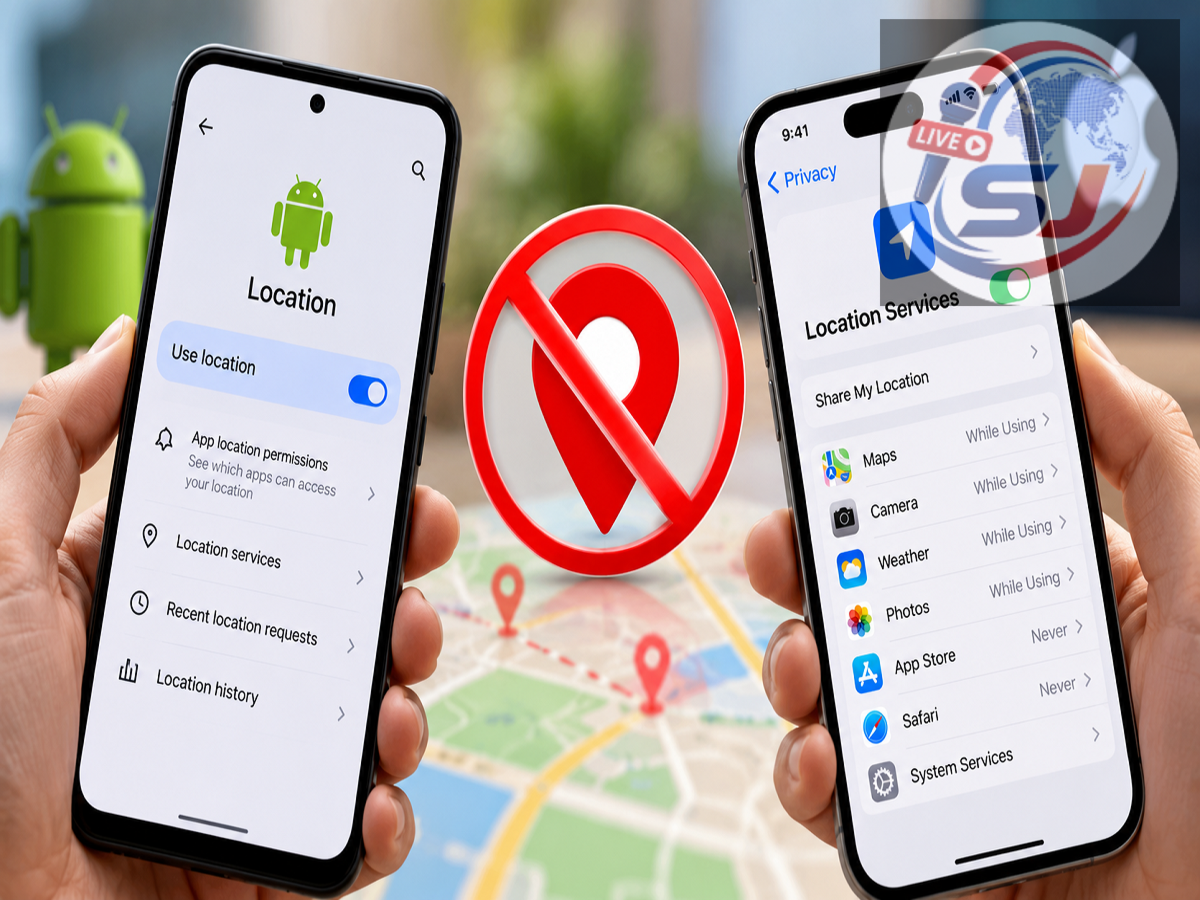
Smartphone Privacy Tips 2026: Your smartphone may be sharing your location with more applications than you realise. From shopping and social media platforms to weather services and mobile games, several apps request access to location data during installation or first use. Many people approve these requests without checking whether the application actually needs their location.
Fortunately, both Android smartphones and Apple iPhones offer built-in privacy controls that allow users to decide which applications can access their location and when.
You can block location access completely, allow it only while using an application or prevent apps from obtaining your precise position. The best part is that you do not need to uninstall an app to change these permissions.
Here is a simple guide to controlling location tracking and improving your smartphone privacy.
Why Do Smartphone Apps Ask for Your Location?
Location information helps applications provide services based on where you are.
For example, Google Maps needs location access to provide navigation, while food delivery applications may use it to identify your delivery address. Weather apps can also use location data to display forecasts for your area.
However, not every application needs continuous access to your whereabouts.
Some apps request location permission for advertising, analytics, personalised recommendations or other features that may not be essential to their main purpose.
Allowing unnecessary access could reveal information about places you frequently visit, your daily travel patterns and other aspects of your routine.
This is why reviewing location permissions regularly is an important smartphone privacy practice.
How to Turn Off App Location Tracking on Android
Android smartphones allow users to manage location permissions separately for individual applications.
You can restrict an app's access without affecting other apps that genuinely need location services.
Follow these steps:
-
Open the Settings application on your Android phone.
-
Scroll down and select Location.
-
Tap App location permissions or the equivalent option on your device.
-
Review the list of applications that have requested location access.
-
Select the application whose location permission you want to change.
-
Choose Don't allow to prevent the application from accessing your location through the standard permission system.
Once this setting is applied, the selected application will no longer have the same access to your device's location services.
The exact menu names may differ depending on the smartphone manufacturer and Android version.
Allow Location Access Only When Using an App
Completely disabling location access may not be practical for every application.
For example, a ride-booking app may need your location when you request a vehicle but does not necessarily need continuous access when you are not using it.
Android provides a useful option called Allow only while using the app.
When this permission is selected, the application can access location information while it is actively being used, subject to the operating system's rules.
Some Android versions also offer an Ask every time option, allowing users to approve location access whenever necessary.
These settings can help reduce unnecessary background access while keeping important app features available.
How to Disable Precise Location on Android
Modern Android smartphones may also provide a setting that controls how accurately an application can determine your location.
When Use precise location is enabled, an app may receive highly accurate location information.
Turning this setting off limits the application to approximate location data.
For example, a weather application may only need to know your general area to display a useful forecast.
To change this setting, open the app's location permission screen and disable Use precise location, where available.
This can provide an additional level of privacy without completely blocking location-based services.
How to Stop Location Tracking on iPhone
Apple also allows iPhone users to control location access for individual applications.
The process is straightforward and does not require installing any third-party privacy application.
Follow these steps:
-
Open Settings on your iPhone.
-
Select Privacy & Security.
-
Tap Location Services.
-
Scroll through the list of applications.
-
Choose the app whose permission you want to modify.
-
Under the location access options, select Never.
After selecting Never, the app will no longer have permission to obtain your location through Apple's standard Location Services access.
If you want to continue using certain location-based features, you can choose a more limited permission instead.
How to Allow Location Access Only While Using an iPhone App
iPhone users can select While Using the App for applications that need location access during normal operation.
This option is particularly useful for navigation, transport, shopping and delivery applications.
Depending on the app and iOS version, additional choices may be available, such as asking for permission the next time the application requires location information.
Apple also provides a Precise Location switch for supported applications.
Disabling Precise Location allows an app to receive an approximate position rather than your exact location.
This can be useful for applications that only need to identify your city or general area.
Does Turning Off Location Permission Stop All Tracking?
Disabling location permissions is an effective way to restrict an application's access to device location services. However, it does not guarantee that the application can no longer estimate where you are.
Some online services can identify an approximate geographical area using your internet connection's IP address.
Applications may also use information you voluntarily provide, such as delivery addresses, location tags or previously saved account details.
Wi-Fi networks, mobile network information and other signals may contribute to location-related functionality depending on the operating system, available permissions and service.
Therefore, managing location permissions is only one part of protecting your digital privacy.
Users should also review the personal information they share with applications and websites.
Which Apps Should Have Location Permission?
Not every application requires the same level of location access.
| App Category |
Suggested Location Setting |
|---|---|
| Navigation apps |
While using the app |
| Food delivery apps |
While using the app |
| Weather apps |
Approximate location, if sufficient |
| Shopping apps |
Deny unless location is needed |
| Mobile games |
Deny unless required for gameplay |
| Social media apps |
Deny or allow only when necessary |
| Ride-booking apps |
While using the app |
These are general recommendations. Some features may require different permissions to function properly.
For instance, certain navigation or safety-related features may need location access beyond the time an app is visible on the screen.
Users should choose permissions according to their actual requirements.
Extra Privacy Settings Every Smartphone User Should Check
Location permission is not the only setting worth reviewing.
Smartphone users should periodically examine access to their camera, microphone, contacts, photos and other sensitive information.
Applications should receive only the permissions necessary to perform their intended functions.
It is also advisable to remove applications that are no longer used, install software updates and avoid downloading apps from untrusted sources.
On Android, the Privacy Dashboard or Permission Manager can help users review permission activity, depending on the device version.
On iPhone, the App Privacy Report, where available and enabled, can provide information about certain app activities, including access to sensitive permissions.
These tools can help users make more informed decisions about their privacy.
Can Turning Off Location Services Improve Battery Life?
Location services can consume battery power, particularly when applications frequently request location updates or use continuous navigation features.
Reducing unnecessary background location access may help limit this activity.
However, the actual battery savings depend on the device, application behaviour and how frequently location services are used.
Users do not need to disable all location functionality simply to conserve battery power.
Restricting unnecessary app permissions is often a more practical approach.
Smartphone Location Privacy: What Should You Do Today?
Your smartphone's location information can be useful, but it should not be accessible to every application without a clear reason.
Both Android and iPhone offer straightforward settings that help users decide which apps can access their location, how accurately they can determine it and when permission should be granted.
The most useful approach is to review app permissions regularly, block unnecessary access and allow location services only when they provide a genuine benefit.
These simple changes can improve your control over personal information while allowing essential applications to continue working normally.
Editorial note: This article is substantially rewritten in original English, with updated explanatory context and practical steps. Menu names and permission options may vary by Android version, iOS version and smartphone manufacturer.